

- blog
- Cold Emailing
- Send Email to Multiple Recipients: Complete Guide
How to Send Email to Multiple Recipients: The Complete Guide for Professional Outreach
Table of Contents
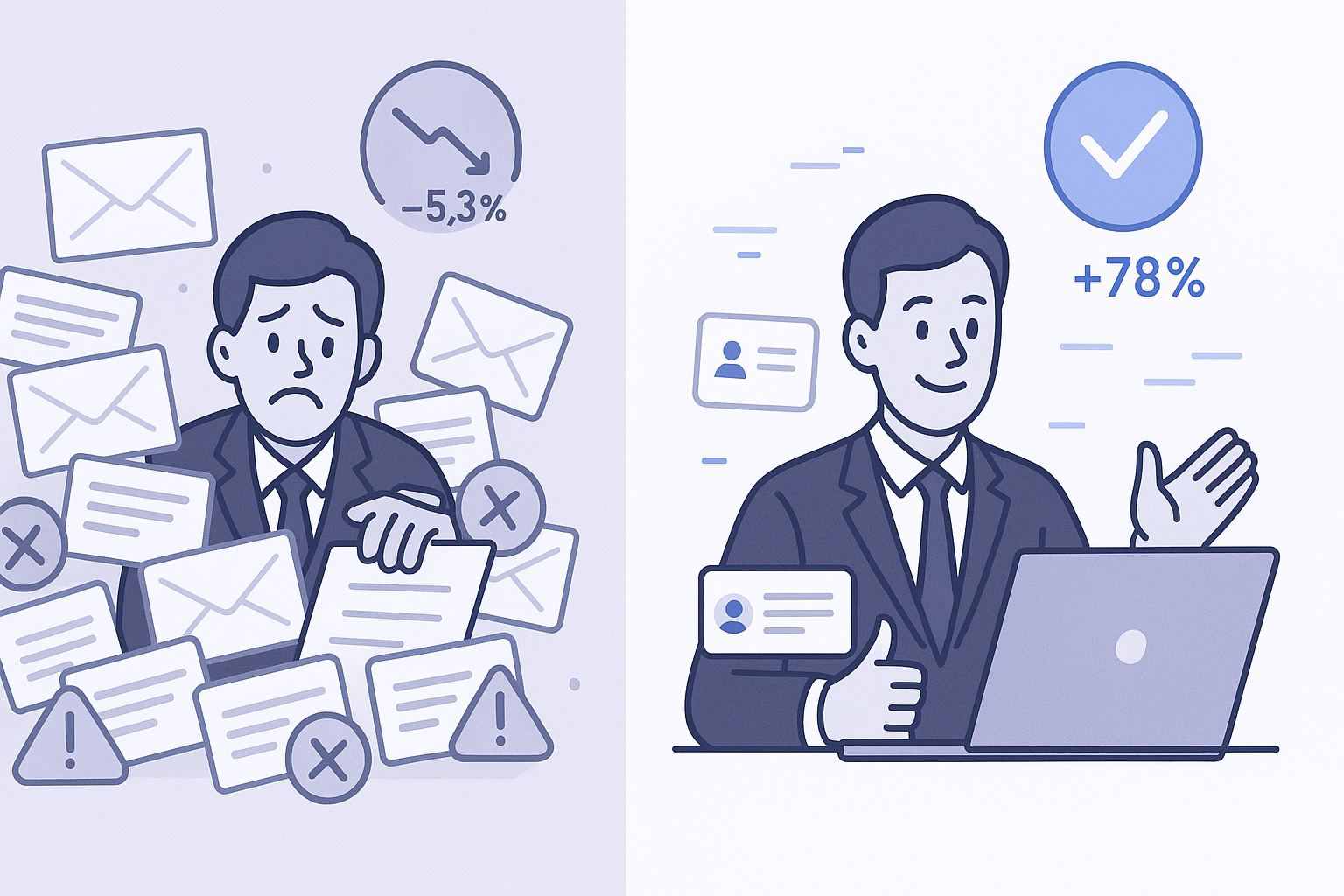
You’ve built the perfect prospect list. The contacts are ideal. Now comes the crucial moment: how do you reach out to multiple recipients without spending your entire week copying and pasting, or worse, sending a generic blast that lands you in the spam folder?
This is the daily challenge every professional faces—the balance between efficiency (reaching many people) and effectiveness (being personal). Getting this wrong isn’t just a missed opportunity; it’s a fast track to looking unprofessional and damaging your reputation.
Â

Â
This guide breaks down the four main ways to send email to multiple recipients. We’ll walk you through each method, from basic techniques to professional-grade tools. By the end, you’ll know exactly which method to choose for any situation.
4 Methods to Send an Email to Multiple Recipients
Choosing how you send email is as important as what you write. The method you select can be the difference between a successful campaign and a spam complaint. Let’s explore your options.
Method 1: The Team Huddle (Using ‘To’ and ‘CC’)
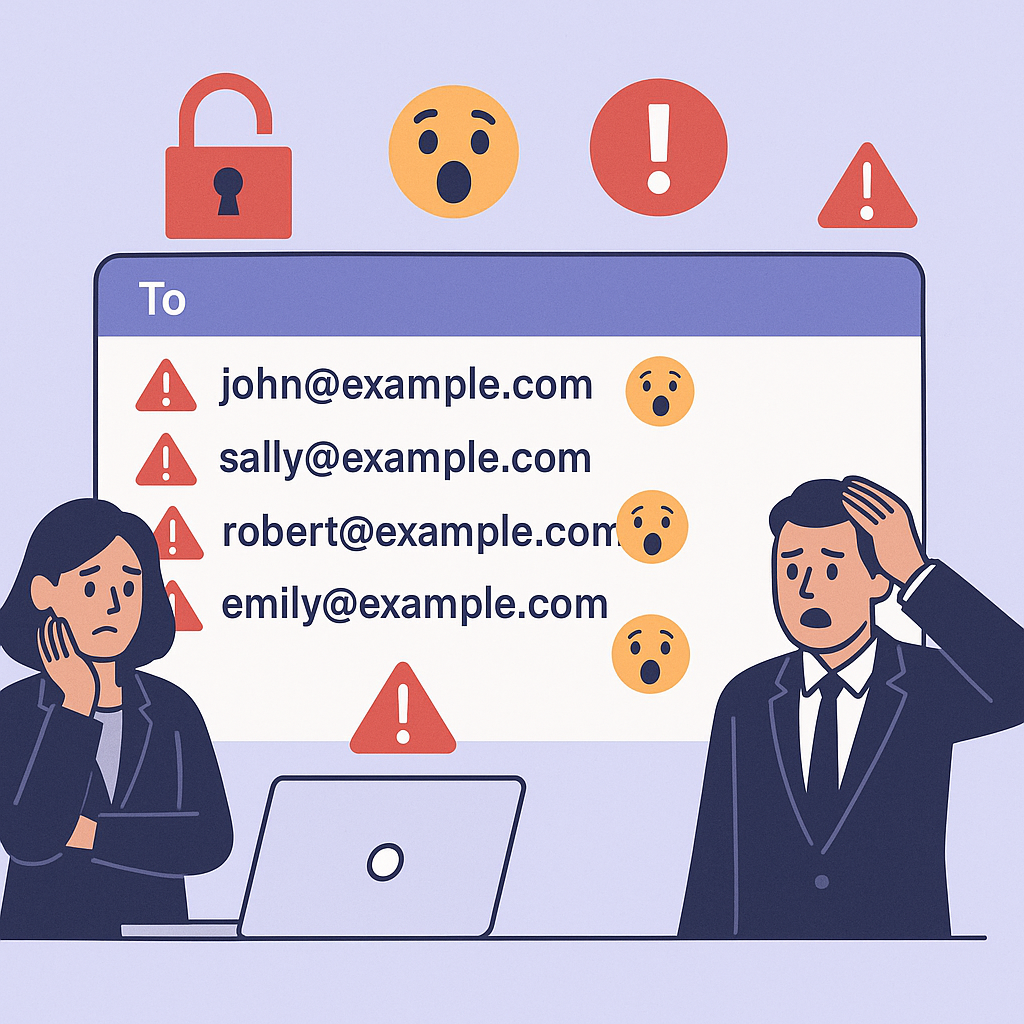
The ‘To’ and ‘CC’ (Carbon Copy) fields are the most basic email functions. Their defining feature is transparency—every single person can see the complete list of other recipients’ email addresses.
Best Use Case: This method should be reserved exclusively for internal team communication. It’s perfect for keeping your team aligned or updating colleagues on shared projects.
Why It’s a Deal-Breaker for Outreach:
- Massive Privacy Breach: Exposing your entire contact list to each other is profoundly unprofessional. Recipients can see their competitors on the same email.
Â
Â

Â
Â
- Guaranteed Low Engagement: An email sent this way screams “generic blast.” This lack of personalization gives recipients every reason to ignore or mark your message as spam.
Using ‘To’ or ‘CC’ for external outreach creates an immediate “trust deficit.” Before prospects even read your message, you’ve demonstrated a lack of respect for their privacy.
💼 Build Trust From First Contact
LinkedIn’s professional context creates instant credibility—no privacy concerns, no generic blasts, just relevant conversations
Method 2: The Quick Fix (Using ‘BCC’)
‘BCC’ (Blind Carbon Copy) is the classic solution for sending to multiple recipients while protecting their privacy. When you add email addresses to the BCC field, each person receives a copy without seeing other recipients.
Best Use Case: Simple, one-way announcements where personalization isn’t necessary, such as event reminders to registered attendees.
The Problems:
- Zero Personalization: You cannot use merge tags like {FirstName}. Personalized emails deliver six times higher transactional rates and generate a median ROI of 122%.
- Looks Unprofessional: Many email clients give recipients clues they were BCC’d, which feels impersonal and cheap.
- High Spam Risk: Sending to long BCC lists is a classic spam tactic. Email providers are suspicious of this behavior and more likely to route messages to spam folders.
- No Tracking: You’re flying blind with no way to track opens, clicks, or measure campaign effectiveness.
📧 Tired of Spam Folder Battles?
LinkedIn outbound delivers 15-25% response rates with zero deliverability concerns or inbox placement issues
Method 3: Your First Step to Scaling (Using Mail Merge)
Mail Merge bridges manual emailing and full automation. It combines a template with a data source (Excel spreadsheet or Google Sheets) to generate personalized emails for each recipient.
The Power of Personalization:
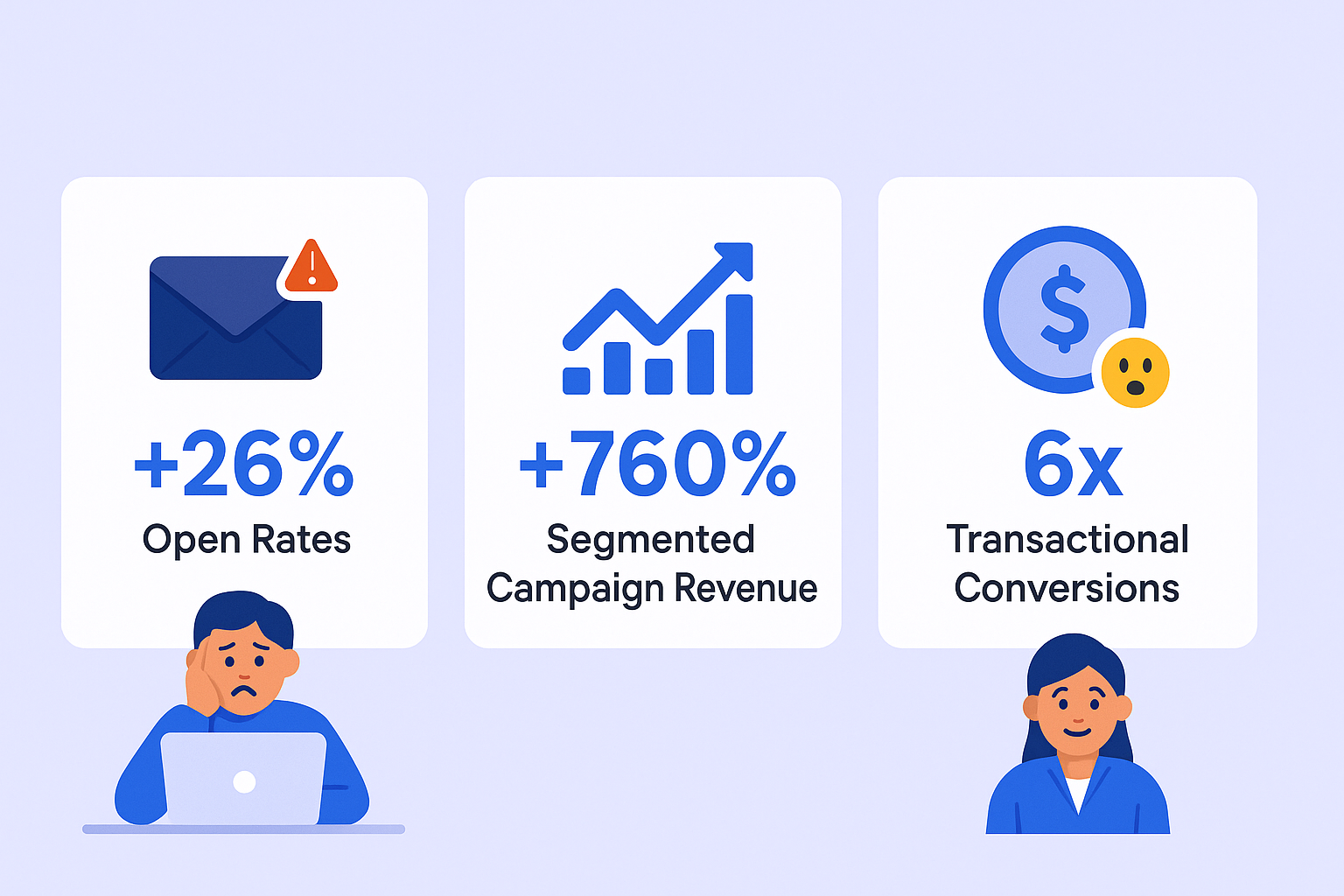
- Personalized subject lines boost open rates by 26%
- Segmented campaigns can increase revenue by 760%
- Personalized emails deliver six times higher transactional rates
Â

Â
Gmail Mail Merge Steps:
- Prepare Your Google Sheet: Create columns for FirstName, LastName, Company, Email
- Draft Your Email: Click “Compose” and toggle “Mail Merge” on
- Insert Merge Tags: Type @ symbol and select merge tags like @firstname
- Link Your Sheet: Click “Add from a spreadsheet” and map columns
- Preview and Send: Review personalized previews before sending
Outlook Mail Merge Steps:
- Prepare Excel Data: Create spreadsheet with headers and contact data
- Create Template in Word: Go to Mailings > Start Mail Merge > E-mail Messages
- Link Excel Sheet: Select Recipients > Use Existing List
- Insert Merge Fields: Place cursor and insert personalized fields
- Preview and Send: Use Preview Results, then Finish & Merge
The Scaling Ceiling:
Mail merge introduces you to personalization but has hard limits:
- Strict Sending Quotas: Gmail limits 500 emails/day (free) or 2,000/day (paid). Outlook offers 10,000 recipients/day but throttles at 30 messages/minute

🚀 Outgrow Email Sending Limits
Scale to thousands of daily prospects on LinkedIn without quotas, throttling, or deliverability headaches
- No Automated Follow-ups: The first follow-up email can increase replies by 49%, but mail merge is “one-and-done”
- No Analytics: No built-in tracking for opens, clicks, or performance metrics
- No A/B Testing: No way to systematically test different approaches
Method 4: The Professional Standard (Email Outreach Tools)
This is the definitive solution for serious professionals. Platforms like Salesso are purpose-built for scaling personalized outreach safely and effectively.
Core Benefits:
- Hyper-Personalization at Scale: Use any data point from your spreadsheet. Advanced “spintax” creates variations ensuring each email is unique
- Automated Sequences: Build multi-step campaigns with automated follow-ups that stop when prospects reply
- Break Through Sending Limits: Connect multiple accounts for intelligent auto-rotation, sending thousands daily while staying within limits
- Actionable Analytics: Real-time tracking of opens, clicks, replies, and bounces with A/B testing capabilities
- Superior Deliverability: Automated email warm-up, validation, and domain health monitoring
Using professional tools elevates you from tactical activity to strategic execution. Instead of spending 80% of time on manual tasks, you can focus on strategy, research, and optimization.
âš¡ Go Beyond Email Automation
Our LinkedIn outbound engine combines precision targeting, campaign design expertise, and systematic scaling for predictable pipeline growth
7-day Free Trial |No Credit Card Needed.
Best Practices for Addressing Multiple Recipients
Success requires more than choosing the right method. Follow these practices for professional, effective outreach.
Nail the Foundation: Deliverability & Compliance
Warm Up Your Domain: Gradually increase sending volume over weeks to build positive reputation with email providers.
Set Up Technical Records: Configure SPF and DKIM records to prove email authenticity and avoid spam folders.
Legal Compliance:
- CAN-SPAM Act (U.S.): Include valid physical address and clear unsubscribe option. Penalties reach $53,088 per email
- GDPR (E.U.): Operate under “legitimate interest” for relevant business contacts, always provide opt-out
Craft Emails That Get Replies
Personalize Beyond Names: Reference LinkedIn posts, company news, or industry-specific challenges to show you’ve done homework.
Keep It Concise: Emails between 50-125 words get highest reply rates. 81% of consumers check email on smartphones where long paragraphs fail.
Write Compelling Subject Lines: Personalized subject lines increase opens by 26%. Try “Question about [Company Name]” or “Idea for your team.”
Single Clear Call-to-Action: End with one specific, low-friction next step instead of multiple confusing options.
Master Professional Etiquette
Field Selection Guidelines:
- To: Primary person needing action
- CC: Keep relevant parties transparently informed
- BCC: Almost never for professional outreach
Avoid Reply-All Chaos: Before hitting “Reply All,” consider if everyone truly needs your response.
Use Inclusive Greetings: Address known groups by name (“Hi Jane, Ben, and Alex”) or use neutral terms (“Hi team”).
Key Takeaway: Your Decision Guide
Choose the right method in seconds:
Method | Best For | Key Benefit | Major Drawback |
To/CC | Internal team updates | Full transparency | Exposes all emails – never for outreach |
BCC | Simple announcements | Protects privacy | No personalization, high spam risk |
Mail Merge | First personalized campaigns | Basic personalization | Hits limits fast, no automation |
Outreach Tool | Professional scaling | Full automation & tracking | Requires investment (massive ROI) |
FAQs
How can I send email to multiple recipients without them seeing each other?
What are Gmail's sending limits in 2025?
What are Outlook's sending limits?
How do I track email opens?
Is the "Who's Viewed Your Profile" feature truly useful?
Skip Email Limits Entirely
Get 15-25% response rates with LinkedIn outbound—no spam folders, no sending quotas
Segmentation That Actually Converts
LinkedIn outbound targets precise demographics with strategic campaign design and scaling methods