

LinkedIn Merge Accounts: Your Complete Guide to Consolidating Profiles 2026
- Sophie Ricci
- Views : 28,543
Table of Contents
You created a second LinkedIn profile by accident. Maybe you used your old work email address and forgot about your original account. Or maybe you thought having two profiles would help you reach more people (spoiler: it won’t).
Either way, you’re here because you need to fix this. Fast.
Here’s the truth: LinkedIn only allows one personal profile per person. Having multiple accounts violates their terms of service and puts your entire network at risk. But the good news? You can consolidate everything into one profile and get back to building your career without looking over your shoulder.
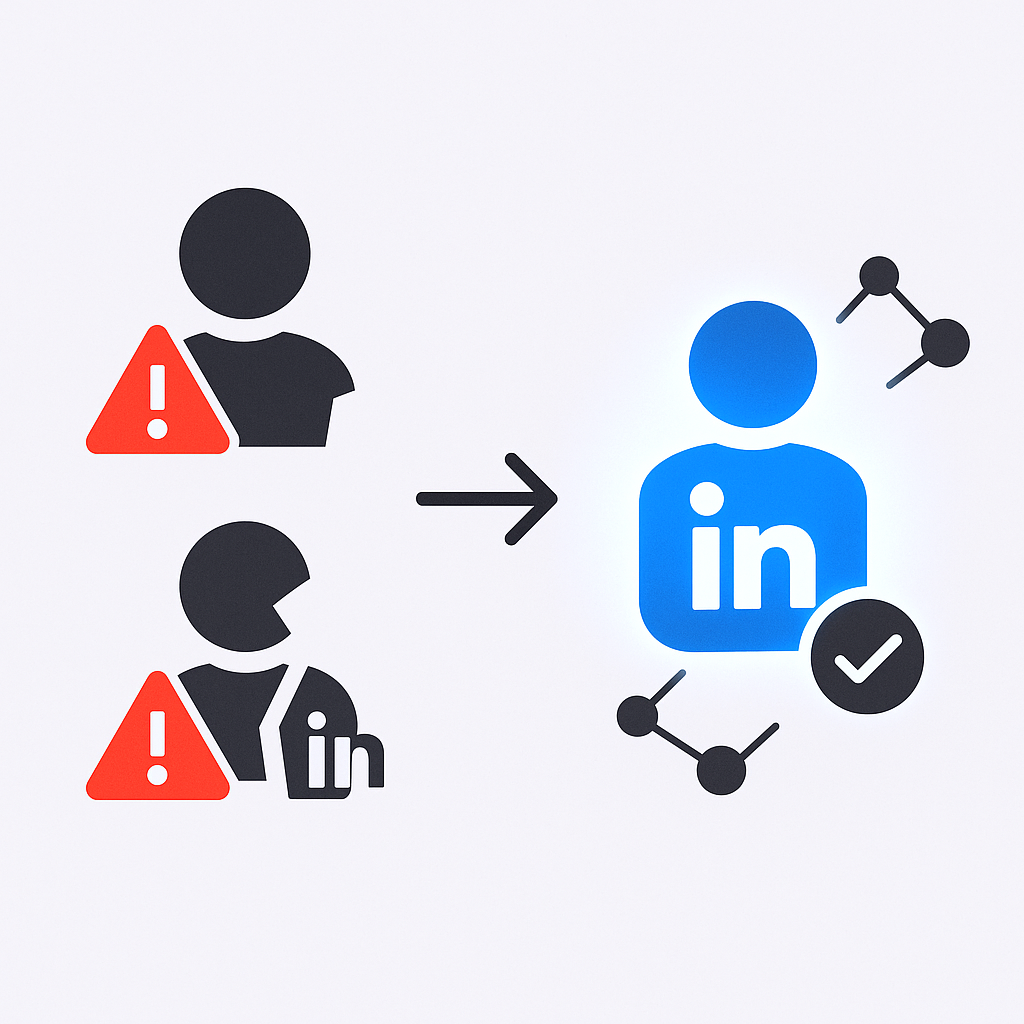
Let’s walk through exactly how to merge LinkedIn accounts the right way.
Why Multiple LinkedIn Accounts Are a Problem (Not a Strategy)
Here’s what most people don’t realize: duplicate profiles don’t double your reach—they dilute your credibility.
Think about it from a recruiter’s perspective. They search for you and find two profiles with different information. Which one is real? Which one should they contact? Suddenly, you’ve gone from looking professional to looking… confusing.
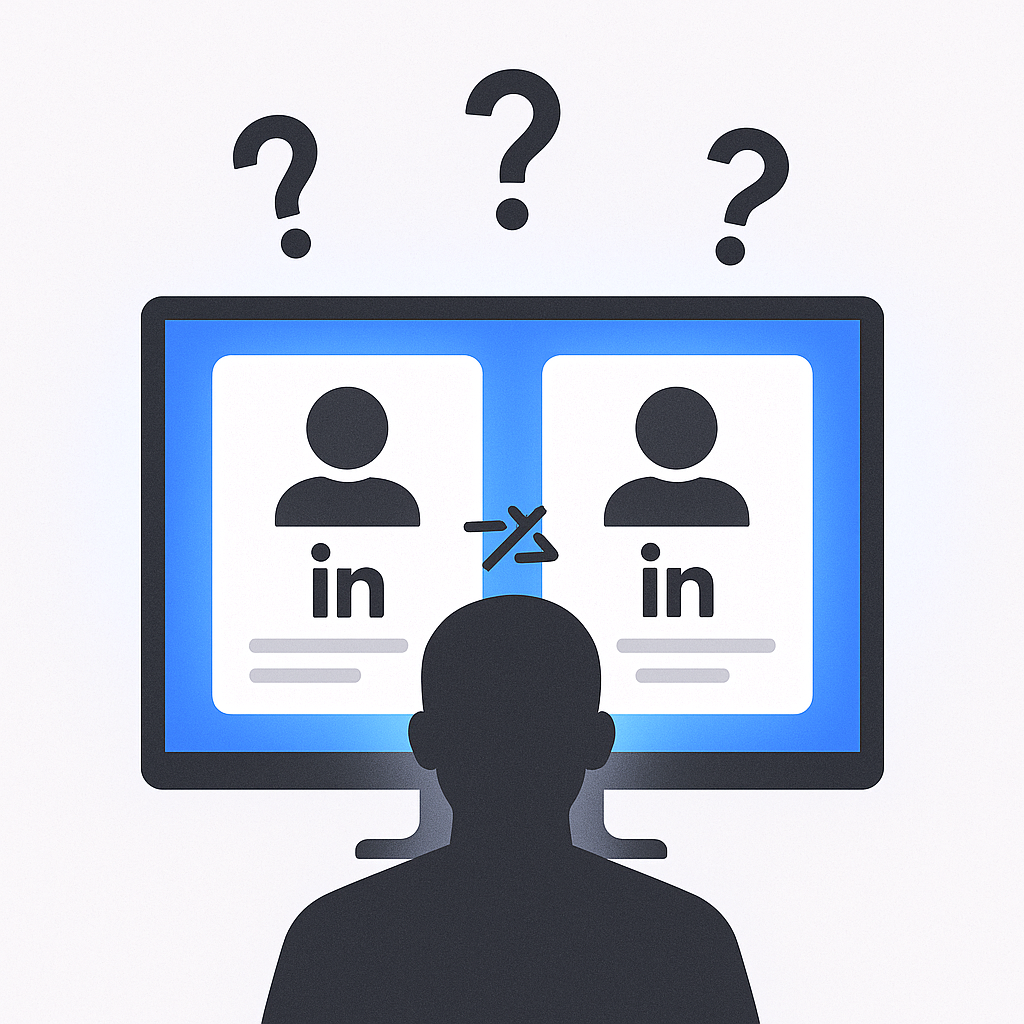
The numbers back this up. Profiles with complete information are 40 times more likely to receive opportunities through LinkedIn. When you split your experience across two accounts, you’re cutting your chances of getting noticed in half.
The Real Reason People Create Multiple Accounts
Most duplicate profiles happen by accident. You forgot your password, used a different email address, and boom—you’ve got two profiles without meaning to.
But some professionals create multiple accounts intentionally, especially in sales roles. Here’s why that’s a terrible idea:
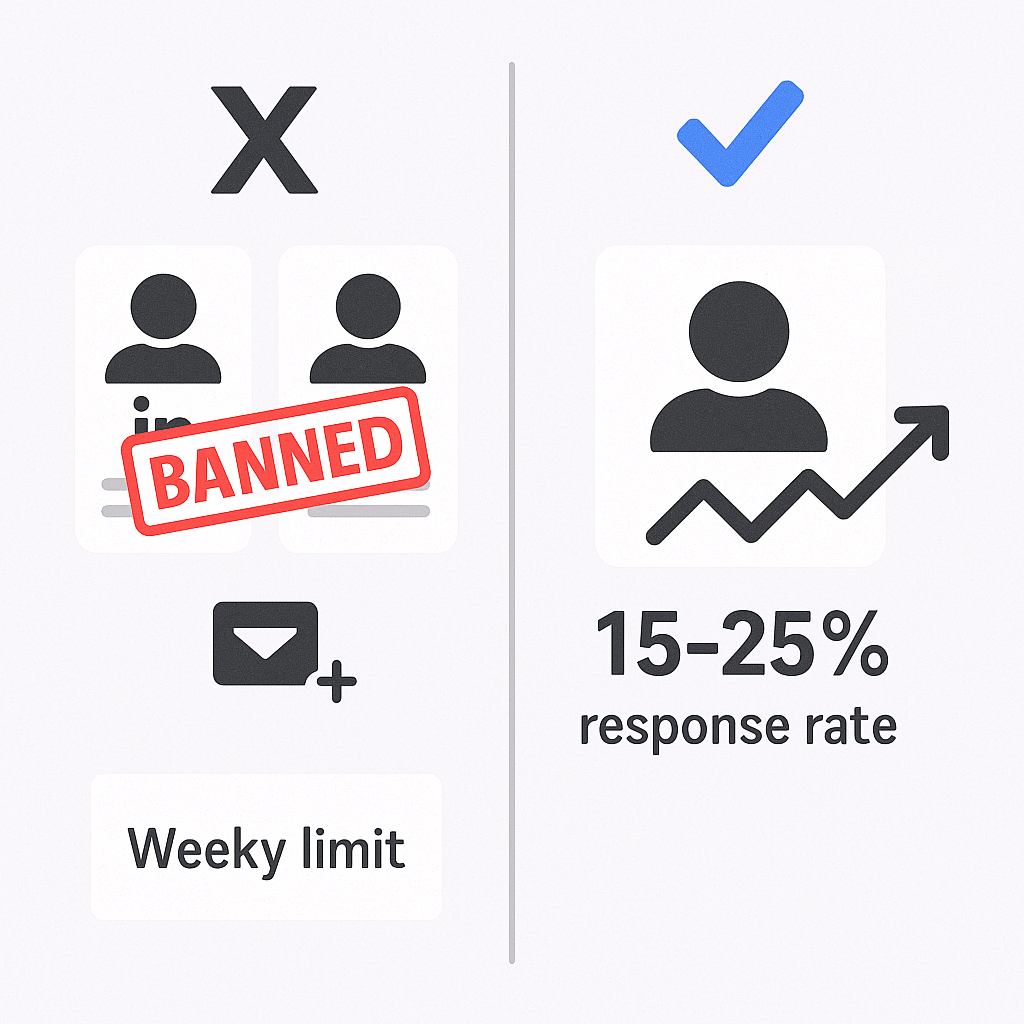
LinkedIn limits you to approximately 100 connection requests per week. Some people think creating a second account will double their outreach capacity. What actually happens? You risk getting both accounts permanently banned.
🎯 Scale LinkedIn Outreach Without Multiple Accounts
Professional campaigns get 15-25% response rates using targeting, campaign design, and systematic scaling methods
The numbers don’t lie: 79% of B2B marketers view LinkedIn as an excellent source for generating leads. That’s why the platform is so strict about enforcing the one-profile rule. They know their value, and they’re not letting anyone game the system.
💼 Generate Leads From One LinkedIn Profile
Our complete outbound strategy delivers consistent meetings without risking account bans or profile duplication
What Actually Happens When You Merge LinkedIn Accounts
Let’s be crystal clear about this: LinkedIn doesn’t actually “merge” accounts in the way you might think.
What they do is transfer your connections from one profile to another, then permanently delete the duplicate account. Everything else? Gone forever.
Here’s what transfers:
- Your connections (the people you’re connected to)
- The email address from the closed account
Here’s what disappears forever:
- All recommendations you received
- All endorsements for your skills
- Your entire work history and experience
- Every post, comment, and like
- Saved articles and jobs
- Pending invitations
- Group memberships
This is why the backup step (which we’ll cover next) is absolutely critical. Miss it, and you’ll lose career capital you’ve built over years.
Before You Merge: The Essential Backup Checklist
Here’s where most people make a massive mistake. They assume “merge” means everything combines automatically. It doesn’t.
Step 1: Choose Your Primary Account
This should be the profile with:
- The most connections (your network is your most valuable asset)
- The most complete work history
- Your current professional email address
- The highest engagement
This is the account you’ll keep. Everything else gets deleted.
Step 2: Download Your Data (THIS IS MANDATORY)
Log into the account you’re about to close. Do this before you merge anything:
- Go to Settings & Privacy
- Click “Data Privacy”
- Select “Get a copy of your data”
- Request the full archive (not just connections)
LinkedIn will email you a download link within 24 hours. The link is only valid for 72 hours, so download it immediately.
This archive is your safety net. It contains:
- Your complete connection list (as a backup)
- All your posts and comments
- Your work history and education
- Every recommendation and endorsement
Step 3: Screenshot Your Recommendations
This is tedious but essential. Recommendations don’t transfer. Period.
Open the account you’re closing and screenshot every recommendation. Save these screenshots in a dedicated folder.
After the merge, you’ll need to manually reach out to each person who recommended you and ask them to repost their recommendation on your primary profile.
Yes, it’s annoying. But it’s the only way to preserve these endorsements.
Step 4: Check for Premium Features
If either account has Sales Navigator, Recruiter Lite, or any premium subscription, cancel it first. Active premium features can complicate the merge process and potentially cause you to lose access to important lead data.
How to Merge LinkedIn Accounts (Step-by-Step)
Now we get to the actual merge process. There are two paths depending on your account details.
The Self-Service Method (Most Common)
This works if your duplicate account has between 1 and 30,000 connections.
Here’s the exact process:
- Log into your PRIMARY account (the one you’re keeping)
- Click your profile picture in the top right
- Select “Settings & Privacy”
- In the left menu, click “Account preferences”
- Scroll to “Account management”
- Click “Merge accounts”
- Enter the email address and password for your duplicate account
- Review the warning message (read it carefully!)
- Confirm by entering your primary account password again
LinkedIn will process the request over the next few days. Your connections from the duplicate account will gradually appear in your primary profile.
The Manual Support Method (For Edge Cases)
If you have 0 connections or more than 30,000 connections on your duplicate account, the self-service option won’t work.
You’ll need to contact LinkedIn support directly:
- Go to the LinkedIn Help Center
- Click “Contact Us”
- Submit a support ticket with:
- The URL of your primary account (to keep)
- The URL of your duplicate account (to close)
- A clear explanation of your request
Be prepared to verify your identity. The manual process typically takes 7 to 10 business days.
Common Mistakes That Will Cost You
Mistake 1: Not Backing Up Your Data
This is the biggest one. People assume everything transfers, skip the backup, then lose years of professional history. Don’t be that person.
Mistake 2: Merging the Wrong Account
Double-check which account you want to keep before you start the process. Once you confirm the merge, there’s no undo button. Your duplicate account and all its unique content will be permanently deleted.
Mistake 3: Forgetting About Premium Subscriptions
If you have Sales Navigator or other premium features on the account you’re closing, cancel them first. Otherwise, you might lose access to saved leads and other premium data.
Mistake 4: Not Updating Your Connections
After the merge, some of your connections might be confused. Send a quick message to your closest contacts letting them know you consolidated your profiles. This prevents confusion and maintains your professional relationships.
After the Merge: Rebuilding Your Profile
Once the merge completes, you’re not quite done. You need to manually rebuild certain elements on your primary profile.
Reconstruct Your Work History
Pull up that data archive you downloaded. Go through your duplicate account’s work history and manually add any missing positions, achievements, or details to your primary profile.
This is tedious but necessary. Remember: 68% of businesses report brand consistency as a major contributor to revenue growth. Your LinkedIn profile is your personal brand. Keep it complete and consistent.
Request New Recommendations
Contact everyone who gave you a recommendation on your old account. Send them a personalized message:
“Hi [Name], I recently consolidated my LinkedIn profiles. Would you mind reposting the recommendation you gave me? I’ve attached a screenshot to make it easier. Thanks so much!”
Most people will happily do this. It takes them 2 minutes.
Rejoin Your Groups
Group memberships don’t transfer. If you were active in industry groups on your duplicate account, manually rejoin them from your primary profile.
Update Your Skills
Your duplicate account’s skills and endorsements are gone. Review your skills list on your primary profile and add any that were unique to your old account.
Other Useful Resources
To understand how to maximize LinkedIn effectiveness from a single profile while avoiding account risks, explore these resources:
Account Safety & Recovery:
- Learn about whether verified LinkedIn accounts get banned to understand platform enforcement
- Understand how to recover permanently banned LinkedIn account if multiple accounts trigger violations
Multi-Channel Outreach Alternatives:
- Understand how to send bulk cold emails as alternative to multiple LinkedIn accounts for scaling outreach
- Read comprehensive GlockApps review to ensure deliverability when combining LinkedIn with email outreach
- Compare Mailreach alternatives for email warmup when scaling from consolidated LinkedIn presence
LinkedIn Optimization:
- Explore LinkedIn Premium discount options for maximizing your single consolidated profile
Platform Intelligence:
- Review LinkedIn traffic statistics showing engagement dynamics and proper usage patterns
LinkedIn account consolidation reveals the platform’s strict enforcement—one personal profile allowed, multiple accounts violate TOS risking permanent bans, and duplicate profiles dilute credibility rather than double reach. The merge reality is brutal: only connections and email addresses transfer while recommendations, endorsements, work history, posts, saved jobs, group memberships, and pending invitations disappear forever requiring manual reconstruction. The statistics validate single profile focus: complete profiles receive 40x more opportunities, 79% of B2B marketers cite LinkedIn as excellent lead source, and 68% of businesses report brand consistency drives revenue. But here’s what account consolidation reveals: professionals creating multiple accounts typically seek to bypass LinkedIn’s ~100 weekly connection request limit for scaling outreach—a violation risking everything rather than achieving 2x capacity. The article’s emphasis on data backup, recommendation screenshots, and manual profile rebuilding demonstrates the painful effort required to consolidate accounts created in attempts to scale beyond platform restrictions. Our complete LinkedIn outbound system eliminates both multiple account temptation AND manual scaling limitations—delivering 15-25% response rates from single profiles through done-for-you targeting, campaign design, and systematic scaling that achieves professional volume without violating TOS, risking bans, creating duplicate profile confusion, or the account consolidation nightmares preventing compliant professionals from scaling LinkedIn presence to generate consistent qualified meetings through strategic systematic execution.
FAQs About Merging LinkedIn Accounts
Can I merge three or more accounts at once?
Will my connections be notified about the merge?
What if I can't access one of my accounts?
Can I merge a personal profile with a company page?
Is the "Who's VieHow long does the merge take?wed Your Profile" feature truly useful?
We deliver 100–400+ qualified appointments in a year through tailored omnichannel strategies

- blog
- Sales Development
- LinkedIn Merge Accounts: Complete Guide