But you’re probably here to decide between a URL or a QR code.
Here’s the 30-second answer: Use a QR code. It’s faster, it’s trackable, and it removes all the friction for your prospect.
If you’re a skimmer, that’s your answer. But if you want to know why—and how to do it perfectly—this guide is for you.
Why Add LinkedIn to Your Business Card?
Think of your card as a “digital handshake.” A physical card just gives your name and company. Your LinkedIn profile provides immediate, third-party proof of who you are and why you’re worth talking to.
Builds Instant Credibility and Trust: This is the core reason. Your contact doesn’t have to take your word for it. They can instantly see your professional headshot, shared connections (a massive trust signal), recommendations, and your recent posts. 75% of B2B buyers use social media to make buying decisions, and 50% use LinkedIn as a trusted source. Handing them a card without LinkedIn is like sending them to a broken landing page.
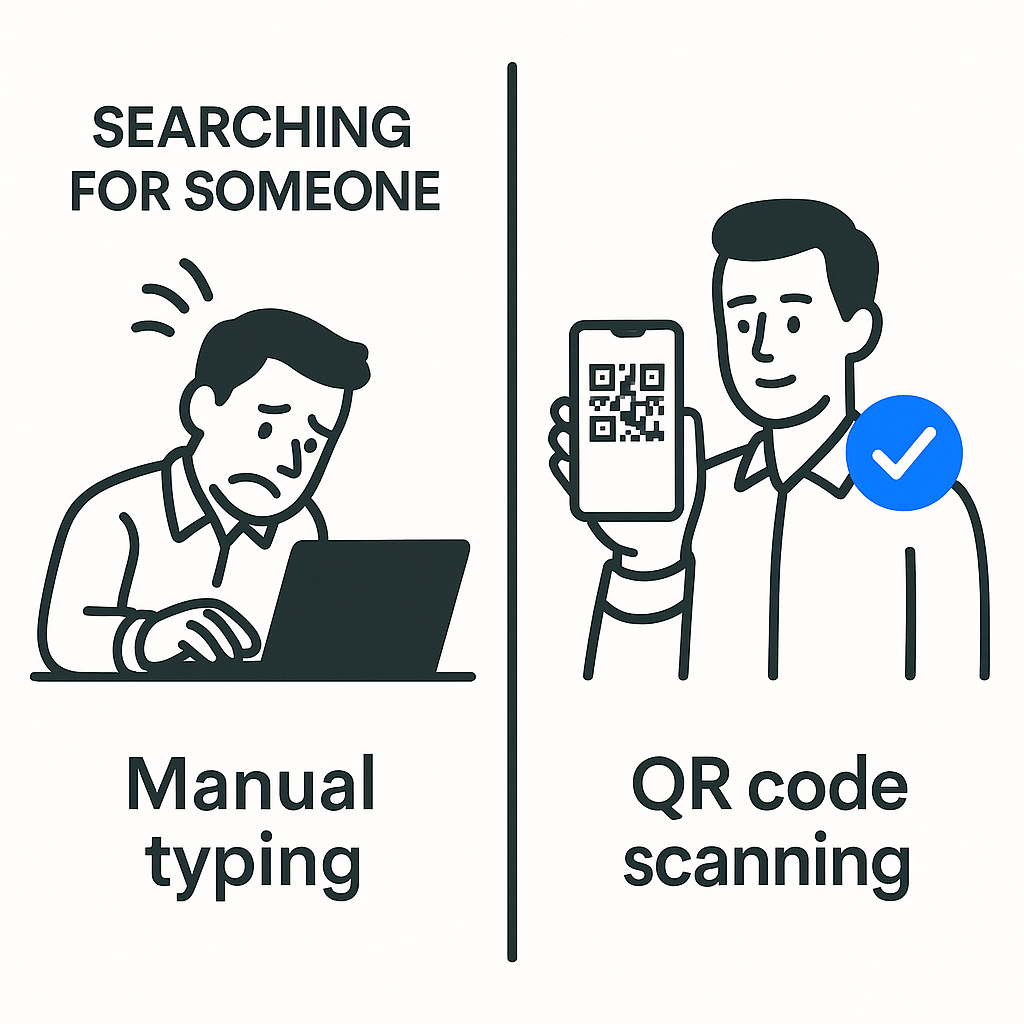
Turns a “Passive” Touchpoint into an “Active” Lead: A traditional card requires your contact to do all the work: remember you, go to their computer, type in your name, find the right person in a sea of similar names, and then connect. A card with a LinkedIn link (especially a scan) is an invitation to act now. It bridges the physical-to-digital gap in about 5 seconds.
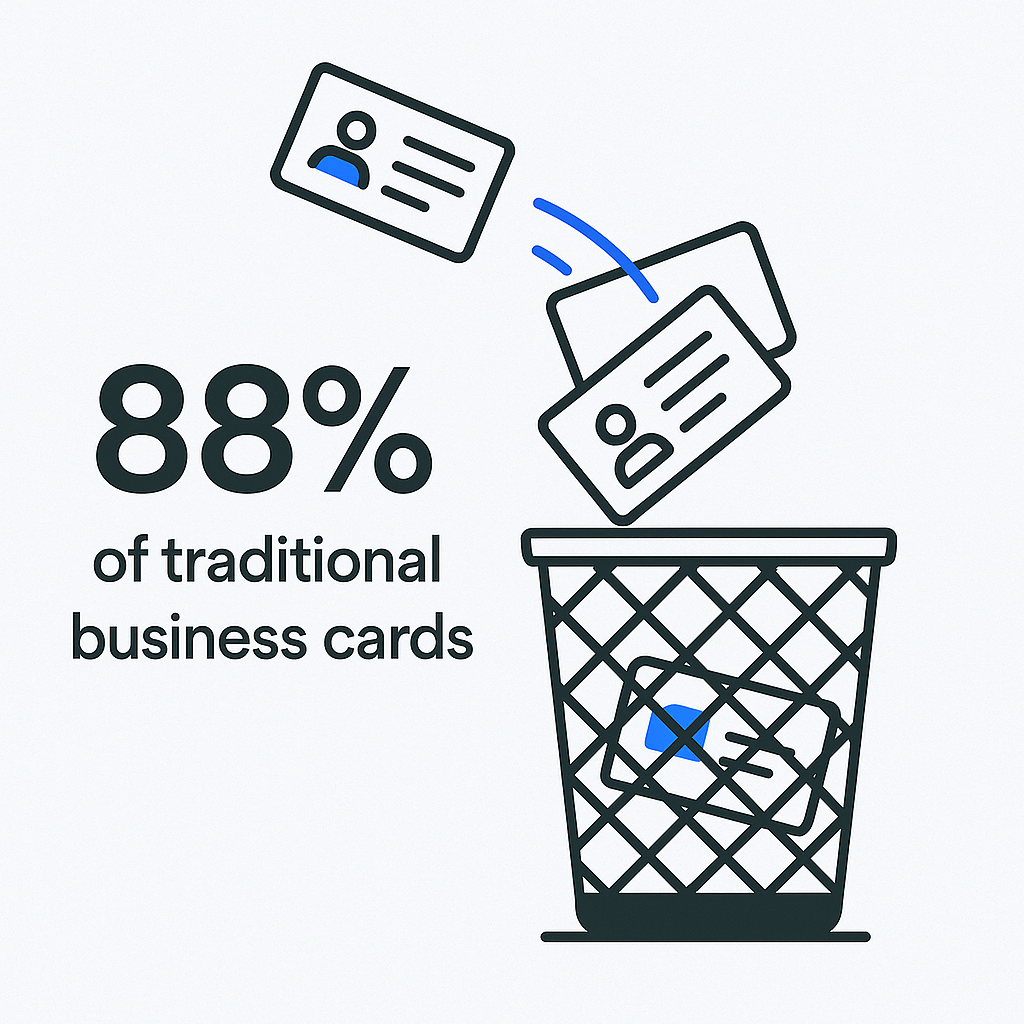
Saves Your Card from the Trash: Remember that 88% “toss rate”? A LinkedIn connection is permanent. Even if they throw away the paper, you now exist in their digital network. You’ve achieved your primary objective: capturing the contact. 89% of B2B marketers use LinkedIn for lead generation, and 62% say it successfully generates those leads. Your card should be your first and cheapest lead-gen tool.
Best Ways to Display Your LinkedIn Profile
You have two main options, and they represent two different philosophies:
The “Classic” (Passive) Method: The simple text URL.
The “Action” (Active) Method: The scannable QR code.
The text URL (linkedin.com/in/YourName) is a fine, passive way to do it. It’s clean and minimalist. We’ll cover how to customize this in a minute.
The linkedin qr code is the active method. It’s a “call to action.” It begs to be scanned.
But here’s the real pro move: the “Hybrid” Approach.
Why must it be one or the other? You have to be ready for every type of prospect. Some older, less tech-savvy contacts might not trust or use QR codes. Younger, tech-forward professionals expect a QR code.
The Expert Recommendation: Use both. Use the QR code as the primary, visual CTA. But also include the clean, customized URL in smaller text nearby. This makes your card foolproof. The QR code is for the “now” action, and the URL is for the “later” manual entry.
Using a LinkedIn URL vs. QR Code
For anyone in sales or networking, your time is money, and friction is the enemy. Let’s break down the choice with a simple scorecard.
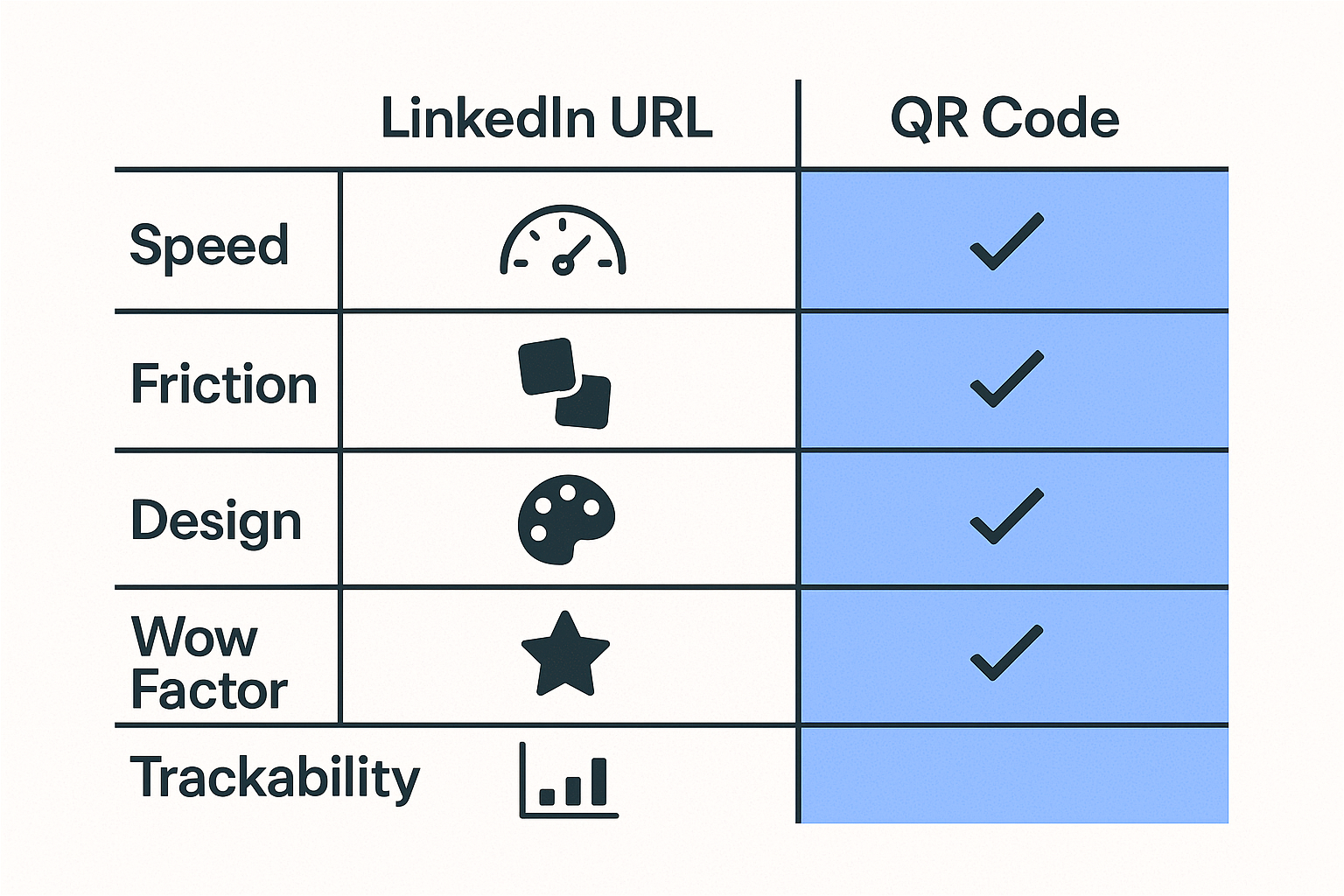
Feature | LinkedIn URL (Customized) | LinkedIn QR Code | The Verdict |
Speed | Slow. Requires manual typing. | Instant. Point, scan, connect. | QR Code. Speed to connect is speed to lead. |
Friction | High. Every letter is a chance for a typo or for them to just… not bother. | Zero. The phone does all the work. | QR Code. Your job is to make their job easy. |
Design | Clean & minimalist. Takes up one line of text. | Takes up a 0.8″x0.8″ square. Can look cluttered if not designed well. | URL (by a hair). But good design solves the QR’s problem. |
“Wow” Factor | Low. It’s expected. | Moderate. Shows you’re tech-savvy and efficient. | QR Code. It’s an interactive “call-to-action.” |
Trackability | None. You’ll never know if they used it. | Yes (if Dynamic). You can see who scanned, when, and where. | QR Code (Dynamic). This is a game-changer for tracking leads. |
The “Pro” Insight: Static vs. Dynamic QR Codes
This is the most valuable part of this entire guide. Pay attention.
You can get a free linkedin qr code right from the LinkedIn app (we’ll show you how in the FAQ). This is a Static QR Code.
Static Code: The information (your profile URL) is permanently embedded in the code. It’s free and simple.
The Problem: You can never change it without reprinting your cards. If you get promoted, change jobs, or want it to point to your company page, you’re out of luck. And worse, you get zero data from it. It’s a “dumb” code.
Now, let me introduce the secret weapon: The Dynamic QR Code.
Dynamic Code: This code is created by a third-party generator (like Bitly, QR Code Generator, etc.). The code itself just contains a redirect link that you control.
Benefit 1: It’s Editable. If you change roles, you can log in to your dashboard and change the destination URL. All your existing printed cards will now point to the new link. No reprinting needed.
Benefit 2: It’s Trackable. This is the big one. You can see how many people scanned your code, when they scanned it, and from what location.
Think about that. You’re at a conference. You hand out 30 cards. That night, you log in to your QR dashboard and see 7 new scans from the conference’s city.
These are no longer cold leads. They are warm leads. You know these 7 people were interested enough to take action. You can now prioritize these 7 people for a hyper-personalized LinkedIn follow-up. You’ve just turned a passive piece of paper into an active, real-time sales intelligence tool.
Customizing Your LinkedIn URL for Branding
This is non-negotiable. Printing a default URL like linkedin.com/in/jane-doe-b1234567 is the #1 rookie mistake. It screams “I don’t pay attention to detail,” which is fatal in professional networking.
You want a clean, “branded” URL that is easy to remember and type.
Good: linkedin.com/in/janedoe
Also Good: linkedin.com/in/janedoe-sales
Bad: linkedin.com/in/jane-doe-b1234567
Here’s how to fix it in 60 seconds (on desktop):
- Log in to LinkedIn and click the “Me” icon in the top-right.
- Select “View Profile”.
- On your profile page, click “Edit public profile & URL” in the top-right corner.
- A new page will open. In the top-right, under “Edit your custom URL,” click the pencil icon.
- Type your new custom URL (e.g., “YourName” or “YourName-Industry”).
- Click “Save.”
Pro-Tip: If “YourName” is taken, add your function or a keyword your contacts would recognize. Example: linkedin.com/in/JohnDoe-Marketing.
Where to Place LinkedIn on Your Business Card
Hierarchy is everything. Don’t make people hunt for information.
For a URL: Place it logically with your other digital contact info. Group it near your email address and website.
Design Tip: Use the official LinkedIn “in” icon (you can download it from their brand assets) instead of typing the word “LinkedIn.” It saves space and is instantly recognizable.
For a QR Code: The best, cleanest, and most professional placement is on the back of the card.
The “Two-Sided” Strategy:
- Front Side: Keep it clean. Your name, title, and company logo. This is the “first impression.”
- Back Side: This is the “action” side. It contains your direct contact details (phone/email) and the large, scannable qr code.
Design Tips for a Professional Look
First impressions matter. Nearly 39% of people won’t do business with someone if they have a “cheap-looking” business card.
White Space is Your Best Friend: The #1 design mistake is clutter. A crowded card looks desperate. Give your QR code “breathing room” (called a “quiet zone”) so cameras can scan it easily.
Add a Clear Call-to-Action (CTA): This is a fundamental principle. Never assume your contact knows what to do. Don’t just put a random black square on your card. Add a simple, clear line of text right below it:
- “Scan to Connect”
- “Connect with me on LinkedIn”
Branding Your QR Code: Many generators let you add your company logo to the center or change the color. This is a great touch, but always prioritize scannability. A black-on-white, high-contrast code is always the safest bet.
Printing Considerations for QR Codes
This is the “Don’t Waste Your Money” section. A printed card with a broken QR code is worse than no QR code at all.
The Minimum Size Rule: The absolute minimum scannable size is 0.8 x 0.8 inches (or 2 x 2 cm).
Expert Recommendation: Don’t risk it. Aim for 1 x 1 inch (2.5 x 2.5 cm) to be safe. It gives every phone camera a clear target.
Contrast is King: The code must have high contrast with the background.
- Best: Black code on a white or very light background.
- Avoid: Dark blue on black, gray on white, or anything low-contrast.
Paper/Finish: Avoid glossy or highly reflective finishes on the QR code itself. A bright overhead light at a conference can create glare and make the code unscannable. A matte finish is always safest.
TEST. TEST. TEST. Before you order 1,000 cards:
- Get a digital proof and scan the code on your screen.
- Get a physical proof (a single printed sample).
- Test that physical proof with multiple phones (iPhone, Android) and multiple lighting conditions (bright light, low light). If it fails even once, make it bigger.
Mistakes to Avoid When Adding LinkedIn
Don’t make these “rookie moves.”
The “Ugly” Default URL: We covered this, but it’s the most common mistake. It shows a lack of attention to detail.
The “Mystery Meat” QR Code: Slapping a QR code on your card with no CTA. The person has no idea what it’s for. Always label your QR code.
The Unscannable Code: Making it too small (under 0.8 inches) or with low-contrast colors. This makes you look sloppy.
Using a “Dumb” Static Code: As a professional, your networking should be data-driven. Using a static code when you could be using a “smart” dynamic code is a massive missed opportunity. You are voluntarily giving up free networking intelligence.
The “Social Media Party” Card: Listing 5-6 social media icons (LinkedIn, X/Twitter, Instagram, Facebook, TikTok). This is a business card, not your personal brand showcase. It dilutes your message and looks unprofessional.
Other Social Media to Include (or Skip?)
The short answer: Skip them.
As a professional, your contact is a busy person. They don’t want to see your vacation photos on Instagram. They want to see your professional credentials.
A card has one primary goal: a professional connection. LinkedIn is the only platform that matters for 80% of B2B leads. Adding other platforms clutters the card and, for 99% of professional roles, looks unprofessional.
Focus your CTA. Keep it clean. Stick to LinkedIn.
Many professionals also use social selling strategies to maximize their LinkedIn presence and build meaningful business relationships. Your business card is just the first step in this process.
Conclusion: From Business Card to Booked Meeting
A traditional business card is a passive, “dead” object. A modern one with a dynamic linkedin qr code is a trackable, first-touch lead-generation tool.
Here’s your 30-second takeaway, recapped:
Step 1: Customize your LinkedIn URL to look professional.
Step 2: Generate a Dynamic QR Code (not the static one from the app) that links to that URL.
Step 3: Place it on the back of your card with a clear CTA: “Scan to Connect”.
Step 4: Test it, print it, and start tracking your scans.
Now for the “so what?” The goal isn’t just to get a new LinkedIn connection. The goal is to start a conversation.
Here is your new conference workflow:
- (Event): You meet a prospect, hand them your card. They scan your code.
- (Post-Event): You see the scan in your dashboard. You send a personalized LinkedIn connection request within 24 hours.
- (Template): “Hi [Name], great meeting you at [Conference] today. Really enjoyed our chat about [topic]. Glad we could connect here.”
- (The Bridge): Once they connect, you’ve won. You now have their full name, title, and company.
And once you have their name and company, you have everything you need to find their verified B2B email address and move this “warm” lead into a professional cold email sequence.