

Let me guess: you’re stuck hunting for a receipt when you should be working on deals.
You’re not here to learn about LinkedIn’s features. You need that linkedin sales navigator receipt for your expense report, and every minute wasted on this admin task is a minute you’re not selling.
Here’s the reality: sales professionals spend only 28% of their time actually selling. The rest? Administrative tasks like this one.
This guide gets you that receipt in under 30 seconds. No fluff. Just the steps you need to get back to revenue-generating work.
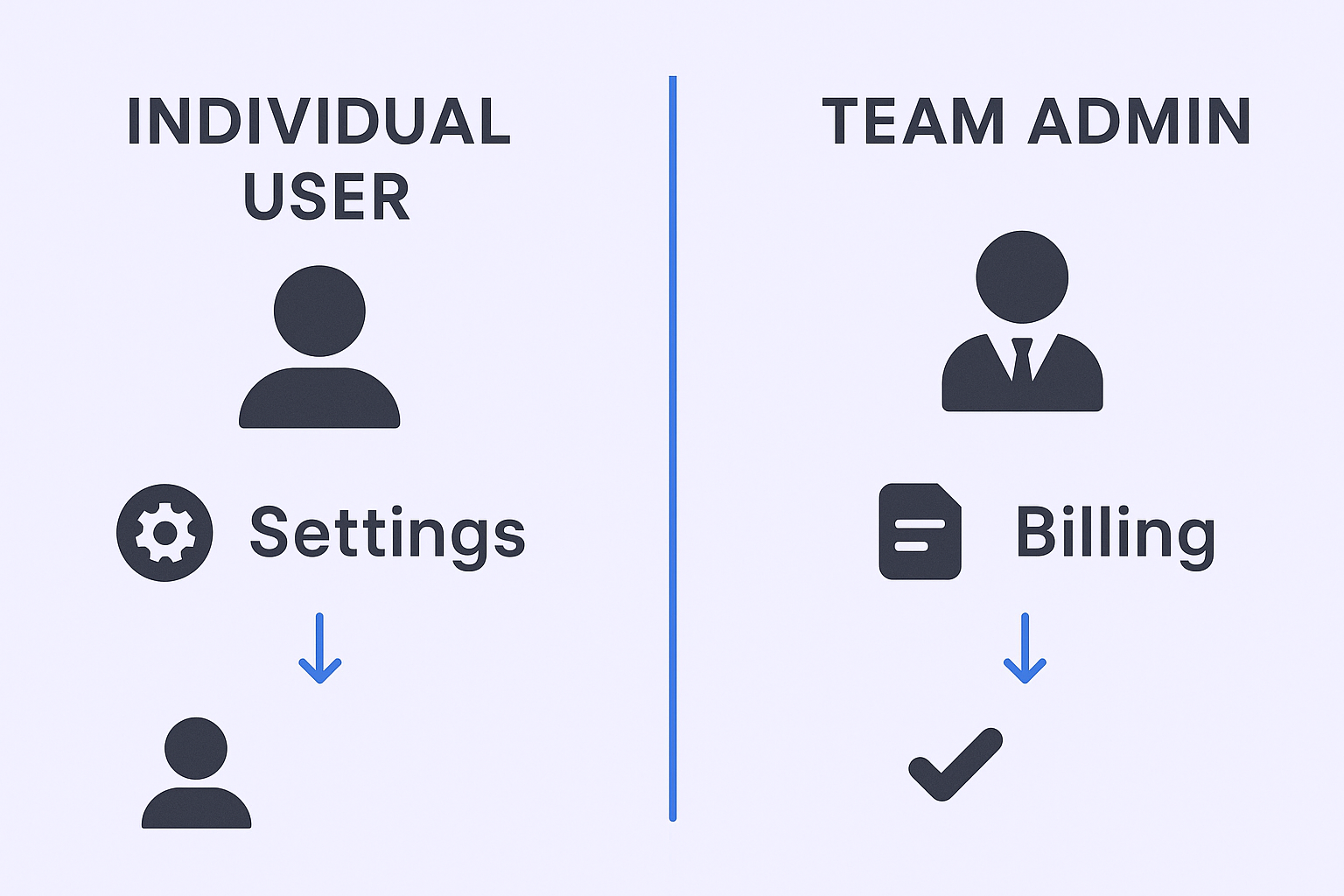
Individual User Path (Sales Nav Core/Premium):
Your receipts live in your personal Settings & Privacy menu. Here’s the fastest route:
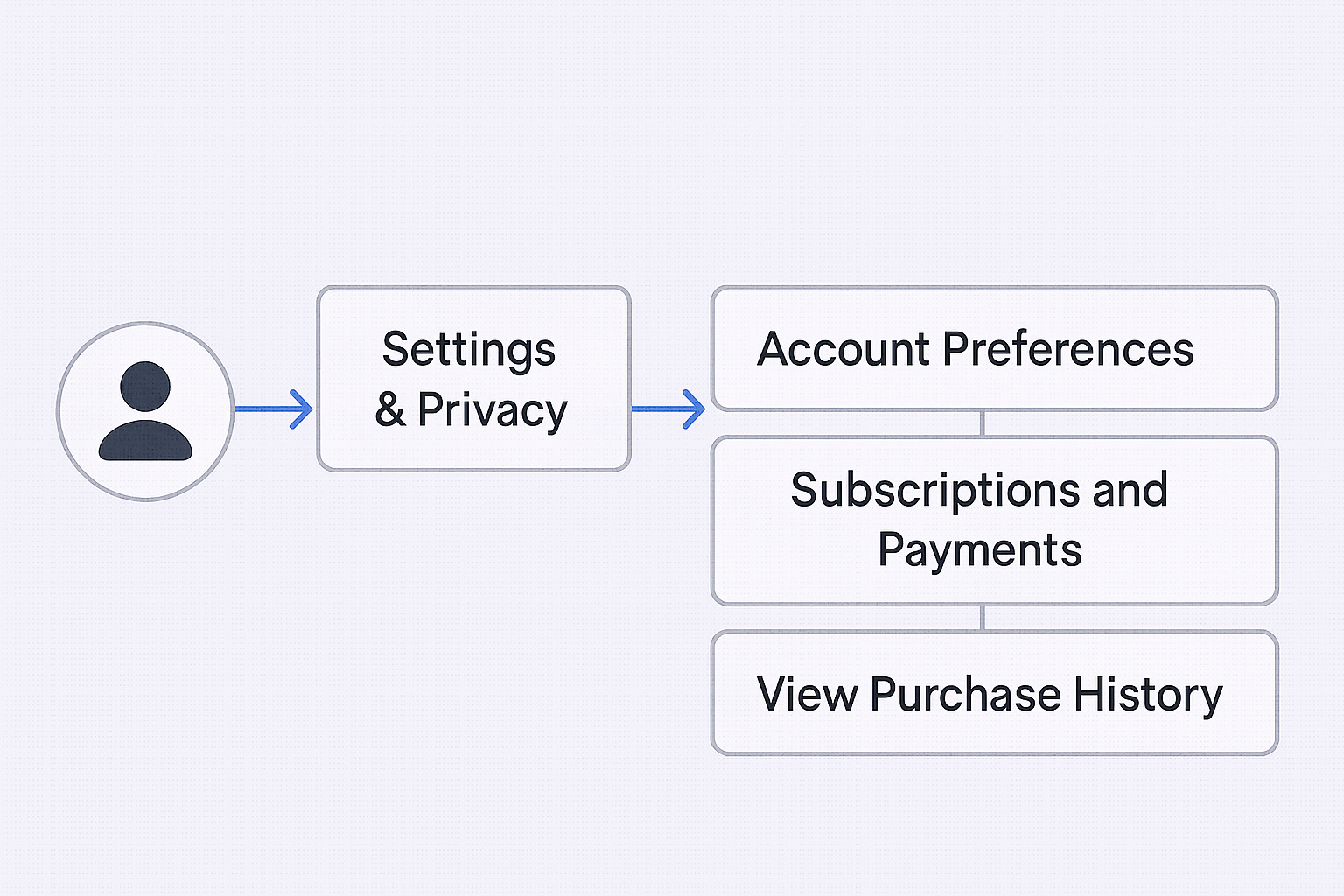
Click your profile picture (Me icon) → Settings & Privacy → Account preferences → Subscriptions and Payments → View purchase history.
That’s it. Your receipt is right there, ready to download.
Team Admin Path (Sales Nav Advanced/Advanced Plus):
If you manage a team subscription, forget everything above. Your receipts are in the linkedin admin center or Admin Settings.
Click Admin → Admin Settings → Billing. You’ll see all team transaction history and invoices.
LinkedIn recently rolled out a new admin center interface to unify their products. If you’re redirected there, just look for the Billing or Purchases tab. Everything you need is in that section.
Where to find purchase history in LinkedIn?
Your purchase history is the master dashboard for all LinkedIn subscription charges. Every transaction, every renewal, every receipt.
Desktop view is critical here. The mobile app shows limited information and won’t give you the download options you need.
For individual users, the path is: Me icon → Settings & Privacy → Account preferences → Subscriptions and Payments → View purchase history.
This screen displays your complete billing history. You’ll see transaction dates, amounts charged, subscription types, and payment methods used.
Think of this as your LinkedIn billing control center. Everything flows through here.
Can I download my Sales Navigator invoice?
Yes. Once you’re viewing your purchase history, select any transaction and you’ll see options to either Print Receipt or Download Invoice.
Click Download Invoice and you get a clean PDF ready for your finance team. The file includes all the essential details: purchase date, amount, subscription details, and payment method.
Pro tip: If your company requires specific invoice formatting or needs VAT details, read the next section before downloading. Otherwise, you’ll end up requesting receipts multiple times.
How to edit a Sales Navigator receipt?
Here’s where most people hit a wall. You downloaded the receipt, but finance rejected it because it lacks your company name or VAT ID.
The hard truth: You cannot edit receipts that have already been issued. LinkedIn doesn’t allow retroactive changes to past invoices.
But here’s the workaround that actually works.
You can fix all future receipts right now:
Go back to your Purchase History page using the steps above. Under your billing details, look for a small link that says “+ Add billing details”.
Click it. A text box appears. Enter your company name, billing address, and VAT ID if applicable. Click Save.
Done. Your next receipt will include this information automatically.
For the old receipt? You’ll need a one-time exception from your finance team while showing them you’ve fixed the issue for all future payments.
This is why 67% of sales teams report that administrative tasks like expense reporting significantly impact their productivity. Small fixes like adding billing details upfront save you hours later.
What details are on a LinkedIn receipt?
Every linkedin sales receipt includes the standard information your accounting team needs:
- Transaction date and time
- Amount charged (with currency)
- Subscription type (Core, Advanced, Advanced Plus)
- Payment method (last 4 digits of credit card required)
- Billing period covered
- Your billing address (if you added it)
What’s NOT included by default: Company name, VAT/Tax ID, or purchase order numbers. You must add these manually using the “+ Add billing details” option mentioned earlier.
According to LinkedIn’s billing system, invoices generate automatically within 24 hours of payment processing. Most users can access them immediately, but if you just renewed, wait a few hours before panicking.
How to view transactions in LinkedIn Admin Center?
Team admins have additional billing controls through the admin center. This is where you manage licenses, view team spending, and access consolidated invoices.
New Admin Center Path:
The linkedin admin center is LinkedIn’s unified management hub. If you’re an admin, you might get redirected here automatically.
From the homepage, click Billing or Purchases in the left navigation. You’ll see:
- All active subscriptions
- Transaction history for the entire team
- Contract details and renewal dates
- License allocation across team members
Legacy Admin Settings Path:
If you’re still on the old interface: Admin button → Admin Settings → Billing Information.
Common mistake: Don’t go to Campaign Manager or LinkedIn Ads. That’s for advertising spend, not your Sales Navigator subscription. This confuses people constantly because both sections deal with LinkedIn payments.
The attention screen (your Sales Navigator homepage feed) is where you work with leads. The Admin Center is where you handle billing. Keep them separate in your mind.
How to manage Sales Navigator subscriptions?
Managing or canceling your subscription depends on whether you’re an individual user or team admin.
Individual Users:
Me → Settings & Privacy → Subscriptions and Payments → Manage Premium account
From here, you can:
- Cancel your subscription
- Switch between plan tiers
- Update payment methods
- Change billing cycles
Team Admins:
Admin → Admin Settings → Manage Your Account → Purchases
You can return unused licenses or cancel team subscriptions from this menu.
The Mobile Trap (Critical Warning):
If you subscribed through the Apple App Store or Google Play Store, LinkedIn cannot cancel your subscription. This catches thousands of users every month.
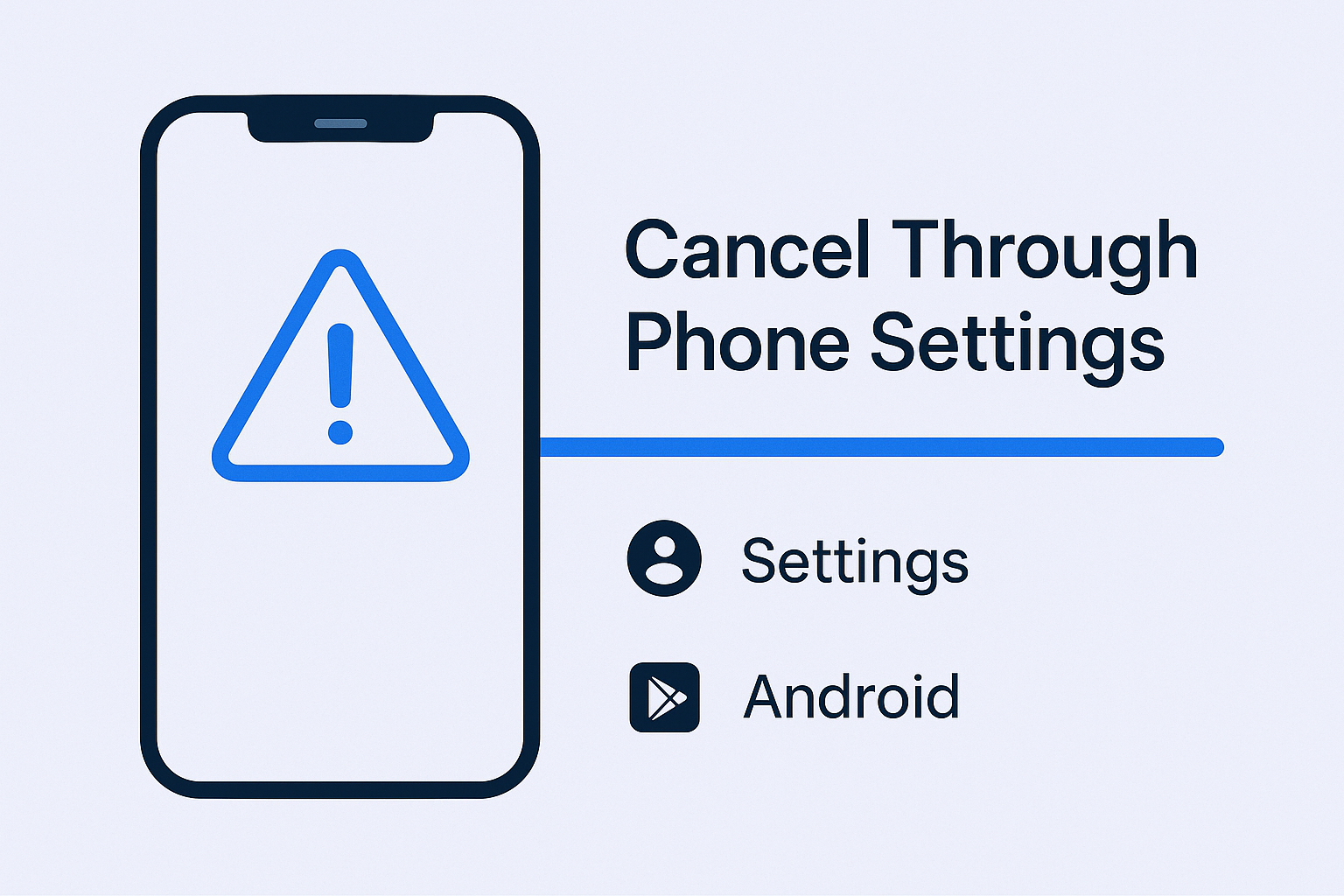
You MUST cancel directly through your phone’s subscription settings:
- iPhone: Settings → Your Name → Subscriptions → LinkedIn
- Android: Play Store → Menu → Subscriptions → LinkedIn
Research shows that mobile subscription management issues account for 34% of customer service inquiries for business software platforms. Don’t be part of that statistic.
