
Thinking about canceling your LinkedIn Sales Navigator subscription? You’re not alone—and you’re smart to question whether that monthly charge is actually paying for itself.
Here’s the thing: Sales Navigator promises you’ll find more leads. But what it doesn’t tell you is that finding leads and actually reaching them are two completely different games. You can have a list of 500 perfect prospects, but if you can’t get their verified email addresses, you’re just window shopping.
This isn’t another generic “click here, then click there” guide. We’re going to walk you through exactly how to cancel your subscription safely (desktop and mobile), show you the critical data you need to save first (most people skip this and regret it), and reveal why the best prospectors are moving away from expensive tools like Sales Navigator entirely.
Why You Might Cancel LinkedIn Sales Navigator
Let’s be honest—you didn’t wake up this morning excited to cancel a tool. Something pushed you here. For most people, it’s one of these three wake-up calls:
The ROI Just Isn’t There
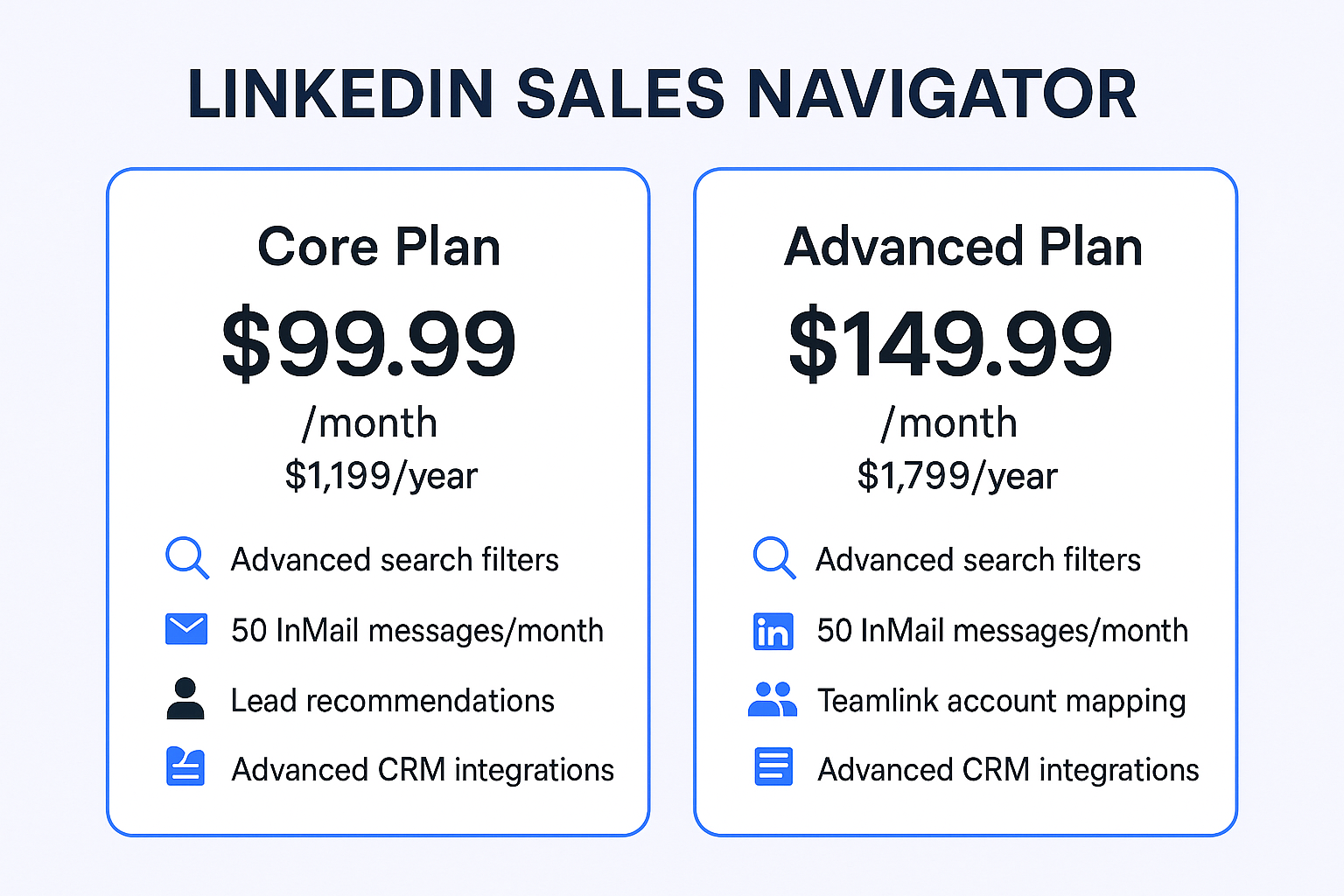
The linkedin sales navigator cost starts at $99.99/month for the Core plan—that’s nearly $1,200 a year. The Advanced plan? A whopping $149.99/month, over $1,300 annually.
But here’s what nobody talks about: 64% of sales professionals spend their time on non-selling activities. Adding another complex platform to your stack? That’s just more time you’re not actually selling. When was the last time you actually calculated whether Sales Navigator generated enough pipeline to justify that price tag?
Tool Overload Is Killing Your Productivity
Open your browser right now. How many tabs do you have? CRM, email tool, enrichment platform, LinkedIn… and that’s just the start.
You’re drowning in software, and you’re not imagining it. 45% of sales professionals say they’re overwhelmed by the number of tools they use. Even worse, the average sales team uses hundreds of SaaS tools, creating massive costs and data silos that slow everything down.
What to Know Before You Cancel: The Financial Reality
Okay, before you click anything, let’s talk about what LinkedIn won’t tell you upfront about their cancellation policy. Understanding this will save you from a nasty surprise on your credit card statement.
The Hard Truth: No Refunds
Here it is straight: LinkedIn does not refund your current billing cycle. Whether you’re on day 2 or day 29 of your monthly plan, you’ve paid for the full month and you’re not getting money back.
When you cancel subscription, your access stays active until your billing cycle ends. So there’s no rush if you’ve got two weeks left. However, there are rare exceptions—for instance, EU residents have a 14-day cooling-off period for new subscriptions, but that’s it for 99% of users.
Don’t expect a refund. Period.
Monthly vs. Annual: The Critical Trap
This is where most people get burned:
- Monthly Plan: Cancel now, and you simply stop next month’s charge. Your access continues until your current 30-day period ends.
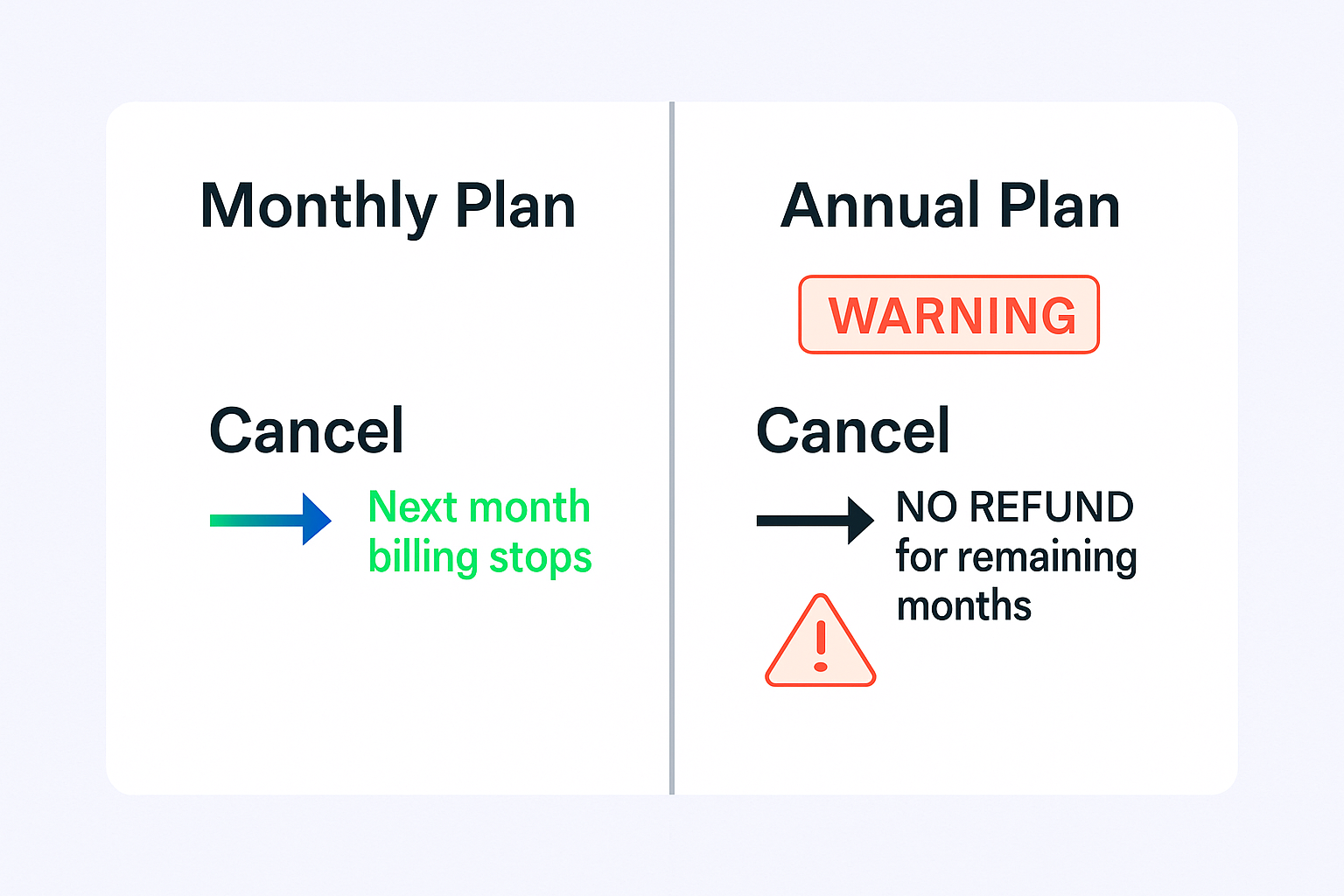
- Annual Plan (WARNING!): When you cancel, you’re only stopping the auto-renewal for next year. You will NOT get a refund for remaining months. If you cancel in March, you don’t get nine months of money back—you’re just opting out of next year’s renewal.
See the difference? Massive expectations vs. reality gap right there.
Smart Move: Check Your Billing Date First
The smartest play? Time your cancellation 24-48 hours before your renewal date. That way, you use every day you’ve paid for and don’t risk forgetting and getting charged again.
Here’s how to find your billing date:
- Go to Settings & Privacy
- Navigate to Subscriptions & payments
- Click View purchase history—you’ll see transactions and your next billing date
LinkedIn says they email you 7 days before your free trial ends. Don’t bet on it. Set your own calendar reminder the day you sign up.
Pre-Cancellation Checklist: Save Your Pipeline First
STOP RIGHT HERE. Do not—I repeat, DO NOT—click that cancel button yet. This section could save you months of work.
Here’s what most people don’t realize: when your LinkedIn Sales Navigator subscription ends, you don’t just lose access to a tool. You permanently lose your saved leads, saved accounts, and entire InMail history. LinkedIn’s policy is crystal clear on this: it all disappears.
For anyone building a pipeline, your “Saved Leads” and “Saved Accounts” lists are your lifeblood. Losing them isn’t a minor inconvenience—it’s a complete pipeline wipeout.
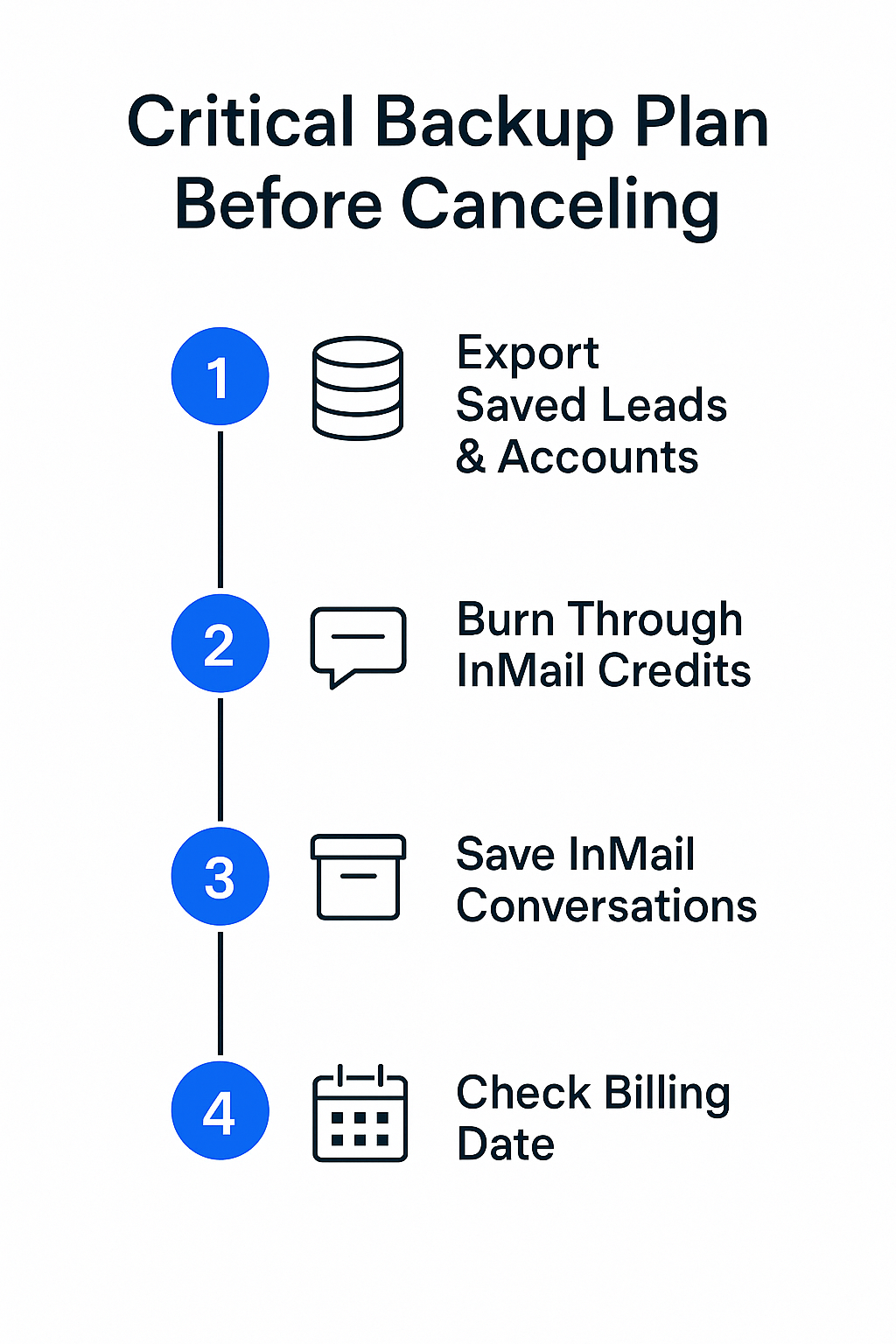
Your Critical Four-Step Backup Plan
Step One: Export Your Saved Leads and Accounts (Priority #1)
Sales Navigator doesn’t have a simple “Export to CSV” button, so you’ll need to get creative:
- CRM Sync: If you have Sales Navigator Advanced Plus with CRM integration, verify those lists are actually synced to your CRM
- Manual Copy-Paste: Open your Saved Leads lists and copy them into a Google Sheet (tedious but necessary)
- Use a Data Tool: Tools like Apollo.io or email extractors can scrape your Sales Navigator lists and export the data—might cost a few bucks but worth it to save your pipeline
Step Two: Burn Through Your InMail Credits
Your unused InMail credits don’t roll over. They vanish. You’ve already paid for them, so use them!
Go on a strategic outreach blitz. Message that dream prospect you’ve been sitting on. Send that follow-up you’ve been postponing. Don’t leave money on the table.
Step Three: Save Your InMail Conversations
Your Sales Navigator inbox history gets deleted too. If you have any valuable conversations, templates, or ongoing threads, copy-paste them into a document now.
Note: If someone replies to an old InMail after you cancel, it might appear in your regular LinkedIn inbox, but you won’t be able to send new InMails—creating a messy handoff situation.
Step Four: Double-Check Your Billing Date
Now that your data is safe, look up your billing date one more time. Set a calendar reminder for 24-48 hours before that date. Now you’re actually ready.
What You LOSE vs. What You KEEP
For the skimmers, here’s the bottom line:
Feature | What Happens When You Cancel |
Saved Leads | PERMANENTLY DELETED |
Saved Accounts | PERMANENTLY DELETED |
InMail History | PERMANENTLY DELETED |
Unused InMail Credits | PERMANENTLY DELETED |
Your LinkedIn Profile | SAFE (reverts to free/Premium) |
Your Connections | SAFE |
Regular LinkedIn Inbox | SAFE |
Step-by-Step: Cancel Sales Navigator in Your Account Settings
Alright, you’ve backed up your data, burned your InMails, and you’re ready. Here’s the 60-second desktop cancellation process.
- Log in to your regular LinkedIn profile
- Click your profile picture in the top-right corner
- Select “Settings & Privacy” from the dropdown
- On the left menu, click “Account preferences”
- Go to “Subscriptions & payments”
- Find “Manage Premium account” and click “Cancel subscription”
- LinkedIn will ask why you’re leaving—select your reason
- Expect a retention offer—LinkedIn will almost certainly dangle a discount at you. If you want out, click “Continue to cancel”
- Confirm, and you’re done. Your access continues until your billing cycle ends
How to Cancel LinkedIn Sales Navigator from the Mobile App
Here’s where it gets tricky. If you originally bought Sales Navigator through your phone (via Apple App Store or Google Play Store), you CANNOT cancel it inside the LinkedIn app or on desktop.
This is the #1 confusion point. When you try to cancel on desktop, you’ll hit a frustrating loop because your subscription is managed by Apple or Google, not LinkedIn.
You must cancel where you bought it.
For iPhone / Apple App Store Users:
- Do NOT open the LinkedIn app
- Open your iPhone’s Settings app
- Tap your name at the top
- Tap “Subscriptions”
- Find “LinkedIn Sales Navigator” and tap it
- Tap “Cancel Subscription” (if you don’t see this button, it’s already canceled)
For Android / Google Play Store Users:
- Do NOT open the LinkedIn app
- Open the Google Play Store app
- Tap your profile icon (top-right)
- Tap “Payments & subscriptions”
- Tap “Subscriptions”
- Find “LinkedIn Sales Navigator” and tap it
- Tap “Cancel subscription” and follow prompts
Troubleshooting: What If the Cancel Button Is Missing?
You’re in your settings, and… nothing. The “Cancel subscription” button just doesn’t exist. You’re not going crazy—this is a classic problem with two main causes:
Reason One: You Bought It On Your Phone (Most Common)
If you subscribed via the App Store or Google Play, the cancel button won’t appear on desktop. LinkedIn knows it can’t manage subscriptions controlled by Apple or Google.
The Fix: Follow the mobile cancellation steps above. Go to your phone’s App Store or Play Store settings—that’s where you’ll find the cancel option.
Reason Two: You’re on a Team or Enterprise Plan
If you work for a larger company, you probably don’t pay for Sales Nav yourself—it’s “granted by an admin.”
The Fix: You don’t have permission to cancel. Contact your Sales Ops manager or whoever manages admin licenses at your company. They’ll need to remove you from the team seat (their process is different: Admin → Admin Settings → Purchases → Cancel subscription).
Before you panic-message IT, just ping your boss or sales ops team. They deal with this all the time.
Life After Cancellation: Free LinkedIn Still Works
You’ve saved $100+ a month. Nice. But your pipeline doesn’t disappear just because your tool did. The good news? Free LinkedIn is way more powerful than most people realize, especially if you know how to use it properly.
