
You were scrolling LinkedIn, found the perfect prospect profile, took a screenshot to share with your team, and suddenly—
“LinkedIn detected this screenshot”
Your heart skips. Did they see that? Did LinkedIn just notify them you took a screenshot?
Let’s cut through the confusion right now. No, LinkedIn does not notify users when you screenshot their profile, posts, or messages. This is true for desktop, iPhone, and Android. Period.
But if that’s the case, why did you see that notification? The answer might surprise you—and it’s not what you think.
LinkedIn Screenshot Notifications: The Facts
Here’s the truth that’ll put your mind at ease: LinkedIn has never had screenshot notification functionality. This isn’t mentioned anywhere in LinkedIn’s privacy policy or terms of service.
When you screenshot someone’s profile, post, or even their direct messages, they don’t get any alert. Nothing shows up in their notifications. Zero visibility on their end.
But wait—you’re probably thinking, “I’m not imagining things. I literally saw the message!” And you’re absolutely right. The notification exists. It’s just not from LinkedIn.
The Real Story Behind the Notification
That “LinkedIn detected this screenshot” message isn’t coming from the LinkedIn app—it’s coming from your Android phone’s operating system.
Starting with Android 14, Google introduced a privacy-preserving screenshot detection API. Here’s what’s actually happening:
Android 14’s privacy system allows apps to detect when screenshots are taken within that app. But here’s the clever part—to maintain transparency and protect you, Android automatically shows a notification whenever an app uses this detection capability.
So when you see “LinkedIn detected this screenshot,” your phone is simply telling you that LinkedIn has the ability to detect screenshots. The notification recipient is you, not the person whose profile you screenshotted.
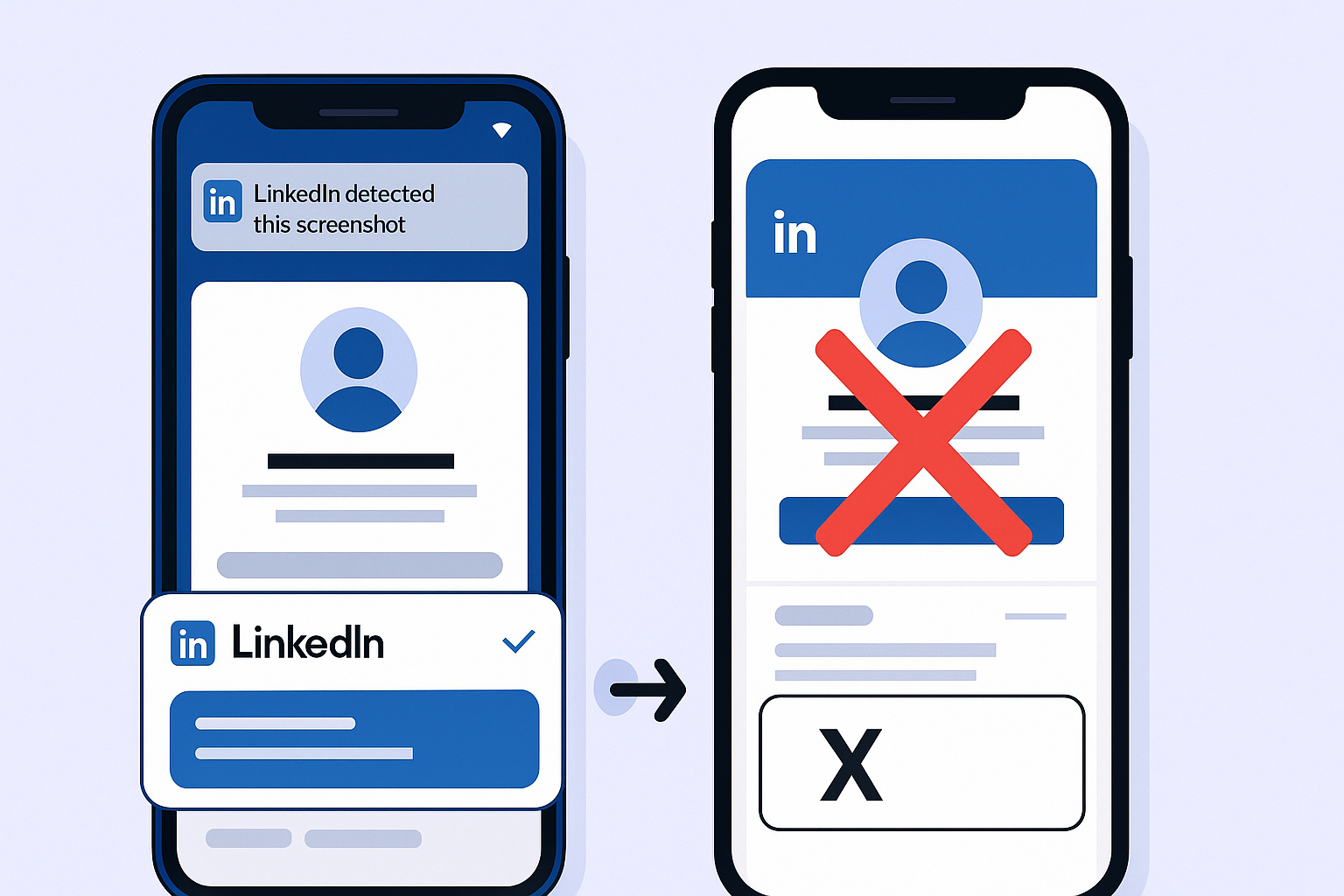
Think of it like this: it’s not a “gotcha” message telling someone you took their screenshot. It’s your phone saying, “Hey, just so you know, this app can see that you just did that.”
Why would LinkedIn even enable this? For internal analytics. LinkedIn’s product team uses this data to understand user behavior—like how many people are screenshotting job posts, which content gets saved externally, or what features people find useful enough to capture.
This explains why the confusion is so widespread. If you have an iPhone or use LinkedIn on desktop, you’ll never see this notification. Only Android 14+ users see it. This fragmentation creates mass panic for those who do.
According to recent discussions on Reddit, users consistently report seeing this notification while simultaneously finding online sources saying LinkedIn doesn’t notify—creating an understandable “Am I losing my mind?” moment.
Can LinkedIn Users See If You Screenshot Their Profile or Posts Now?
Your screenshot is invisible. But here’s what LinkedIn users CAN actually see.
When you view someone’s LinkedIn profile, that’s a different story entirely. LinkedIn has a core feature called “Who’s Viewed Your Profile” that shows exactly who’s been checking them out.
What Profile Viewers Actually See
When you click on someone’s profile in Public Mode (the default setting):
They get a notification. In their “Who’s Viewed Your Profile” section, they see your full name, headline, and company.
Premium users see more. While free LinkedIn accounts only show the last 5 profile visitors, Premium and Sales Navigator users get a detailed 90-day history of everyone who viewed their profile.
And yes, if you view their profile multiple times, they’ll see it. Each visit can register, especially if it’s on different days. Your name appears repeatedly on their list.
According to LinkedIn’s own data, 89% of B2B marketers use LinkedIn for lead generation, which means the people you’re researching are likely paying attention to who’s viewing their profiles.
But here’s the mindset shift: 67% of the buyer’s journey is now digital. Modern professionals expect to be researched. A visible profile view isn’t a violation—it’s often a welcomed touchpoint.
LinkedIn’s Profile Activity Tracking Tools
Let’s be crystal clear about what LinkedIn can and cannot track:
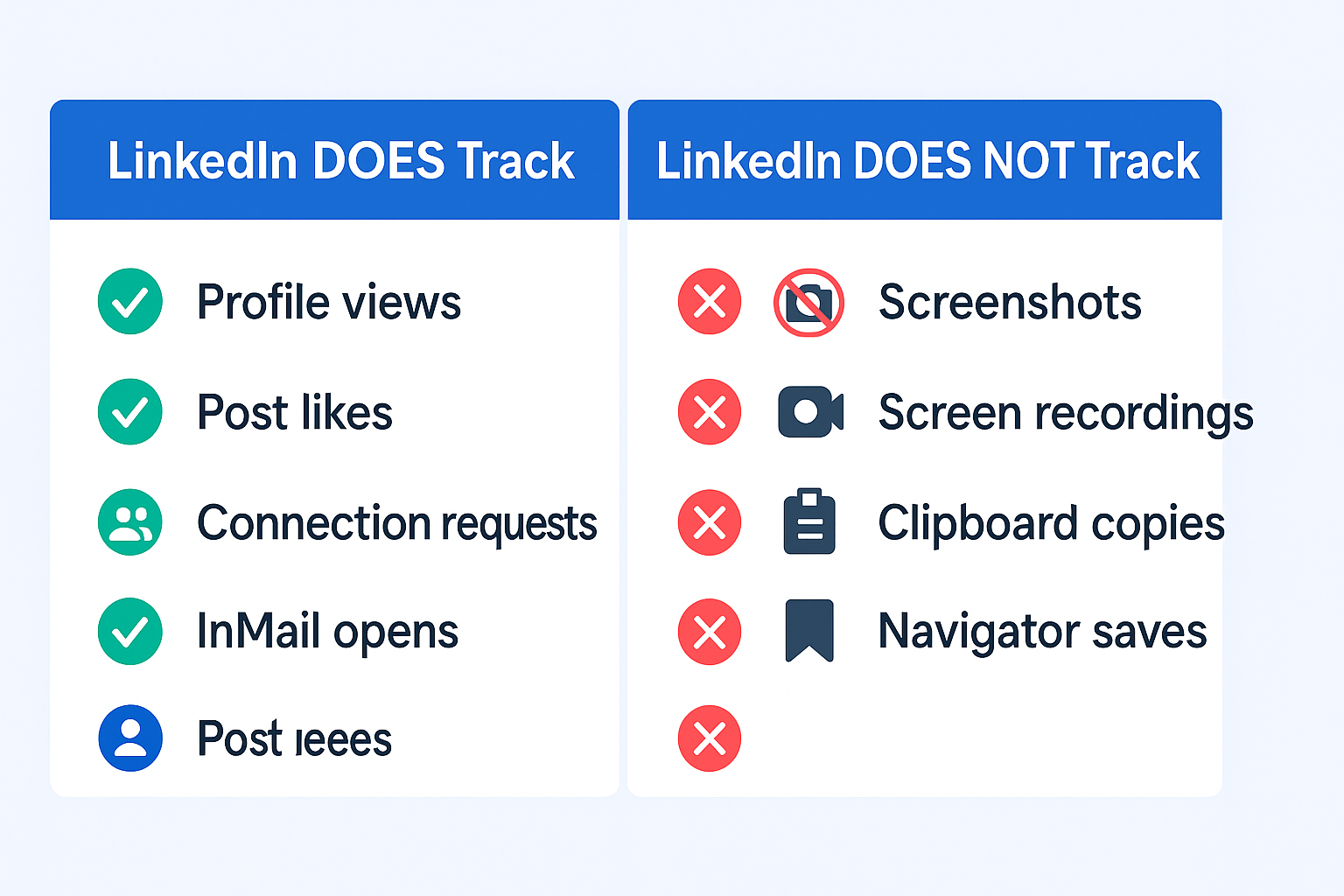
What LinkedIn DOES Track:
- Profile views (with name, headline, company in Public Mode)
- Post likes and comments (always visible)
- Connection requests sent
- InMail messages opened
What LinkedIn DOES NOT Track:
- Screenshots of any content
- Screen recordings
- Content copied to clipboard
- Profile saves in Sales Navigator (these are private)
The Three Visibility Modes Explained
LinkedIn offers three profile viewing modes that control what others see:
Public Mode (Default): When you view someone, they see “John Smith, Marketing Manager at Acme Corp viewed your profile.” You’re fully visible.
Semi-Private Mode: They see “Marketing professional in Chicago viewed your profile.” This offers minimal anonymity and often looks suspicious—like wearing a fake mustache.
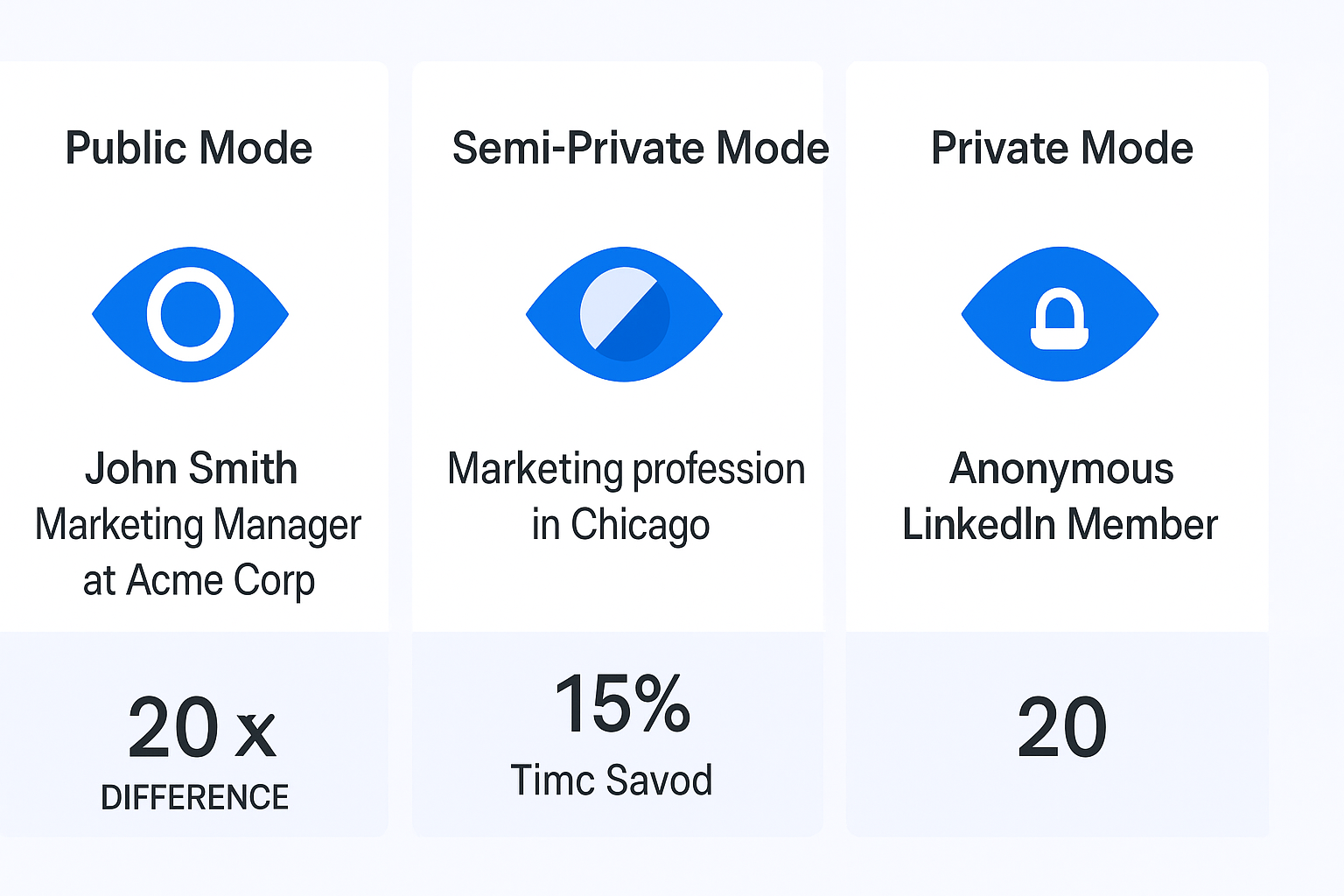
Private Mode: They see “Anonymous LinkedIn Member.” True invisibility. No notification, no identifying information.
Important note about Private Mode: On free LinkedIn accounts, enabling Private Mode means you can no longer see who viewed your profile either. You become blind to your own visitors. However, Premium and Sales Navigator users can browse privately AND still see their full 90-day visitor history—a major strategic advantage.
According to LinkedIn’s privacy policy, these settings give you control over your digital footprint when researching prospects.
How to Protect Your LinkedIn Profile
Whether you’re researching competitors, mapping org charts, or checking out potential leads, here’s how to control your visibility:
Activating Private Mode
On Desktop or Mobile:
- Click your profile picture (the “Me” icon) in the top right
- Go to “Settings & Privacy”
- Click the “Visibility” tab
- Select “Profile viewing options”
- Choose “Private mode” from the three options
That’s it. You’re now invisible when viewing profiles.
Strategic Use of Private Mode
The smartest LinkedIn users don’t leave Private Mode on 24/7. They toggle it strategically based on their goals:
Stage 1 – Research (Private Mode ON): When mapping a new account with 10+ decision-makers, turn on Private Mode. Browse everyone’s profiles, read their posts, identify the right contacts—all without leaving a trail.
Stage 2 – Warm-Up (Private Mode OFF): After identifying your top 2-3 targets, switch to Public Mode. Intentionally view their profiles 1-2 days before reaching out. This creates a “soft touchpoint”—they see your name and become familiar with you before your outreach.
Stage 3 – Engagement (Public Mode): Find a post they wrote and leave a thoughtful, value-adding comment (not a pitch). They get another welcome notification. You’re building familiarity.
Stage 4 – Outreach: When you finally send a connection request or message, you’re no longer a stranger. You’re “that person who viewed my profile and commented on my post.” You’ve warmed them up.

