
🎉Find Prospects and Send Cold Emails & LinkedIn Outbound | All in One Place

Table of Contents

Your LinkedIn network is one of your most valuable professional assets. But here’s the truth nobody talks about: not every connection deserves to stay.

Maybe they’re constantly spamming your feed with irrelevant content. Perhaps the business relationship ended awkwardly. Or they’ve simply become inactive ghosts who add zero value to your professional network.

Whatever the reason, you’re wondering: Can I remove them without causing drama?

The good news? LinkedIn doesn’t notify people when you remove them. The platform respects privacy, which means you can clean up your network without burning bridges or creating awkward conversations.

In this guide, you’ll learn exactly how to remove connection linkedin profiles discreetly, what to expect after removal, and how to handle any follow-up interactions like a pro.

How to Discreetly Remove a LinkedIn Connection

Here’s something that might surprise you: LinkedIn users with over 2x higher buying power than the average web audience are active on the platform. That’s why keeping your network clean and relevant isn’t just about decluttering—it’s about maximizing your professional opportunities.

The removal process is straightforward, but there’s a right way to do it that ensures maximum discretion. Let’s break it down.

The Golden Rule for Privacy

Before we dive into the steps, here’s the most important thing to remember: LinkedIn never sends a notification when you remove connection.

Your former connection won’t get an email. They won’t see a pop-up. They won’t receive any alert whatsoever.

However, there’s ONE scenario where they might notice. If you visit their profile right before disconnecting, they could receive a “Who viewed your profile” notification. Then, if they check your profile shortly after, they’ll realize you’re no longer connected and might put two and two together.

To avoid this digital paper trail entirely, always remove people from your connections list, never from their profile page.

Desktop Method (Fastest & Most Discreet)
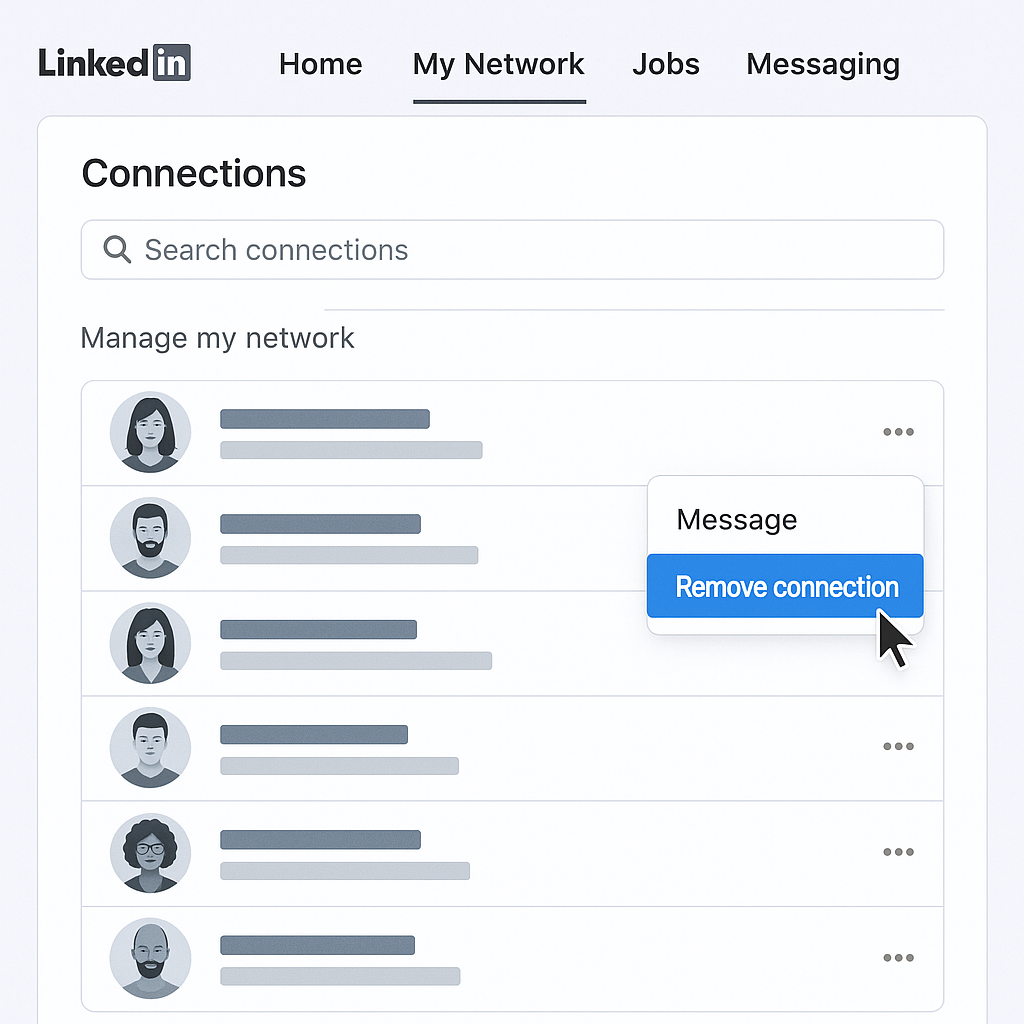


This is the quickest way to clean up your network if you’re working from a computer:

Step 1: Click the My Network icon in the main navigation bar at the top of LinkedIn.

Step 2: On the left sidebar, click Connections (you’ll find it under ‘Manage my network’).

Step 3: Use the search bar within your connections list to find the specific person you want to remove.

Step 4: Hover over their name and look for the three dots (…) or More button next to their profile.

Step 5: Click Remove connection from the dropdown menu.

Step 6: A confirmation window will pop up. Click remove again to finalize.

Done! The connection is instantly removed, and your network is one step cleaner.

Mobile App Method (On-the-Go Cleanup)

Need to remove someone while you’re away from your desk? The mobile process is just as simple:

Step 1: Open the LinkedIn app and tap My Network in the bottom menu.

Step 2: Tap Manage my network, then select Connections.

Step 3: Use the search bar to find the person you want to remove.

Step 4: Tap the three-dot menu next to their name.

Step 5: Choose Remove Connection and confirm your decision.

That’s it. Quick, clean, and completely private.

Understanding Your Options: Unfollow, Remove, or Block?

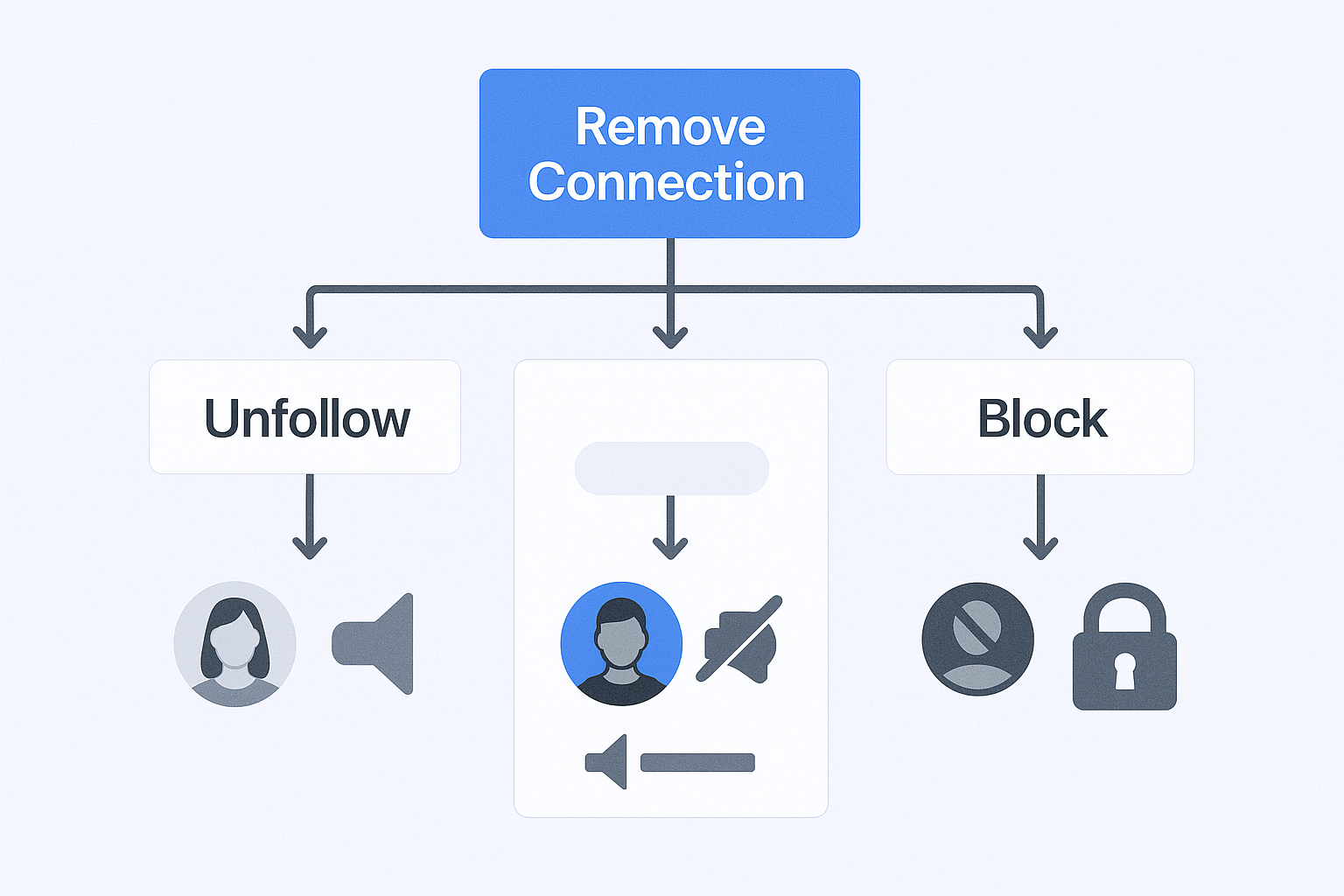
Not every situation calls for a complete disconnect. LinkedIn gives you three options, and choosing the right one depends on what you’re trying to achieve.

Unfollow: Their posts disappear from your feed, but you stay connected. Perfect for people who share too much irrelevant content but might still be valuable contacts. No notification sent.


This is the quickest way to clean up your network if you’re working from a computer:

Step 1: Click the My Network icon in the main navigation bar at the top of LinkedIn.

Step 2: On the left sidebar, click Connections (you’ll find it under ‘Manage my network’).

Step 3: Use the search bar within your connections list to find the specific person you want to remove.

Step 4: Hover over their name and look for the three dots (…) or More button next to their profile.

Step 5: Click Remove connection from the dropdown menu.

Step 6: A confirmation window will pop up. Click remove again to finalize.

Done! The connection is instantly removed, and your network is one step cleaner.

Mobile App Method (On-the-Go Cleanup)

Need to remove someone while you’re away from your desk? The mobile process is just as simple:

Step 1: Open the LinkedIn app and tap My Network in the bottom menu.

Step 2: Tap Manage my network, then select Connections.

Step 3: Use the search bar to find the person you want to remove.

Step 4: Tap the three-dot menu next to their name.

Step 5: Choose Remove Connection and confirm your decision.

That’s it. Quick, clean, and completely private.

Understanding Your Options: Unfollow, Remove, or Block?

Not every situation calls for a complete disconnect. LinkedIn gives you three options, and choosing the right one depends on what you’re trying to achieve.

Unfollow: Their posts disappear from your feed, but you stay connected. Perfect for people who share too much irrelevant content but might still be valuable contacts. No notification sent.

🎯 Build a Lead-Generating Network from Scratch

Our LinkedIn outbound engine targets decision-makers, designs conversion campaigns, and scales your pipeline—without manual prospecting.

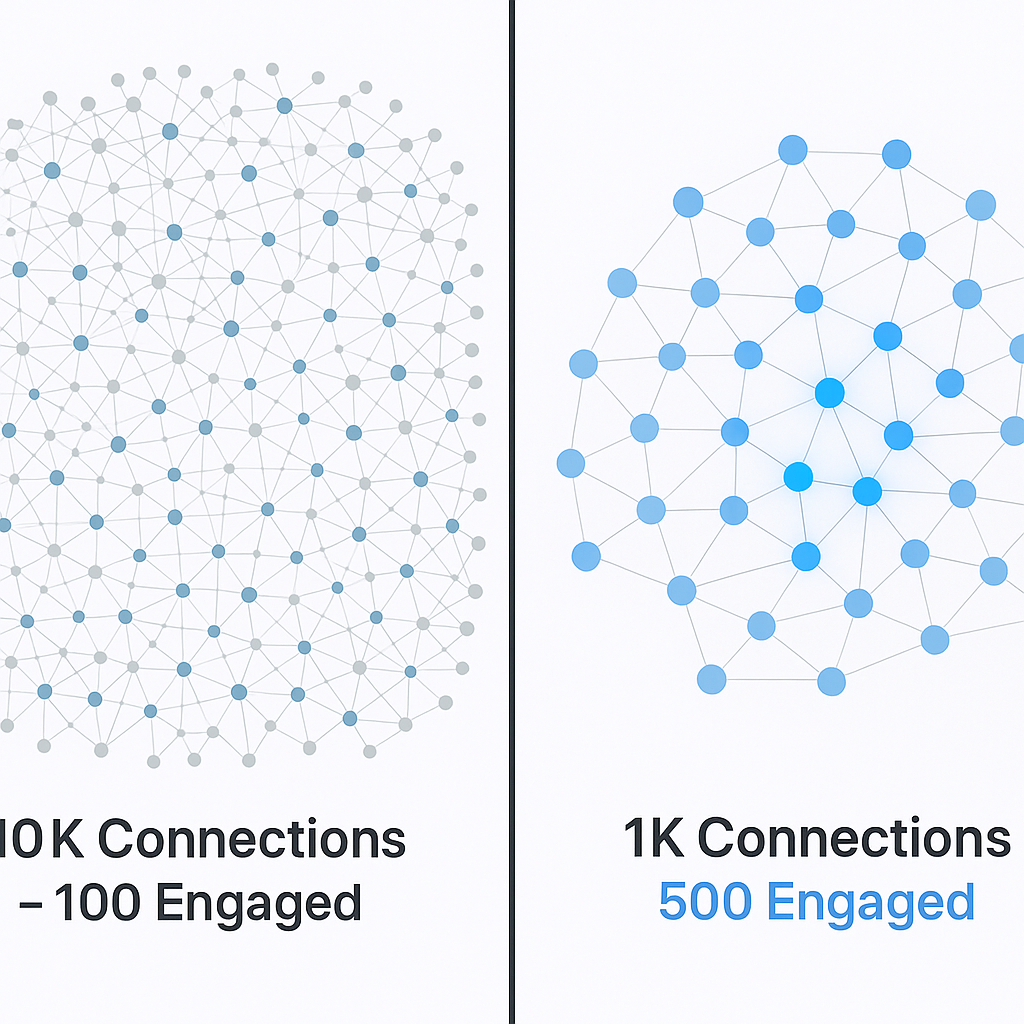
Curating your network strategically means every post you share reaches people who actually care about your message. That’s the difference between shouting into the void and building real professional relationships.


What You’ll Lose When You Click Remove

Before you finalize the disconnect, understand exactly what happens:

Endorsements and recommendations vanish. Any skills they endorsed or written recommendations disappear from your profile immediately. If these were important for your credibility, think twice.

You lose 1st-degree access. You can’t see their full network anymore. If they only shared contact info (email, phone) with 1st-degree connections, you’ll lose access to that too.

Direct messaging stops working. You can no longer send them messages unless you’re both in the same LinkedIn Group.

Message history stays intact (usually). Your past conversations typically remain in your inbox, but you can’t start new threads.

Here’s the strategic question: Is this person a potential future opportunity?

If they recently changed roles and might become relevant later, consider just unfollowing instead of removing. You maintain the connection for future outreach without cluttering your feed today.

However, if you’re running an active outbound sales strategy and need to optimize your LinkedIn presence for algorithmic visibility, removing inactive or irrelevant connections becomes a smart move.

The Smart Move Before Large-Scale Cleanup

💼 Want Predictable Pipeline Instead of Network Cleanup?

Get 15-25% response rates with our complete LinkedIn outbound system: targeting strategy, campaign design, and proven scaling methods.

If you’re planning to remove multiple connections, here’s a pro tip that most people miss:

Export your important contact data first.

Go through your connections and note down:

  • Email addresses
  • Phone numbers
  • Companies and titles
  • Any context about your relationship

Why? Because once they’re removed, you might lose access to that information. If you later want to reach out via cold email or other channels, you’ll need those details.

Think of removal as part of your complete outreach strategy—not an isolated action. The connection ends on LinkedIn, but your ability to connect through other channels remains open if you plan ahead.

Handling Awkward Interactions After Removing a LinkedIn Connection

Let’s be honest: even with maximum discretion, sometimes people notice. Here’s how to handle it professionally when they do.

How They Might Discover the Disconnection

While LinkedIn keeps removals private, there are a few ways someone could figure it out:

They check their connection count. Active LinkedIn users who monitor their network size might notice when numbers drop.

Endorsements suddenly disappear. This is often the biggest giveaway. If you exchanged skill endorsements or recommendations, their sudden disappearance is hard to miss.

Mutual connections change. If they’re trying to connect with someone in your network and notice you’re no longer showing up as a mutual connection, that’s a red flag.

They search for you. If they actively look for your profile in their connections list and can’t find you, they’ll know something changed.

The reality? Most people won’t notice. LinkedIn networks are large, and unless someone is actively monitoring you, the change blends into the background noise of a busy professional platform.

The 3-Week Reconnection Rule

Here’s an important policy to know: If you remove someone, LinkedIn enforces a 3-week cooling-off period before they can send you a new connection request.

This works in your favor if you removed someone you might want to reconnect with later (maybe they switched companies and now fit your target market).

During those 3 weeks, you can:

  • Follow their profile to see updates
  • Engage with their content through thoughtful comments
  • Build recognition before reconnecting

This approach turns the waiting period into an opportunity. By the time you’re able to send a new request, they’ll already recognize your name from recent interactions.

Professional Response Scripts

What happens if someone reaches out directly and asks why you’re no longer connected? It’s rare, but it happens.

Here’s how to handle it with grace:

If they ask via email or message:

“Hey [Name], thanks for reaching out! I recently did a major network audit to focus my connections more strategically on [specific industry/role/region]. It was purely a business optimization decision—nothing personal. I’d love to stay connected through [email/another platform] if you’re open to it!”

If the disconnect was because they went inactive:

“I’ve been streamlining my network to focus on active professionals in [your industry]. Since we haven’t engaged much recently, I removed some connections as part of that cleanup. No hard feelings—I wish you all the best!”

If you might want to reconnect later:

“I’m currently focusing my LinkedIn network on [specific criteria], but I appreciate the relationship we’ve built. Let’s definitely stay connected via email—I’d love to keep in touch!”

Notice the pattern? These responses:

  • Acknowledge the situation directly (no awkward dodging)
  • Frame it as a strategic business decision (not personal)
  • Offer an alternative way to stay connected (reduces offense)
  • Stay positive and professional (maintains the relationship)

Re-engaging Through Other Channels

Here’s where most people get it wrong: they think removing a LinkedIn connection means burning the entire relationship.

It doesn’t.

Smart professionals use connection removal as a workflow optimization tool. You’re cleaning up your LinkedIn presence while maintaining relationship equity through other channels.

Here’s the strategic approach:

Before removing: Export any important contact information (email, phone, company details).

After removal: If they’re valuable to your business, add them to your email outreach list instead.

Re-engagement strategy: Craft a personalized cold email focused on recent news about their company or a specific value proposition. Never mention the LinkedIn disconnection.

This approach recognizes a fundamental truth: LinkedIn is just one channel in a multi-channel outreach strategy. You’re not ending the professional relationship—you’re optimizing which platform you use to maintain it.

For many professionals, cold email has an average response rate of 5-8%, while LinkedIn messages to 1st-degree connections can hit 15-25%. But here’s the catch: if your LinkedIn network is cluttered with irrelevant connections, your content visibility drops, and neither channel works effectively.

🚀 Skip Manual Outreach. Get a Complete System.

We build your LinkedIn outbound engine from targeting to campaigns to scaling—delivering 3x better response rates than cold email.

By removing the clutter on LinkedIn and moving certain relationships to email, you’re actually maximizing your effectiveness across both channels.

Conclusions

Removing a LinkedIn connection doesn’t have to be awkward or dramatic. When done strategically, it’s a powerful tool for optimizing your professional presence and ensuring your network works for you instead of against you.

Here’s what you need to remember:

LinkedIn protects your privacy. No notifications are sent when you remove connection, making the process completely discreet when done correctly.

Always remove from your connections list, never from someone’s profile page. This prevents accidental “Who viewed your profile” notifications that could give away your actions.

Quality beats quantity every time. A smaller, engaged network that actually sees and interacts with your content will generate better opportunities than thousands of ghost connections.

Removal isn’t relationship destruction. With proper planning, you can maintain professional relationships through other channels like email while keeping your LinkedIn feed clean and algorithm-friendly.

The professionals who succeed on LinkedIn aren’t the ones with the biggest networks. They’re the ones with the most strategic networks—connections who engage, share relevant opportunities, and amplify their message.

Regular network audits—removing inactive profiles, irrelevant connections, and spam accounts—ensure your LinkedIn presence remains a valuable professional asset rather than just another cluttered social media feed.

âš¡ Stop Cleaning Networks. Start Generating Leads.

Our done-for-you LinkedIn outbound handles targeting, campaign creation, and scaling so you focus on closing deals.

7-day Free Trial |No Credit Card Needed.

Your network should work for you. If it’s not, it’s time to click remove.

FAQs

Will they know immediately when I remove them?

No. LinkedIn does not send any notification when you remove connection. They'll only discover it if they actively search for you in their connections list or notice shared endorsements have disappeared.

Does removing someone delete our message history?

No. Your past conversation history typically remains in your inbox even after disconnecting. However, you won't be able to start new message threads unless you're both members of the same LinkedIn Group.

Can they still follow me after I remove them?

Yes. If they were following you before you became 1st-degree connections, they might remain as a follower. If your goal is complete privacy, you'll need to block them instead of just removing the connection.

How soon can I reconnect with someone I removed?

Not immediately. If you remove linkedin connection, LinkedIn enforces a 3-week cooling-off period before you can send a new connection request to that person. Use this time to engage with their content and build recognition.

Can I remove connections in bulk?

LinkedIn doesn't offer an official bulk removal tool. While some third-party tools claim to do this, using them might trigger LinkedIn's security measures. It's safer to space out your removals to avoid being flagged for suspicious activity.

Done-For-You LinkedIn Lead Generation

Stop managing connections manually. Get a complete outbound engine with targeting, campaigns, and scaling.

Segmentation That Actually Converts

LinkedIn outbound targets precise demographics with strategic campaign design and scaling methods

How to Build a High-Converting B2B Sales Funnel from Scratch on LinkedIn ​