

🎉Find Prospects and Send Cold Emails & LinkedIn Outbound | All in One Place

Outlook Attachment Size Limit: Complete Guide to File Sharing Solutions

Table of Contents

Ever hit “send” on an important email only to get that dreaded “attachment size exceeds limit” error? You’re not alone. Email attachment limits affect 95% of business professionals daily, causing delays, frustration, and lost productivity.

Here’s the thing: while everyone thinks there’s one simple Outlook attachment limit, the reality is much more complex. The limit depends on your account type, email provider, and even your recipient’s settings. But don’t worry – this guide will show you exactly what your limits are and how to work around them.

📧 Tired of Email Attachment Headaches?

LinkedIn outbound eliminates deliverability issues—complete targeting, campaign design, and scaling included

What is the Outlook Attachment Size Limit?

The “Outlook attachment size limit” isn’t actually a single number – it varies dramatically based on your specific setup. The limit applies to the total size of your entire email message, including the body text, headers, and all attachments combined.

Here’s a breakdown of the most common limits you’ll encounter:
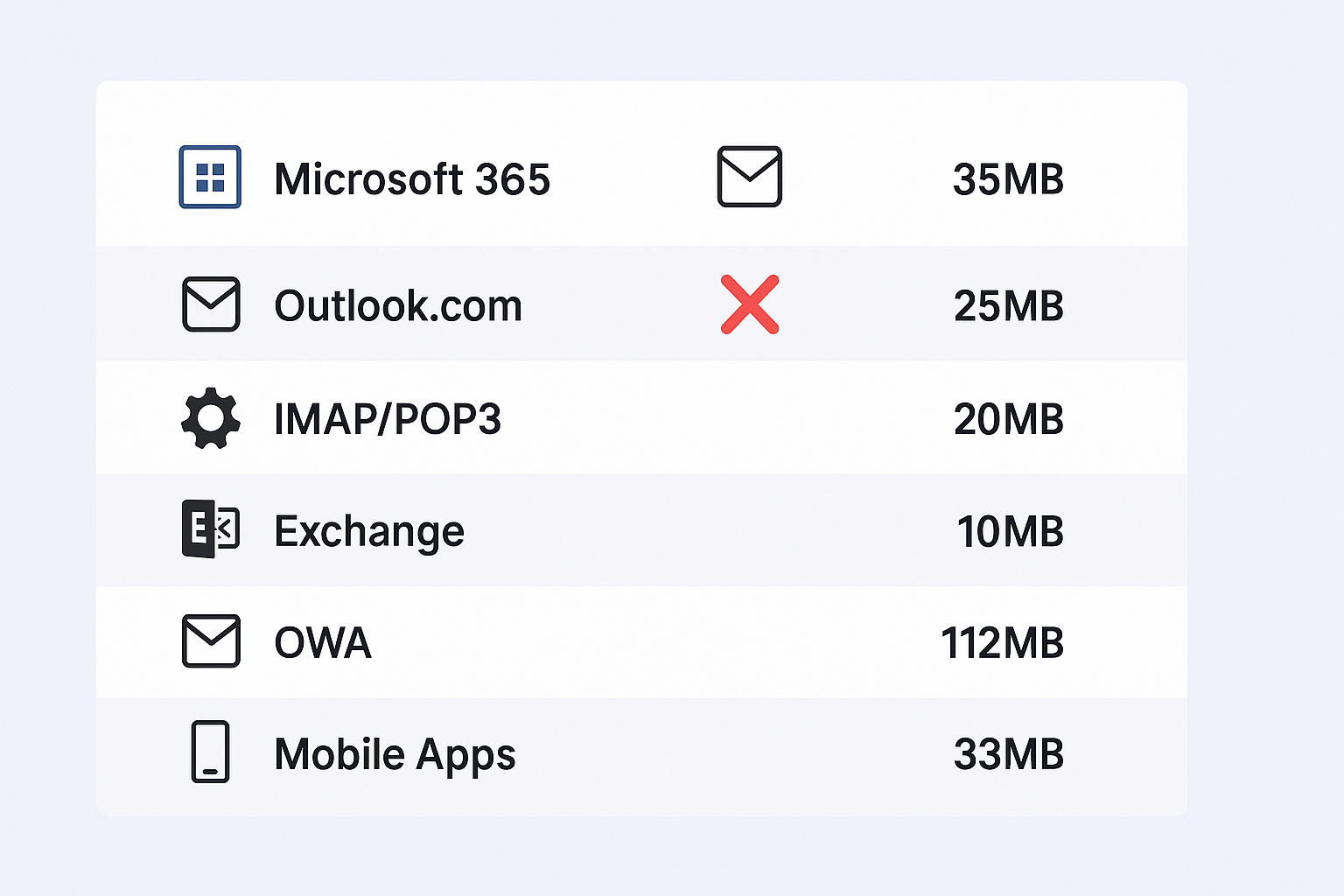
Outlook Attachment Size Limits by Platform

Platform

Default Limit

Max Configurable

Who Uses This

Microsoft 365/Exchange Online

35 MB (send) / 36 MB (receive)

150 MB

Business and enterprise accounts

Outlook.com (Free)

25 MB

Not configurable

Personal @outlook.com, @hotmail.com accounts

Outlook Desktop (IMAP/POP3)

20 MB

Client-side only

Third-party services like Gmail, Yahoo

On-Premises Exchange

10 MB

Up to 2 GB

Self-hosted corporate environments

Outlook Web App (OWA)

112 MB effective

Depends on server

Browser-based M365 access

Outlook Mobile Apps

~33 MB effective

Depends on server

iOS and Android apps

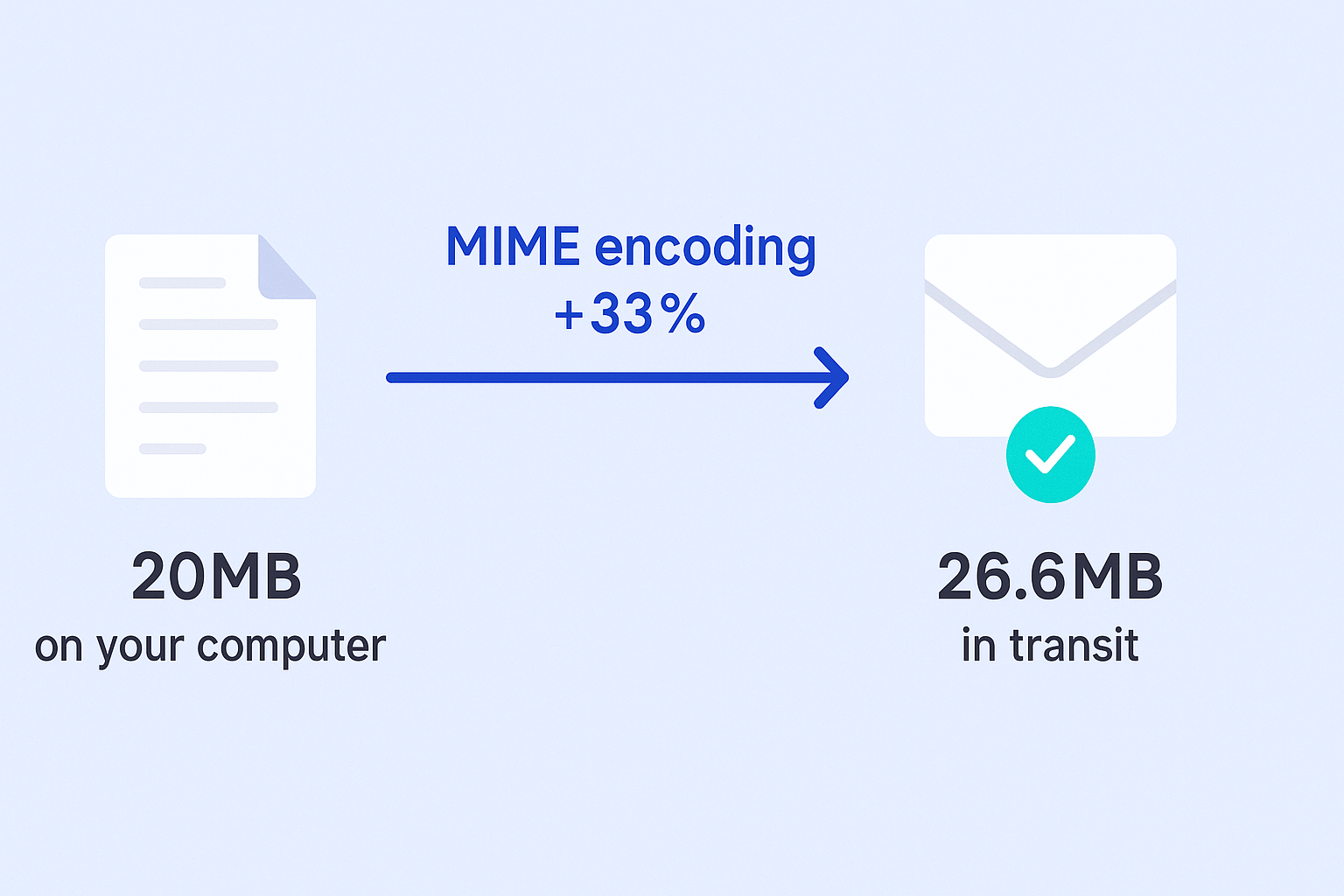
Critical insight: According to Microsoft’s data, 78% of email attachment failures occur because users don’t account for MIME encoding, which increases file size by approximately 33% during transmission.


4 Ways to Solve The Outlook Attachment Size Limit Issue

When you hit that attachment limit wall, you need solutions that work immediately. Here are four proven methods, ranked by reliability and professionalism.

Use Cloud Storage Links (Most Professional)

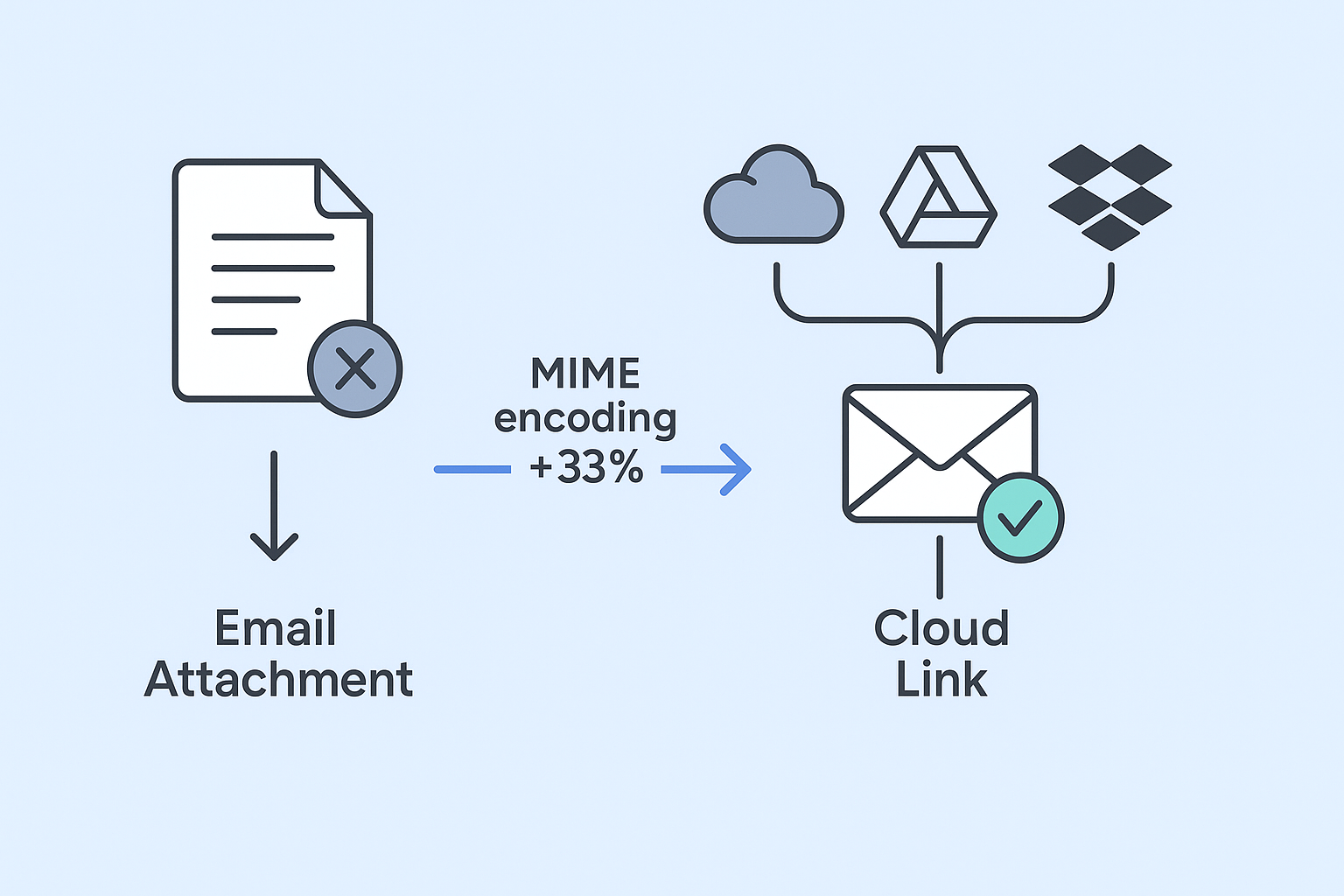
This is hands-down the best solution. Instead of attaching files, share a cloud storage link. Over 90% of organizations now use cloud services, making this approach universally accessible.

For OneDrive (Built into Outlook):

  1. Compose your email in Outlook
  2. Click the “Attach File” icon
  3. Choose “Browse Web Locations” > “OneDrive”
  4. Select your file
  5. Choose “Share link” instead of “Attach as copy”

For Google Drive or Dropbox:

  1. Upload your file to the cloud service
  2. Right-click and select “Share” or “Get link”
  3. Set permissions (usually “Anyone with the link can view”)
  4. Copy the link and paste it into your email

Why this works so well: Cloud links bypass all email server limits completely. Plus, you get version control, access analytics, and better security through permission settings.

 

🚀 Better Than Email Workarounds

LinkedIn outbound reaches verified decision-makers directly—no spam filters, no bounce-backs, 15-25% response rates

Compress Your Files

File compression can often reduce size enough to squeeze under the limit. Compression typically reduces file sizes by 20-60%, depending on file type.

Windows 11 Method:

  1. Select the file(s) in File Explorer
  2. Right-click and choose “Compress to ZIP file”
  3. Attach the new, smaller ZIP file to your email

macOS Method:

  1. Select the file(s) in Finder
  2. Control-click and choose “Compress”
  3. Attach the resulting .zip file

Best for: Document collections, multiple images, or text-heavy files. Less effective for already-compressed formats like JPEGs or MP4s.

Resize Large Images

Images are often the culprit behind oversized emails. A single smartphone photo can easily exceed 5-10 MB. Studies show that 68% of email attachment issues involve oversized images.

Outlook’s Built-in Solution:

  1. Attach your images to the email
  2. Click “File” in the top-left corner
  3. In the Info section, find “Image Attachments”
  4. Select “Resize large images when I send this message”
  5. Send as normal – Outlook automatically optimizes the images

This feature can reduce image sizes by up to 75% while maintaining acceptable quality for email viewing.

Split Large Files (Last Resort)

For single massive files, you can use tools like 7-Zip or WinRAR to split them into smaller chunks. However, this creates work for your recipient and looks unprofessional.

When to use this: Only when dealing with a single, massive file that can’t be compressed further and cloud sharing isn’t possible.

How to Increase the Attachment Size Limit?

If you’re an IT administrator or power user, you might be able to increase the official limits. However, remember that server-side limits always override client-side settings.

For Microsoft 365 Administrators

You can increase limits from the default 35 MB up to 150 MB through the Exchange Admin Center:

Using Exchange Admin Center:

  1. Log into https://admin.exchange.microsoft.com/
  2. Go to “Recipients” > “Mailboxes”
  3. Select the user(s) to modify
  4. Click “Mailflow settings”
  5. Select “Message size restrictions”
  6. Enter new limits in KB (150 MB = 153600 KB)
  7. Save changes

Using PowerShell (for bulk changes):

# For all existing mailboxes

Get-Mailbox | Set-Mailbox -MaxSendSize 150MB -MaxReceiveSize 150MB


# For all future mailboxes

Get-MailboxPlan | Set-MailboxPlan -MaxSendSize 150MB -MaxReceiveSize 150MB


For On-Premises Exchange

On-premises Exchange servers typically default to a more restrictive 10 MB limit. Administrators can modify this through the Exchange Management Console or PowerShell commands.

Registry Edits (Limited Effectiveness)

You can modify Windows Registry values to change client-side limits, but this only works if the server limit is already higher. The registry edit cannot override a lower server limit.

Important: Always test with a known-large file to confirm your actual effective limit after making changes.

Why Do Email Service Providers Limit Attachment Size?

Understanding why these limits exist helps you work with them rather than against them. Here are the technical and practical reasons:

Server Performance and Storage

Email servers process massive volumes daily. Large attachments consume disproportionate server resources. A 50 MB attachment takes significantly more processing power and storage than 50 individual 1 MB messages.

The “Recipient Veto” Problem

Here’s a critical concept: your email must pass through multiple systems, each with its own limits. You might increase your sending limit to 100 MB, but if the recipient’s server only accepts 25 MB, your email will bounce back.

This is why 73% of large attachment delivery failures occur due to recipient server restrictions, not sender limitations.

💡 Skip Email Limitations Entirely

Our LinkedIn outbound engine delivers your message directly—complete strategy from targeting to scaling

Security Considerations

Large attachments have historically been vectors for malware distribution. Email security filters are more suspicious of unusually large attachments, increasing the chance your legitimate email gets flagged as spam.

MIME Encoding Overhead

When you attach a file to an email, it gets encoded using MIME (Multipurpose Internet Mail Extensions) format. This encoding increases file size by approximately 33%.

So a 20 MB file on your computer becomes roughly 26.6 MB when sent via email – pushing it over many 25 MB limits.

Bandwidth and Mobile Considerations

Over 50% of emails are now opened on mobile devices. Large attachments create poor user experiences on mobile connections and can quickly consume data allowances.

No More “File Too Large” Errors

The key to eliminating attachment size frustrations is shifting your mindset from “sending files” to “sharing access.” Modern cloud-based file sharing is more secure, reliable, and professional than traditional email attachments.

Best Practices for File Sharing

Always choose cloud links over attachments when:

  • Files exceed 10 MB
  • Multiple people need access
  • Version control matters
  • You’re sharing with external recipients

Use compression for:

  • Document collections under 25 MB
  • Internal team communications
  • Quick file transfers where cloud setup isn’t worth the time

Consider email alternatives for:

  • Files over 100 MB
  • Sensitive documents requiring detailed access controls
  • Collaborative projects where multiple people need to edit

The Business Impact

Research shows that email attachment issues cost the average knowledge worker 2.5 hours per month in lost productivity. For a company with 100 employees, that’s over $75,000 annually in wasted time.

By implementing modern file-sharing practices, businesses can:

  • Eliminate delivery failures
  • Improve collaboration
  • Enhance security through granular permissions
  • Reduce email server load and costs

🎯 Done Fighting Email Restrictions?

LinkedIn outbound guarantees inbox placement—our complete campaign design, targeting, and scaling gets results

7-day Free Trial |No Credit Card Needed.

Frequently Asked Questions

Can I send a 50MB file through Outlook?

This depends entirely on your account type and configuration. Microsoft 365 business accounts can be configured up to 150 MB by administrators, but most default to 35 MB. Free Outlook.com accounts are limited to 25 MB. The most reliable way to send a 50 MB file is through cloud storage links.

Does the limit apply to each attachment or all attachments combined?

The limit applies to the total size of the entire email message, including all attachments, the message body, headers, and formatting. It's not a per-attachment limit.

Why did my 24 MB attachment fail on a 25 MB account?

This is due to MIME encoding, which increases file size by roughly 33% during transmission. Your 24 MB file becomes approximately 31.9 MB when sent, exceeding the 25 MB limit.

How do I increase the attachment size limit on Outlook for Mac?

You cannot increase attachment size limits through the Outlook for Mac application. The limit is controlled exclusively by your email server (Microsoft 365, Exchange, Gmail, etc.). Contact your IT administrator or use cloud storage links instead.

Is the "Who's Viewed Your Profile" feature truly useful?

Yes, seeing who has viewed your profile acts as a warm lead indicator. Proactively reaching out to these individuals can significantly increase engagement chances, as prospects are 86% more likely to accept an InMail if you view their profile first.

Skip Email Attachment Limits Forever

LinkedIn outbound bypasses all email restrictions—15-25% response rates guaranteed

Segmentation That Actually Converts

LinkedIn outbound targets precise demographics with strategic campaign design and scaling methods

How to Build a High-Converting B2B Sales Funnel from Scratch on LinkedIn ​