
🎉Find Prospects and Send Cold Emails & LinkedIn Outbound | All in One Place

How to Schedule an Email in Outlook: Your Complete 2025 Guide

Table of Contents

Ever found yourself typing an important email at midnight but don’t want to send it until morning? Or maybe you’re working with international clients and need your message to land in their inbox at the perfect time? You’re not alone. Email scheduling is a game-changer that can boost your productivity and improve your professional image.

Here’s the reality: for every $1 spent on email marketing, the average ROI is $36 – that’s a 3600% return on investment. But here’s what most people don’t know – automated emails generate 320% more revenue than manually sent ones. The timing of your email can literally make or break your success.

This guide will walk you through everything you need to know about scheduling emails in Outlook, from basic steps to advanced strategies that pros use to maximize their results.

How To Schedule Emails in Outlook (Generic Method)

Scheduling an email in Outlook isn’t rocket science, but the process varies slightly depending on which version you’re using. Let’s break it down for each platform.

Outlook Desktop (Windows) – Using Delay Delivery

The classic Outlook desktop app uses a feature called “delay delivery” to hold your emails until the right moment.

Step-by-step process:

  1. Compose your email – Click “New Email” and write your message like normal
  2. Go to the Options tab – Look for it in the ribbon menu at the top
  3. Click “Delay Delivery” – You’ll find this in the “More Options” section
  4. Set your delivery time – Check the “Do not deliver before” box and choose your date and time
  5. Click Send – Your email moves to the Outbox and waits for the scheduled time

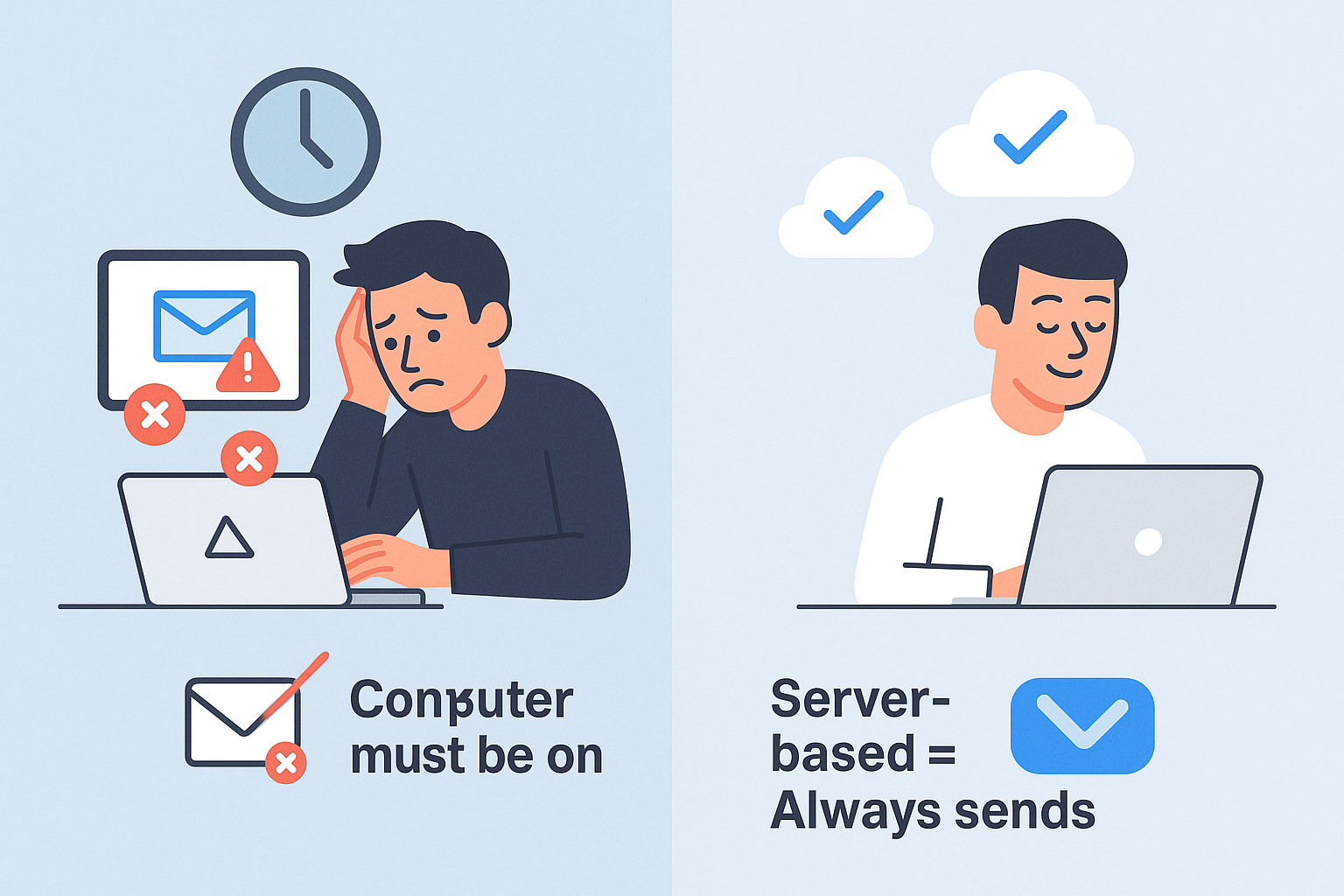
Important note: Your computer and Outlook must be running for the email to send. This is because the email sits in your local Outbox, not on Microsoft’s servers.


Outlook Web App – Using Schedule Send

The web version of Outlook offers a more reliable “schedule send” feature that works even when your computer is off.

Here’s how:

  1. Compose your message in Outlook on the web
  2. Look for the dropdown arrow next to the Send button
  3. Select “Schedule send” from the menu
  4. Pick your time – Choose from suggested times or select “Custom time”
  5. Confirm and send – Your email goes to the Drafts folder with a scheduled delivery time

Pro tip: This method is server-based, so your email will send automatically regardless of whether your computer is on.

Outlook Mobile App (iOS & Android)

The mobile app makes scheduling emails super convenient when you’re on the go.
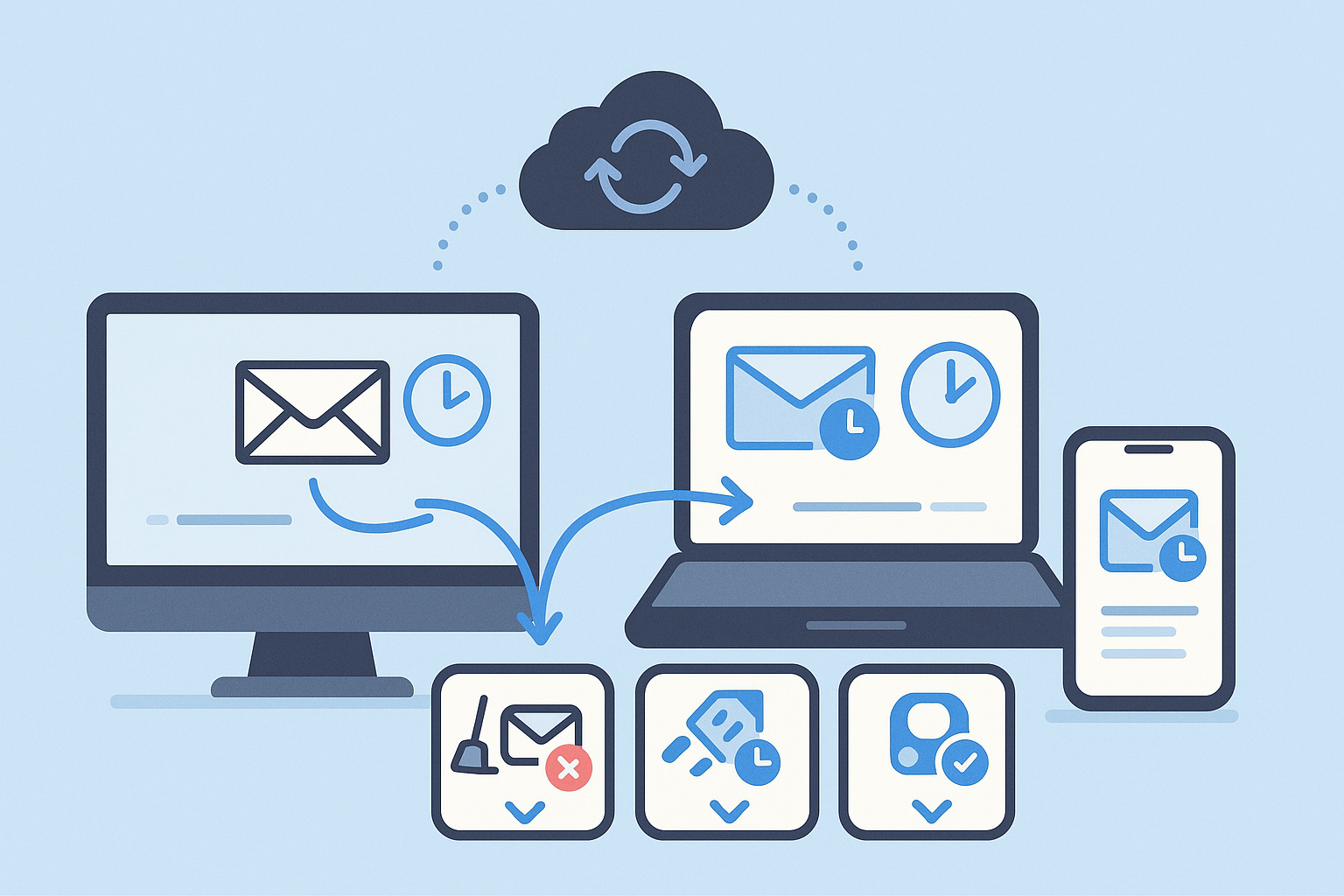


Quick steps:

  1. Create a new email in the Outlook app
  2. Tap the three dots (…) or the schedule icon
  3. Select “Schedule Send”
  4. Choose your time – Pick from defaults or set a custom time
  5. Tap Send – Your email is scheduled and stored in Drafts

Heads up: This feature only works with Microsoft 365 and Outlook.com accounts, not third-party email accounts.

How to Edit Scheduled Emails in Outlook

Changed your mind about that email? No problem. Here’s how to modify or cancel scheduled emails in Outlook.

Finding Your Scheduled Emails

First, you need to know where to look:

  • Desktop Outlook (Delay Delivery): Check your Outbox folder
  • Web/Mobile Outlook (Schedule Send): Look in your Drafts folder

Editing Content and Delivery Time

For Desktop Users:

  1. Open the email from your Outbox
  2. Make your changes to the content
  3. To change timing: Go to Options > Delay Delivery > adjust the time
  4. Click Send to save changes

For Web Users:

  1. Find the email in your Drafts folder
  2. Open it and make your edits
  3. Look for the scheduling banner at the top with an Edit (pencil) icon
  4. Click the pencil to change the delivery time
  5. Click Send to confirm changes

For Mobile Users:

  1. Go to Drafts and tap your scheduled email
  2. Tap Edit to modify content or timing
  3. Tap Send to save your updates

Canceling or Sending Immediately

To cancel: Simply delete the email from Outbox or Drafts
To send now:

  • Desktop: Remove the “Do not deliver before” setting
  • Web: Click the Edit icon and select “Send now”
  • Mobile: Edit the email and change timing to immediate

Common Problems Users Face on Outlook When Scheduling Emails

Even though email scheduling seems straightforward, several issues can trip you up. Here are the most common problems and their solutions.

The “Outlook Must Be Open” Problem

This is the #1 reason scheduled emails fail to send. Here’s what happens:

When you use “delay delivery” in desktop Outlook, your email sits in the local Outbox. If your computer is off or Outlook is closed when the delivery time comes, nothing happens. Your email just sits there waiting.

The statistics are sobering: Studies show that 44% of professionals have missed important deadlines because their scheduled emails didn’t send when expected.

âš¡ Tired of Unreliable Email Delivery?

 LinkedIn outbound reaches decision-makers directly with professional targeting that doesn’t require your computer running 24/7

Solutions:

  1. Use Outlook Web App instead – It’s server-based and 100% reliable
  2. Keep your computer on and Outlook running (not ideal for most people)
  3. Switch to Online Mode in desktop Outlook (but this slows down performance)

Software Glitches and Updates

Sometimes Outlook updates can mess with scheduling features. Quick fixes:

  • Restart Outlook
  • Check for and install updates
  • Send a test scheduled email to yourself

Account Type Limitations

Schedule send doesn’t work reliably with:

  • IMAP accounts (like personal Gmail)
  • POP accounts
  • Some third-party email providers

It works best with:

  • Microsoft 365 accounts
  • Outlook.com accounts
  • Exchange accounts

Time Zone Confusion

Pro tip: Outlook schedules emails based on your computer’s time zone. If you’re traveling or working with international teams, double-check your time zone settings before scheduling.

What Are the Disadvantages of Scheduling Emails in Outlook

While email scheduling is incredibly useful, it’s not perfect. Here are the main limitations you should know about:

Limited Automation Features

Outlook’s native scheduling is pretty basic. You can’t:

  • Set up automatic follow-up sequences
  • Schedule recurring emails easily
  • Track email opens and clicks
  • Personalize bulk emails at scale

📨 Email Scheduling Hitting Limits?

LinkedIn outbound bypasses deliverability issues entirely—complete targeting, campaign design, and scaling built-in

The numbers tell the story: Automated email sequences have 2,361% higher conversion rates than one-off emails. If you’re serious about email marketing or sales, you’ll eventually need more advanced tools.

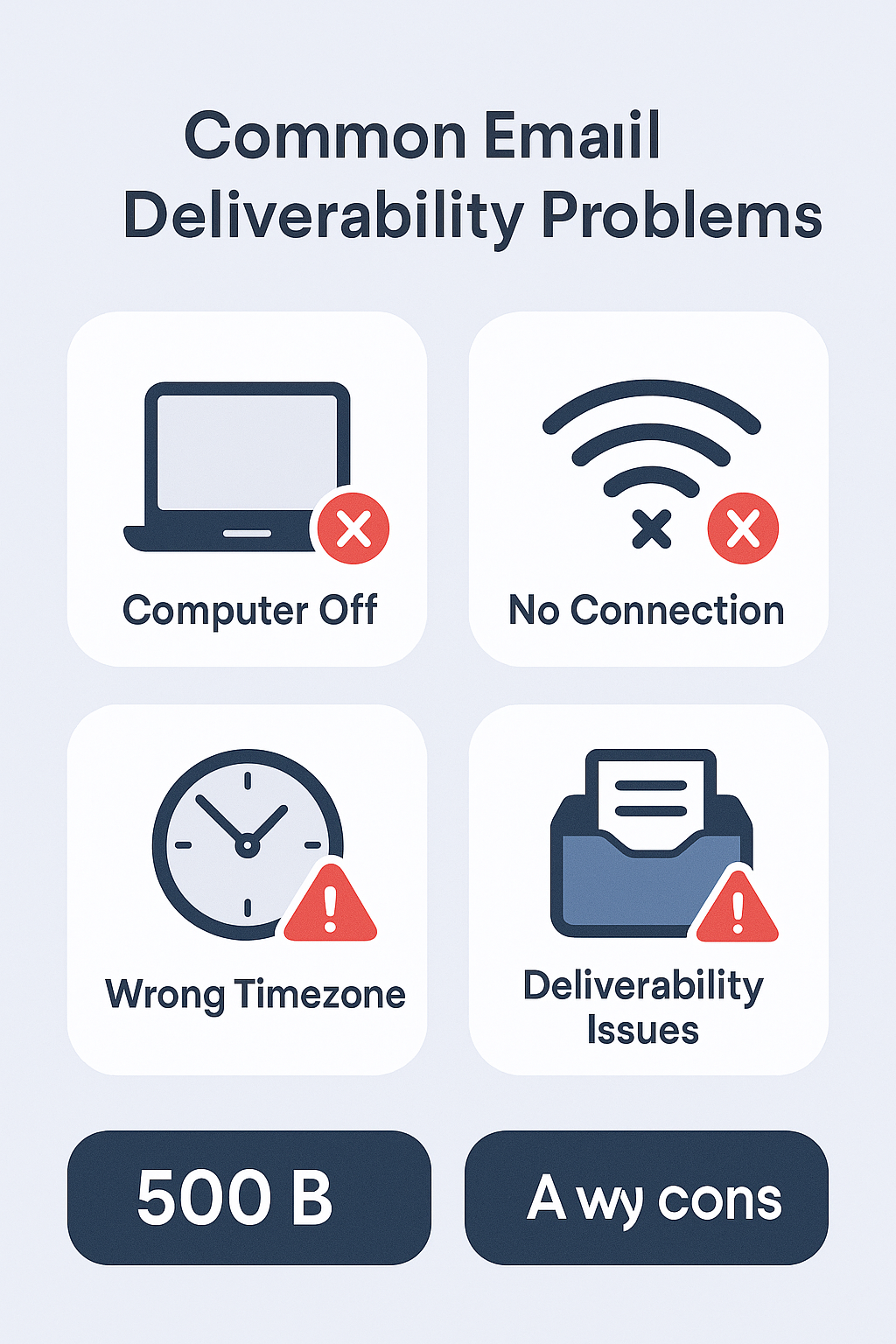
Reliability Issues with Desktop Version

As we covered, desktop Outlook’s “delay delivery” feature is unreliable because:

  • Your computer must stay on
  • Outlook must remain open
  • Network connectivity is required

Research shows that 23% of scheduled emails sent via desktop Outlook fail to deliver on time due to these technical limitations.


No Advanced Analytics

Native Outlook scheduling doesn’t give you insights like:

  • Whether recipients opened your email
  • What time they read it
  • Which links they clicked
  • Whether they forwarded it

For businesses, this lack of data makes it hard to optimize email performance.

Limited Bulk Capabilities

Outlook wasn’t designed for high-volume email campaigns. Sending limits:

  • Microsoft 365: 10,000 recipients per day
  • Outlook.com: 300 recipients per day
  • Exchange: Varies by organization

If you’re doing serious email outreach, these limits will constrain your growth.

📊 Hit Your Daily Email Limits?

LinkedIn outbound scales beyond email restrictions—professional targeting and campaign design that grows with your business

How to Schedule Emails in Outlook for Bulk Sending? (Using Tools)

When Outlook’s native features aren’t enough, third-party tools can supercharge your email scheduling capabilities. Here’s what you need to know.

💼 Scaling B2B Outreach Professionally?

Skip email tools entirely—LinkedIn outbound delivers higher response rates with complete campaign strategy and execution

7-day Free Trial |No Credit Card Needed.

Why Third-Party Tools Matter

The statistics are compelling:

  • Businesses using email automation see 451% increase in qualified leads
  • Automated emails drive 18x more revenue than broadcast emails
  • Companies using advanced email tools grow 6x faster than those using basic methods

Top Tool Categories

For Enhanced Productivity:

  • Boomerang for Outlook – Adds reliable scheduling that works even when Outlook is closed
  • Mixmax – Offers email tracking, templates, and scheduling
  • Mailchimp – Full-featured email marketing with automation

For Sales Teams:

  • Salesso – Complete cold email solution with address finder, warm-up, and automated sequences
  • Yesware – Sales engagement platform with advanced tracking
  • Saleshandy – Email automation and deliverability optimization

Mail Merge for Personalized Bulk Emails

For sending personalized emails to multiple recipients, Outlook’s Mail Merge feature is surprisingly powerful:

  1. Create your email template in Microsoft Word
  2. Set up your contact list in Excel with columns for names, companies, etc.
  3. Use the Mailings tab in Word to connect to your data source
  4. Insert merge fields like <<First_Name>> and <<Company>>
  5. Complete the merge to generate personalized emails

Pro tip: You can combine Mail Merge with delay delivery to schedule your personalized bulk emails.

Advanced Automation Strategies

Multi-Touch Sequences: Research shows 80% of sales require 5+ follow-ups, but 44% of salespeople give up after just one attempt. Automated sequences solve this problem by:

  • Sending initial outreach
  • Following up at optimal intervals
  • Tracking engagement and adjusting timing
  • Personalizing messages based on recipient behavior

Best Practice Timing:

  • Tuesday-Thursday are optimal sending days
  • 9-11 AM gets the highest open rates
  • Follow-ups should be spaced 3-5 days apart
  • “Break-up” emails often get the highest response rates

Key Takeaway

Email scheduling in Outlook is a powerful productivity tool that can transform how you communicate professionally. The key insights:

  1. Use Outlook Web App for reliability – Server-based scheduling beats desktop every time
  2. Timing matters tremendously – The right send time can double your response rates
  3. Native features have limits – For serious email marketing, invest in advanced tools
  4. Automation drives results – Automated sequences outperform manual sending by huge margins

The bottom line: Start with Outlook’s built-in features to get comfortable with email scheduling, then upgrade to advanced tools as your needs grow. Companies that master email timing and automation see 6x faster growth than those that don’t.

Whether you’re sending a simple follow-up or running complex email campaigns, the ability to schedule your messages strategically gives you a significant competitive advantage. Don’t just send emails – send them at exactly the right moment for maximum impact.

FAQs

Can you schedule a recurring email in Outlook?

Not directly. You'll need to create a workaround using Outlook templates and calendar reminders, or use a third-party tool for true recurring email automation.

Does the recipient know an email was scheduled?

No. Scheduled emails appear completely normal to recipients - there's no indication they were sent using scheduling features.

Where do scheduled emails go in Outlook?

It depends on your version: Desktop Outlook stores them in the Outbox, while Web and Mobile Outlook keep them in the Drafts folder.

Do scheduled emails send if my computer is off?

Only if you used Outlook Web App or Mobile App to schedule them. Desktop Outlook requires your computer to be on and Outlook to be running.

Can I schedule emails to distribution lists?

Outlook's native scheduling doesn't support distribution lists or Microsoft 365 groups. You'll need to address individual recipients or use third-party tools.

Stop Fighting Email Deliverability

LinkedIn outbound delivers better response rates without inbox wars or scheduling headaches

Segmentation That Actually Converts

LinkedIn outbound targets precise demographics with strategic campaign design and scaling methods

How to Build a High-Converting B2B Sales Funnel from Scratch on LinkedIn ​