🎉Find Prospects and Send Cold Emails & LinkedIn Outbound | All in One Place

How to Turn Off "Open to Work" on LinkedIn (Step-by-Step Guide)

Table of Contents

So you landed that new role, or maybe you’re just tired of your inbox getting flooded with recruiter spam that doesn’t match what you’re actually looking for.

Either way, there comes a time when you need to turn off that “Open to Work” banner. Your professional image matters, and that green frame might be sending the wrong signal at the wrong time.

This guide covers two things: the 30-second fix to remove it from both desktop and mobile, plus smart optimization tips to keep your profile recruiter-ready without needing the badge.

Let’s get this sorted.

How To Remove Open To Work on LinkedIn

Your 30-Second Fix (Desktop & Mobile)

For those who just want this gone quickly, here are the exact steps.

On Desktop (5 Simple Clicks)

First, access your LinkedIn account on your desktop browser.

Navigate to your profile by clicking “Me” in the top menu, then “View Profile.”

Look for the “Open to work” box directly under your headline and intro section.

Click the pencil icon (Edit) in the top-right corner of this box.

A window labeled ‘Edit job preferences’ will pop up.

Scroll to the very bottom and click “Delete from profile” (shown in blue text).

A final confirmation will appear. Click “Delete” again to permanently remove the work feature.

That’s it. The entire setting is now gone.

On the Mobile App (Just as Fast)

Open the LinkedIn app on your phone.

Tap your profile picture in the top-left corner.

Tap “View Profile” right below your name.

Find the “Open to work” box and tap the pencil icon next to it.

On the ‘Edit job preferences’ screen, scroll all the way to the bottom.

Tap “Delete from profile” and confirm the deletion.

Done. No more open work linkedin banner.


Why Are You Really Turning It Off?

Okay, now that we’ve covered the quick steps, let’s talk strategy.

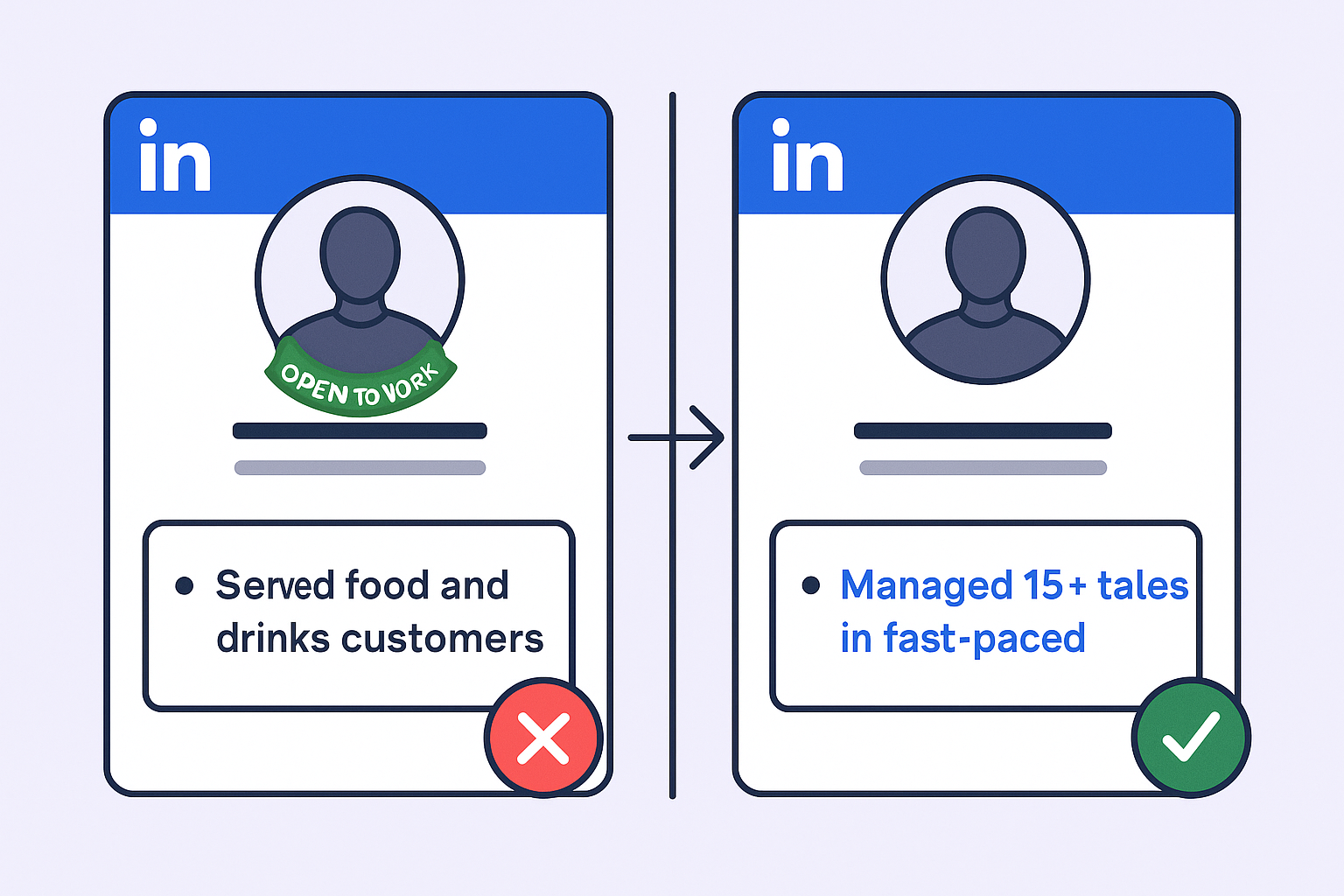
Is the “Open to Work” badge actually hurting your professional image? Here’s what matters.

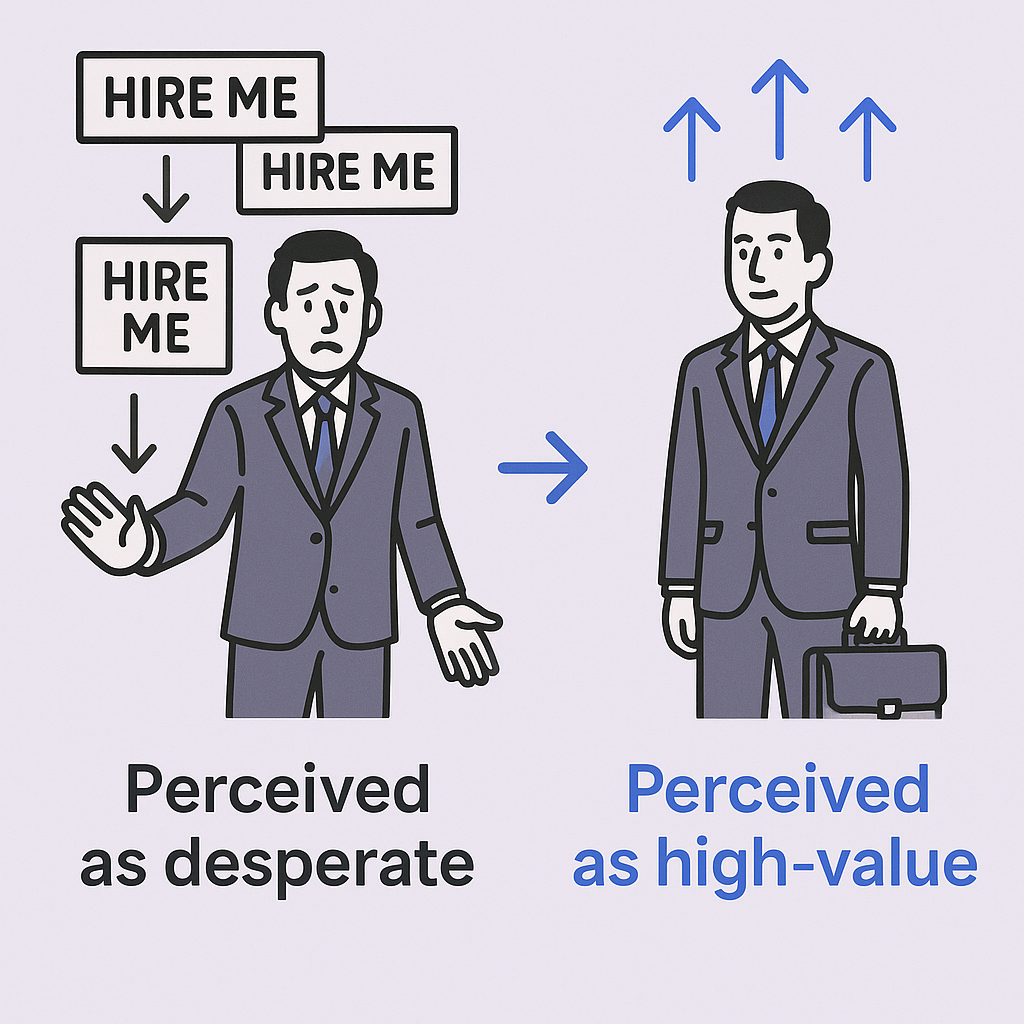
The “Desperation” Factor: Many hiring managers (right or wrong) see that public badge as a sign of desperation or dissatisfaction. When you’re negotiating a competitive salary package, “desperate” is the last impression you want to make. A Reddit thread in r/sales captured this perfectly, with users feeling the badge seemed “unfocused” and suggesting strong candidates don’t need to advertise.


The Other Side: To be fair, the data shows nuance. A 2023 survey found that 91% of hiring professionals said the banner does not deter them from contacting a candidate. And LinkedIn’s own data claims the public frame gets 40% more InMails from recruiters.

But here’s the catch: Are they quality messages? Or just automated spam from third-party recruiters hitting quotas?

The Bottom Line: Top performers are typically poached, not actively searching. Turning off the badge is a power move. It signals you’re a high-value candidate who gets found, not someone desperately looking. You’re a prize to be won, not an asset on clearance.

🎯 Ready to Be the Hunter?

While others turn off “Open to Work,” you can turn on outbound that books qualified meetings

How Do You Remove the #OpenToWork Photo Frame on Your LinkedIn Profile Photo?

The Green Banner vs. The Private Setting: What’s the Difference?

This is critical. There’s a massive difference between the public green frame on your profile picture and the private “Recruiters Only” setting.

Making the wrong choice here could land you in hot water with your current employer.

How to Remove Only the Green Photo Frame

If you want to keep signaling to recruiters privately but just remove the public green banner, here’s how.

Go to your LinkedIn profile.

Click directly on your profile picture.

A pop-up will appear. Select “Frames”.

You’ll see the #OpenToWork frame selected. Choose “No frame” instead.

Click “Apply” or “Save.”

When you do this, LinkedIn will ask who you want your job search status to be visible to. This brings us to the most dangerous option on the platform…

The “Recruiters Only” Setting: A Massive Gamble?

This is the “secret” option. The pitch sounds great: you get all the benefits of the open work feature (showing up in recruiter filters) with none of the public-facing downside.

The Pitch: LinkedIn claims this will hide your status from your current company and only show it to people using a LinkedIn Recruiter license.

THE CRITICAL WARNING: LinkedIn cannot and does not guarantee 100% privacy. Multiple sources explicitly state that recruiters at your own company or third-party agency recruiters working for your company could still see your status.

Think about it logically. Can you really trust a platform to perfectly wall off your data from its highest-paying Recruiter-level customers? It’s a massive risk.

Real-World Example: People on platforms like Bravado and Reddit constantly debate this. One user mentioned their COO made a “burner” account to track employee job searches. Another pointed out that even if it sparks a conversation with your boss, it could lead to a raise—but do you want that conversation happening on their terms?

The Verdict: For employed professionals, the “Recruiters only” setting is a high-risk gamble. The only 100% safe option is to delete the feature entirely.

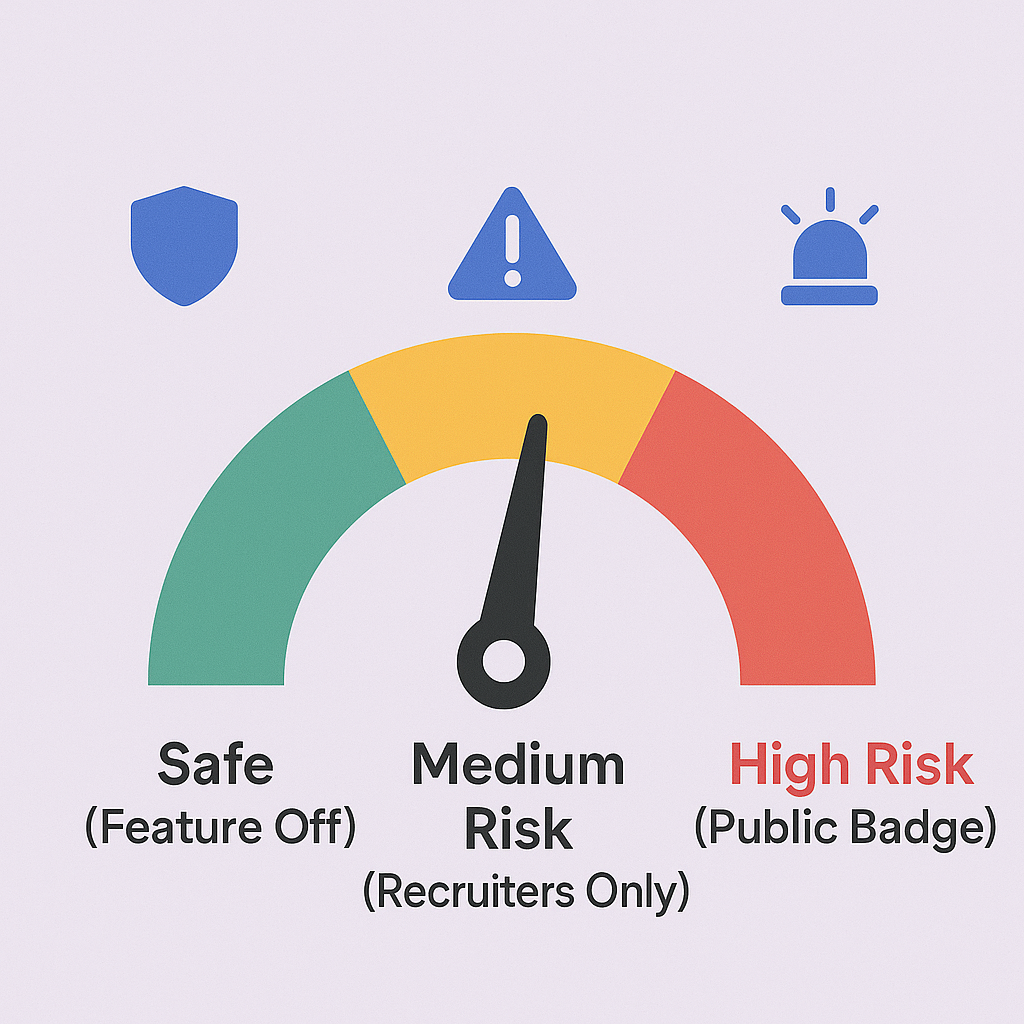
“Open to Work” Visibility: Quick Risk Assessment

Here’s a simple breakdown to make the right call in 5 seconds:

Setting

What It Is

Who Sees It

Risk Level

Public Badge (Green Frame)

The public #OpenToWork frame on your picture

Everyone: Your boss, co-workers, clients, and all recruiters

CRITICAL (Avoid unless unemployed)

Recruiters Only (Private)

A private signal visible only to users with a LinkedIn Recruiter license

Recruiters only. However, this could include recruiters at your own company or third-party firms they hire

MEDIUM/HIGH (Risky gamble)

Feature Off (Disabled)

Your preferences are completely deleted

No one

NONE (The Safe Choice)


Want to Optimize Your LinkedIn Profile?

💼 Optimize Beyond Your Profile

Let us handle targeting, campaign design, and scaling while you focus on closing deals

Okay, so you’ve turned off the badge. Smart move.

Now, how do you attract those high-paying opportunities without it? By turning your LinkedIn profile into a passive lead-generation machine.

Think of your profile not as a resume, but as a landing page. Here’s how.

Your Headline is Your 10-Second Pitch (Not Your Job Title)

The default headline “Account Executive at Company X” is a wasted opportunity. It’s like a coffee shop sign that just says “Coffee Served Here.”

You need specifics.

Use this formula: [Role] | [Value Proposition] | [Key Achievement/Skill]

Bad Example: “Business Development Representative at XYZ Corp”

Good Example: “Sales Professional | Driving Pipeline Growth for B2B SaaS | 50+ Qualified Leads per Quarter | Cold Outreach Expert”

Another Good Example: “Revenue Leader | Helping FinTechs Scale ARR | 120% Quota Attainment | B2B Sales & Negotiation”

This approach works because 87% of recruiters use LinkedIn to source candidates—and they’re searching for specific skills and results, not job titles.

Your “About” Section is Your Personal Sales Letter

Most people write this in the third person (“John is an experienced…”). Don’t.

Speak directly to the recruiter in a conversational tone.

Structure it like you would structure a cold email:

Hook (First 2 lines): Start with your value proposition. The first two lines are all anyone sees before clicking “see more.” Make them count.

Example: “For 5 years, I’ve been helping companies in the SaaS space solve their pipeline generation challenges.”

Proof (Bullet points): Use metrics. This is the one place you must brag.

  • “Generated $1.5M in new pipeline”
  • “Doubled client retention from 45% to 90%”
  • “Consistently hit 115%+ of quota”

Specialties (Keywords for the algorithm): “My expertise includes: Lead Generation, Salesforce, B2B Sales, Cold Emailing, Contract Negotiation, Account Management.”

Call to Action: “Want to talk pipeline or strategy? Message me here.”

Skills & Endorsements That Matter (Not ‘Microsoft Word’)

The “Skills” section is purely for the LinkedIn search algorithm. You need to load this with exact keywords recruiters filter for. You get 50 slots—use them.

Pin your top 3 skills. These should be:

  • Lead Generation
  • Salesforce (or your primary CRM)
  • Negotiation

Other high-value skills to add: Relationship Building, Client Relationship Management, Lead Prospecting, Product Knowledge, Business Analysis, Cold Emailing, B2B Sales, Artificial Intelligence (a new high-demand skill in 2024/2025), Adaptability, Emotional Intelligence.

The Real “Open to Work”: How to Signal Interest Without the Badge

 Use LinkedIn for Business Growth

Professional outbound that reaches decision-makers with 15-25% response rates—no spam, no automation risks

Now your profile is optimized. How do you get seen?

Engage with content: Follow your target companies and industry leaders. Leave insightful comments on their posts (not just “great post!”). This makes you visible to hiring managers in your target space.

Reach out directly: If you want to work at a company, find the hiring manager and send a personalized connection request. Think of social selling principles—treat your job search like you’d treat your #1 sales account.

This is the power move. 70% of the global workforce is passive, and that’s the pool every recruiter wants to hire from. They want the person who isn’t actively looking.

Conclusions

📈 Turn LinkedIn into Revenue

Complete done-for-you outbound campaigns that deliver qualified meetings, not just profile views

7-day Free Trial |No Credit Card Needed.

Let’s wrap this up with the key takeaways.

Recap 1: Turning off the feature is easy. On desktop or mobile, just go to the ‘Open to work’ box on your profile, click the pencil, and hit ‘Delete from profile.’

Recap 2: The green banner on your picture is separate. You can remove it by clicking your photo > ‘Frames’ > ‘No Frame.’

Recap 3 (The Big Warning): We strongly advise against using the ‘Recruiters Only’ setting. It is NOT 100% private. Your current employer could see it. The only safe move is to delete it entirely.

Recap 4 (The Strategy): Top performers attract opportunities; they don’t advertise for them. Your best strategy is an optimized profile that acts as a magnet for high-quality recruiters and opportunities.

FAQs

Can my boss really see if I set "Open to Work" to "Recruiters Only" in 2025?

Yes, it's possible. LinkedIn tries to block recruiters at your current company, but their system isn't foolproof. It also likely doesn't block third-party agency recruiters your company might hire, which is a massive blind spot. The only 100% private option is to delete the setting.

Does the "Open to Work" badge look desperate or unprofessional?

It's debatable. Data from 2023 showed 91% of hiring professionals aren't deterred by it. However, in competitive industries and high-stakes roles, perception is reality. Many hiring managers feel it signals desperation and weakens your negotiating position. Why risk it?

Will I get fewer job offers if I turn off the feature?

You'll get fewer low-quality, automated InMails. The public badge is a magnet for spam. While LinkedIn data shows the public frame gets 40% more InMails, it doesn't measure the quality of those messages. Top performers get contacted because of their track record and optimized profile, not a green badge.

Can I try LinkedIn Premium for free?

Yes, eligible LinkedIn members can typically try LinkedIn Premium with a 30-day trial. This allows feature exploration before committing to a LinkedIn Premium subscription.

How do I turn "Open to Work" back on?

It's easy and you can do it anytime. If you're back on the market, just go to your profile, click the 'Open to' button (which appears below your intro), select 'Finding a new job,' and set your preferences again.

Stop Job Hunting, Start Lead Hunting

Turn your LinkedIn profile into a B2B outbound engine that books 15-25% response rate meetings

Segmentation That Actually Converts

LinkedIn outbound targets precise demographics with strategic campaign design and scaling methods

How to Build a High-Converting B2B Sales Funnel from Scratch on LinkedIn ​