

🎉Find Prospects and Send Cold Emails & LinkedIn Outbound | All in One Place

The 2025 Guide to LinkedIn Contact Sync (The Answer You Actually Need)

Table of Contents

Stop copy-pasting. Here’s how to really sync LinkedIn with your workflow—from CSVs to full CRM integration.

Let’s be honest. You want your contacts and LinkedIn to talk to each other. You Google “linkedin contact sync” hoping for a simple solution, but instead find outdated articles, confusing forum posts, and no clear answer.

Here’s what you need to know: The term “LinkedIn Contact Sync” means different things to different people. The automatic sync feature you might remember was removed years ago for privacy reasons (GDPR compliance).

When people search for this, they usually mean one of three things:

The Find-My-Friends Sync: “I want to sync my Gmail/Outlook address book to find people I know and grow my network.”

The Upload-a-List Sync: “I have a CSV file of prospects, and I want to upload them to LinkedIn.”

The Stop-Manual-Entry Sync: “I’m sick of copy-pasting messages and notes into my CRM. I want automatic sync.”
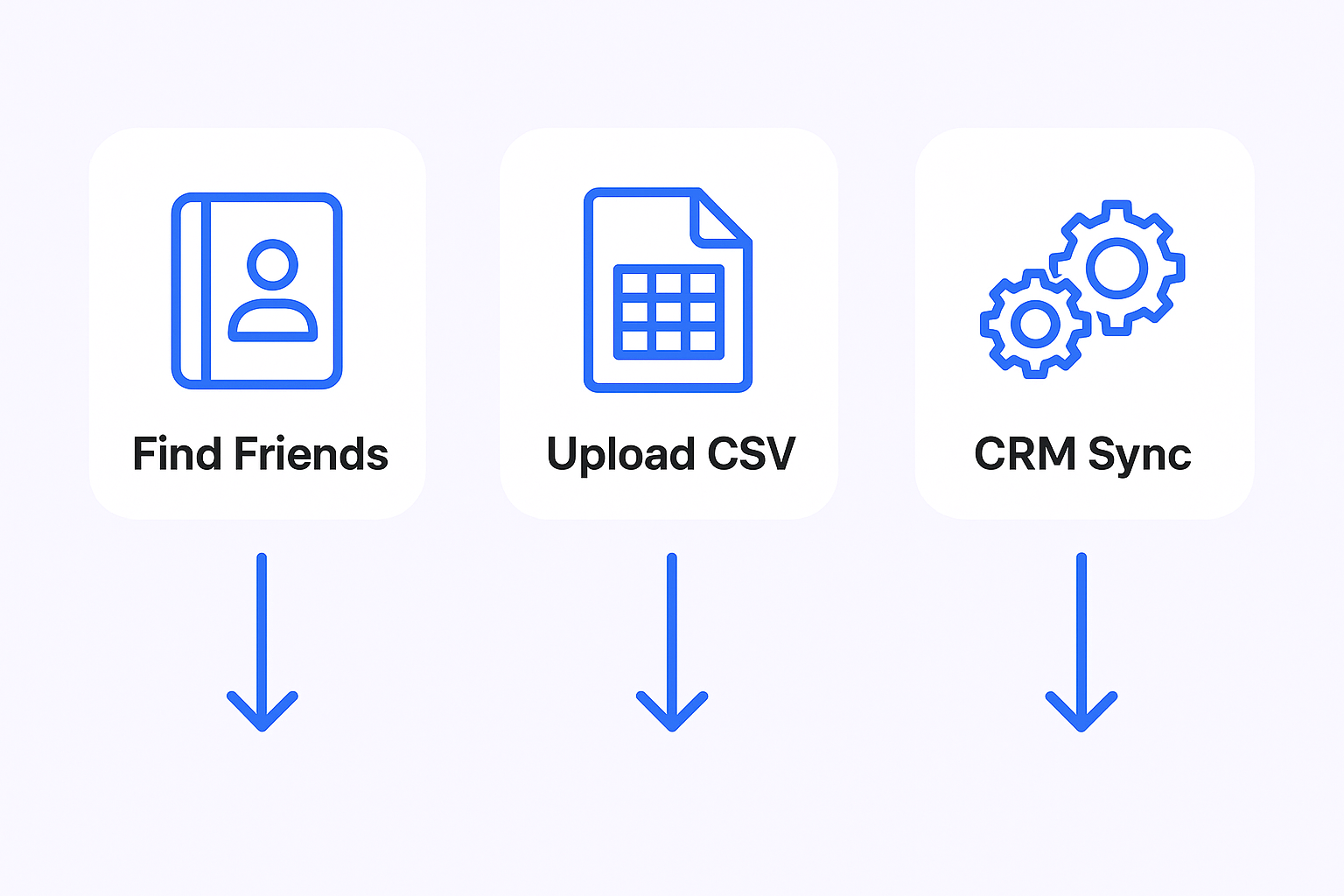


For 99% of people in sales, the answer you want is #3—the high-value CRM Sync available through LinkedIn Sales Navigator Advanced Plus.

Why This Matters for Your Sales Process

78% of salespeople engaged in social selling are outselling their peers who aren’t. But social selling doesn’t work if you’re buried in admin tasks.

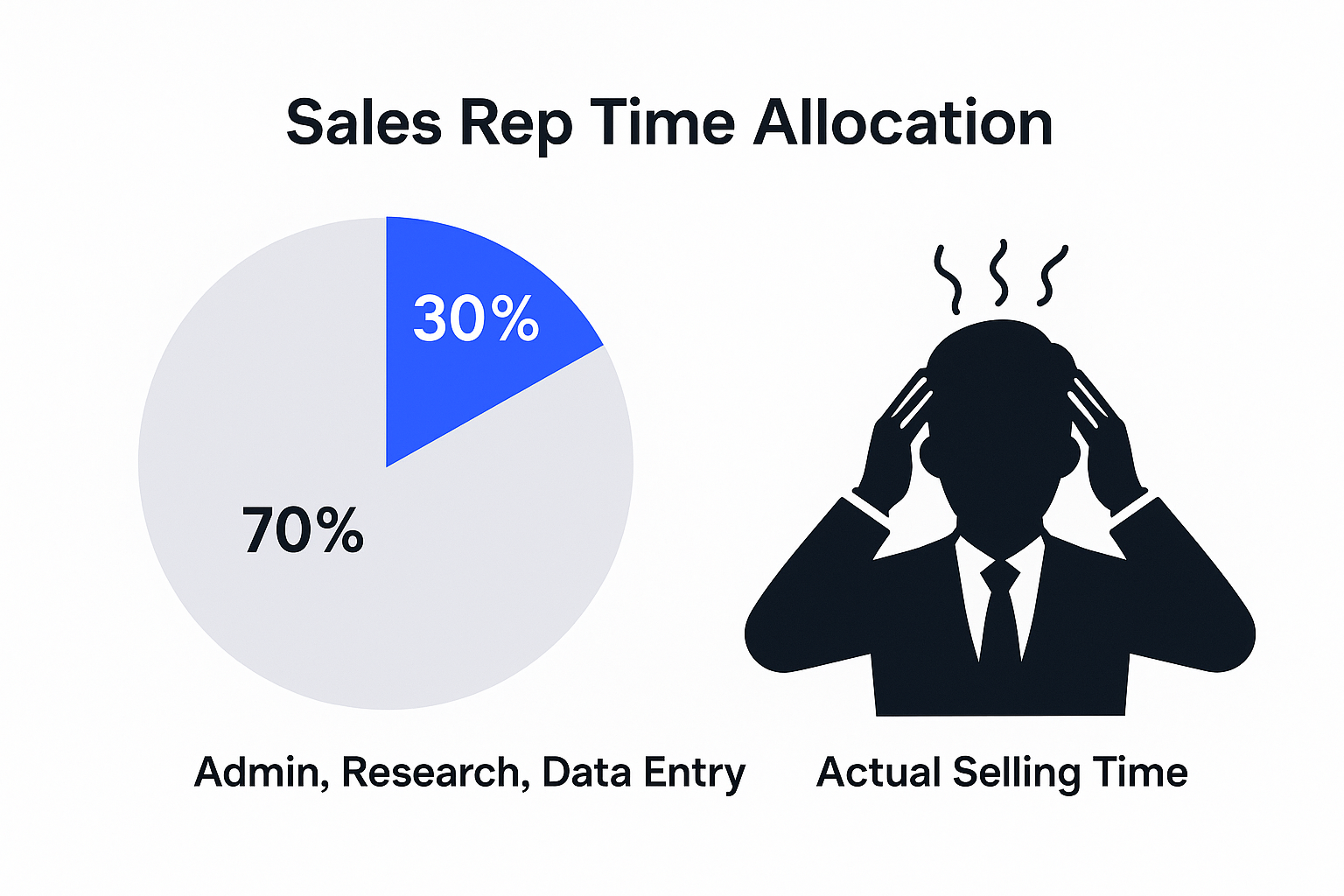
According to Salesforce, sales reps spend only 30% of their time actually selling. The other 70% is admin, research, and data entry.
 

⚡ Eliminate 70% Admin Work Instantly

Our done-for-you LinkedIn outbound handles targeting, campaigns, and follow-ups—you just close deals

This guide helps you claw that time back.

Quick Reference: Which LinkedIn Sync Do You Need?

Your Goal → The Method → Who It’s For

“Find people from my email contacts” → Address Book Upload → Everyone building their network

“Upload a CSV list to LinkedIn” → CSV Import → Anyone with a list from events or webinars

“Stop copy-pasting to my CRM” → Sales Navigator CRM Sync → Sales professionals needing workflow efficiency

“I see an error about ‘linkedin contact synchronization is disabled'” → IT Admin Setting → You can safely ignore this

Step-by-Step Guide to Syncing Contacts from Email to LinkedIn

Method 1: The “Old” Sync – Syncing Your Gmail/Outlook Address Book (The 2025 Way)

What It Is: A manual, one-time upload of your contacts. LinkedIn removed the automatic scanning feature years ago for privacy reasons.

When to Use It: When you first join LinkedIn or got a new job and want to quickly add colleagues and clients.

How to Do It:

LinkedIn hides this feature, so follow these steps carefully:

  1. Log in to LinkedIn on your desktop (harder to find on mobile)
  2. Click the “My Network” icon in the top navigation
  3. Look for “Add Connections” or “Connections” on the left side
  4. Find the small link labeled “More options” or “Import File” (usually on the right side)
  5. Click “Upload a file”
  6. Choose your contact file (first export from Gmail, Outlook, or your phone)
  7. LinkedIn accepts .csv, .txt, and .vcf files
  8. Click “Upload file”

What Happens Next: LinkedIn processes your file and shows you everyone who has a LinkedIn profile. It won’t automatically send connection requests—you’ll go through and click “Connect” one by one.

Method 2: How to Upload a CSV of Prospects

What It Is: Same process as Method 1, but your intent is different. This is about uploading a curated list of prospects.

Why People Do This:

  • Post-Event: You have 500 webinar attendees
  • Data Provider: You bought a sales prospecting list and want to connect on LinkedIn

The Steps: Follow the exact same path as Method 1 above.

Critical Warning:

Do NOT upload 5,000 strangers and spam “Connect.” This is the fastest way to get your LinkedIn account restricted.

Best Practice: Your connection request acceptance rate matters. Always add a personalized note.

🎯 Professional LinkedIn Outbound Done Right

Get 15-25% response rates with verified targeting and proven campaign design—without risking your account

Pro-Tip: Instead of just connecting, use this list to engage first. Follow them, comment on their posts, then send a personalized connection request. Never pitch in the first message—it’s about relationship building.

Method 3: The Real Sync – Connecting LinkedIn Sales Navigator with Your CRM

This is the one. This is what you were really looking for.

What It Is: Native API-level integration connecting LinkedIn Sales Navigator directly to your CRM (Salesforce, HubSpot, or Microsoft Dynamics). This logs your sales activities and enriches your CRM data automatically.

The “Price of Admission”:

This is NOT a free feature. You must have LinkedIn Sales Navigator Advanced Plus to get native crm sync.

This is critical information. Stop wasting time looking for free solutions. Now you have a specific ask for your manager: “To eliminate manual data entry, we need to upgrade our Sales Nav plan.”

The Top 3 Benefits (Why It’s Worth It)

Kills Manual Data Entry: The magic “Writeback” feature. Automatically log your InMails, messages, and notes to the correct Lead or Contact record in your CRM. Send an InMail, check the “Copy to CRM” box, done. No more alt-tabbing and copy-pasting.
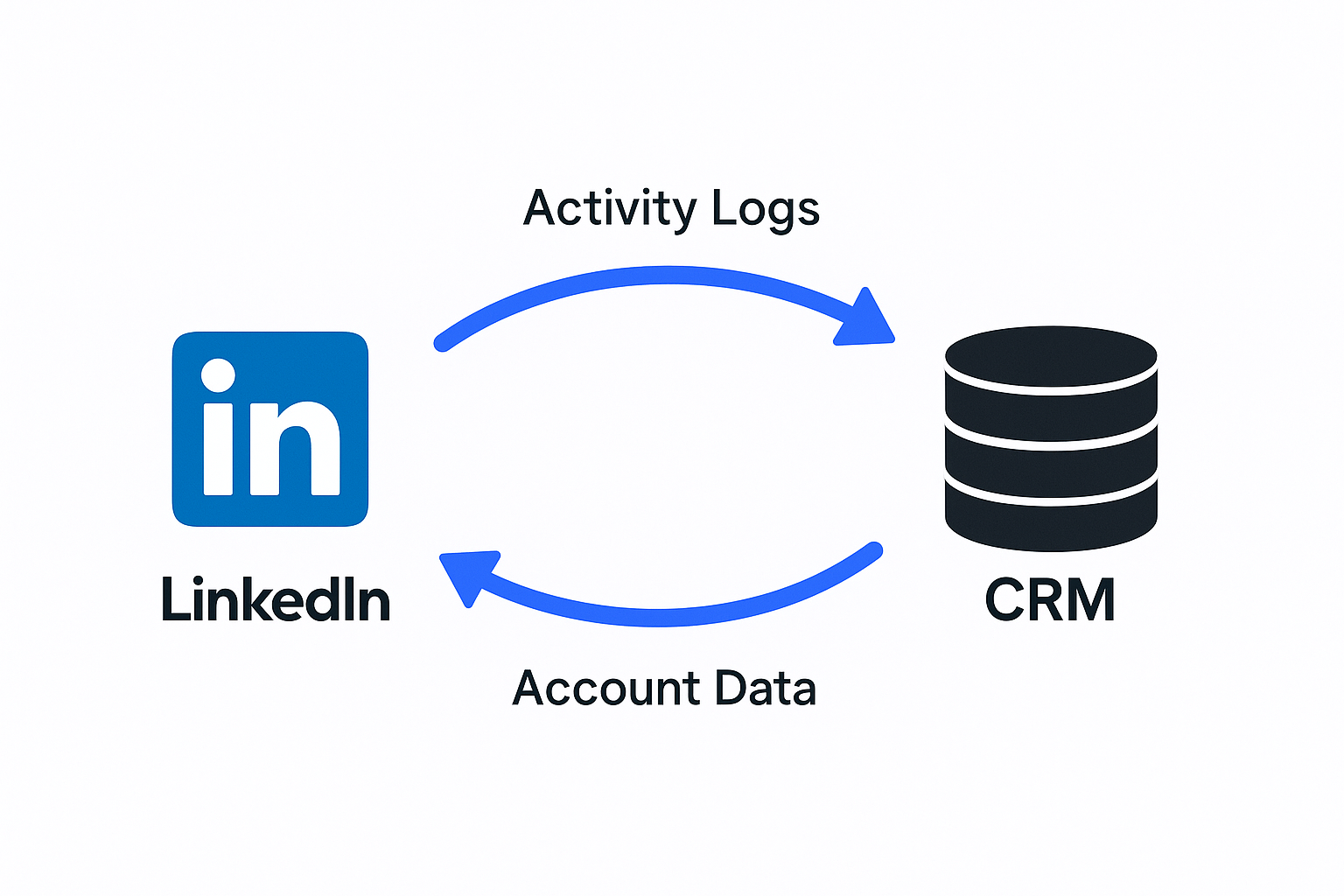


Brings Your CRM to LinkedIn: The sync is bi-directional. Pull CRM data (deal status, contact owner, at-risk opportunities) and display it inside Sales Navigator. See if a prospect is already in your CRM without leaving LinkedIn.

Saves Time & Automates Workflows: Automatically imports and saves accounts and contacts associated with open opportunities in your CRM, flagging them in Sales Navigator. Stay on top of your most important accounts.

🚀 Skip Setup, Get Qualified Meetings

 We handle complete LinkedIn outbound execution—targeting decision-makers, running campaigns, booking your calendar with prospects

How to Set It Up (2-Part Process)

This is where people fail. You can’t just turn this on yourself. Your Admin does Part 1 first.

Part 1: What Your Admin Does

Your admin (who needs Super Admin rights in both CRM and Sales Nav) handles the initial install.

For Salesforce: Install the Sales Navigator app from AppExchange and authenticate the connection.

For HubSpot: Go to HubSpot Marketplace, find “LinkedIn CRM Sync” app, click “Install app,” and authenticate.

Part 2: What You Do After Admin Enables It

Once your admin gives the all-clear:

  1. Go to your LinkedIn Sales Navigator homepage
  2. Click your profile picture → “Settings”
  3. Find the “CRM Settings” section
  4. You’ll see your CRM (HubSpot, Salesforce, etc.)
  5. Click “Connect to CRM”
  6. Dialog box appears—click “Establish Connection” and follow login prompts

That’s it. Your account is linked. You’ll see “Copy to CRM” checkboxes on InMails and profile pages.

What if I Don’t Have Sales Nav Advanced Plus? (The “No-Budget” Alternative)

Your boss won’t pay for the upgrade. You’re not stuck—just be smarter about your process.

Option 1: Third-Party Tools (The “Overlay” Method)

Use tools like Apollo, Uplead, Kaspr, or ZoomInfo. These Chrome extensions live on top of LinkedIn and let you find contact info and push it to your CRM. Powerful but work by scraping data, which can violate LinkedIn’s terms of service.

Option 2: The “Clean Workflow” (The Pro Method)

The safest, most professional approach separates your prospecting from your outreach:

  • Prospecting: Use basic Sales Navigator to build lists
  • Data: Use a trusted data provider like Salesso to find verified email addresses for those prospects
  • Outreach: Run your cold email campaigns (using verified data) and social selling (LinkedIn comments, follows, DMs) in parallel
  • Admin: Yes, some manual copy-pasting. But your data is clean, outreach is targeted, and you won’t risk getting banned

Looking for verified contact data? Salesso provides accurate email addresses to power your outbound campaigns while keeping your LinkedIn activity clean and compliant.

💼 Or Let Experts Handle Everything

Our LinkedIn outbound engine delivers 15-25% response rates vs email's 5-8%—complete targeting, campaigns, and scaling included

7-day Free Trial |No Credit Card Needed.

Conclusion: Stop “Syncing,” Start Selling

The magic button for contacts sync doesn’t exist. The real solution is a mindset shift.

For Budget-Conscious Teams: If you don’t have Advanced Plus, focus on a clean, repeatable process. Build lists in Sales Nav, use high-quality data providers for verified emails, and manage outreach with discipline.

For Professional Sales Teams: The CRM Sync for LinkedIn Sales Navigator is the answer. It’s the only way to eliminate manual data entry and get time back. Send this article to your manager and request Advanced Plus.

No matter which method you use, your workflow is only as good as the data you put into it. A synced CRM full of bad data is still a mess.

Start with clean, verified contact information. It’s the foundation for every successful outreach campaign—whether cold email or LinkedIn InMail.

FAQs: Your Other Burning LinkedIn Contact Sync Questions

I see the error "linkedin contact synchronization is disabled" in Office 365 Outlook. How do I fix this?

Short Answer: You don't. You can safely ignore this error. Long Answer: This isn't a bug. It's a security setting your IT admin purposely enabled. This setting only controls the old, deprecated address book sync (Method 1). Because features like Facebook contacts sync could lead to "information leakage," security auditors instruct companies to turn it off. Your IT admin likely ran a PowerShell command to disable linkedin contact sync office 365.

How do I export my LinkedIn connections to a CSV?

Easy and great for backing up your network: Click your "Me" icon (profile picture) → "Settings & Privacy" Go to "Data Privacy" tab Click "Get a copy of your data" Select "Want something in particular?" and check "Connections" Click "Request archive" LinkedIn emails you a CSV link in about 10 minutes. Heads-up: This file won't contain email addresses unless your connections explicitly allowed this in privacy settings (99% haven't). It's for backing up your network, not collecting emails.

How does LinkedIn Premium help me stand out to recruiters?

LinkedIn Premium Career helps you stand out by allowing "Featured Applicant" applications and marking jobs as "Top Choice," making you 43% more likely to receive recruiter responses. InMails to hiring managers help bypass traditional application channels.

Can I try LinkedIn Premium for free?

Yes, eligible LinkedIn members can typically try LinkedIn Premium with a 30-day trial. This allows feature exploration before committing to a LinkedIn Premium subscription.

Is the "Who's Viewed Your Profile" feature truly useful?

Yes, seeing who has viewed your profile acts as a warm lead indicator. Proactively reaching out to these individuals can significantly increase engagement chances, as prospects are 86% more likely to accept an InMail if you view their profile first.

Stop Syncing, Start Converting

Get 15-25% response rates with complete LinkedIn outbound—targeting, campaigns, and scaling done for you

Segmentation That Actually Converts

LinkedIn outbound targets precise demographics with strategic campaign design and scaling methods

How to Build a High-Converting B2B Sales Funnel from Scratch on LinkedIn ​